What you'll build
A live autopilot campaign in about 15 minutes: audience → goal → content source → sender → approve → launch. Before you start, you'll want a connected (ideally warming) mailbox and some credits: see Getting Started: Your First-Run Checklist if you haven't done that yet.
Create the campaign & name it
Start a new campaign, pick Autopilot, and give it a Campaign name. The builder's progress indicator tracks which required and optional components are still missing as you go.
Source your audience with AI Leads
Open the Contact Harvester node and pick AI Leads. Save to a list and describe your ideal customer in plain language (up to 250 characters): this fills the Target audience requirement. For the full deep dive see How to Use AI Leads to Source Contacts.
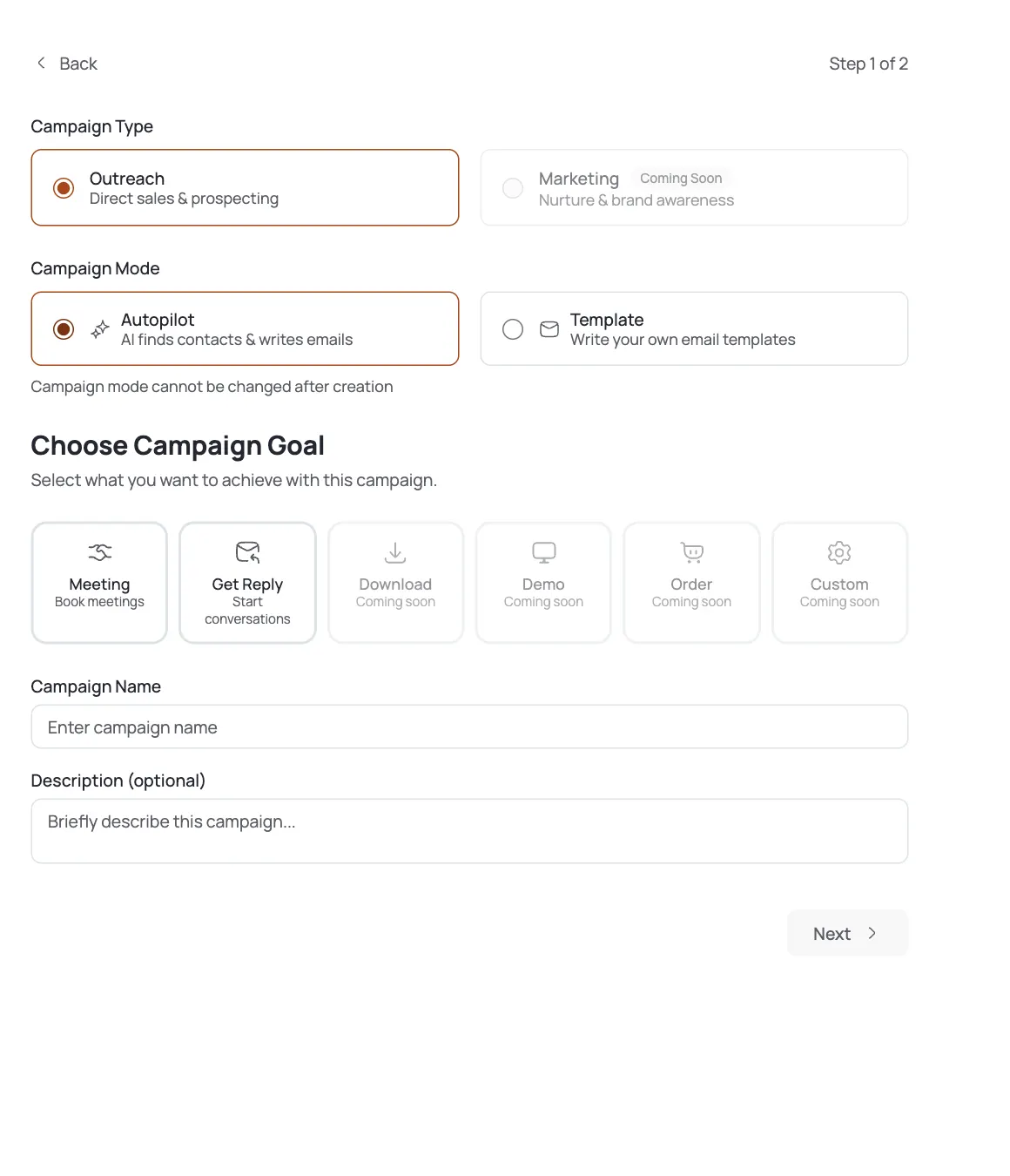
Set the campaign goal
Choose what a reply should achieve: for example, booking a meeting or simply getting a reply. This satisfies the Campaign goal requirement.
Pick the email content source
Choose how emails get written: AI SDR autopilot drafting, or a template you write yourself. This satisfies the Email content source requirement. Keep it to the fast default for your first run.
Assign a sender email account
Attach the warmed mailbox that will send this campaign. This satisfies the Sender email account requirement: one sender is enough to launch.
Set the approval flow
Choose review-then-send or auto-send so the Approval flow requirement is valid. For a first run, reviewing the first batch before it goes out is the safer choice.
Save, Test, Launch
Click Save, then Test Workflow, then the green Launch button. If launch is blocked you'll see a
Missing: …message naming the unfinished required item: fix it and try again. Once live, the same button becomes Pause, and you can Resume anytime.
Pro tips
Only six things gate a launch
Campaign name, goal, audience, content source, sender, and approval flow. Knowledge base, tracking domain, and timezone are optional: skip them for your first run.
The button walks you through it
Save → Test Workflow → Launch, in that order. You can't launch until Test passes, so a failed test is the app telling you something's incomplete.
Read the Missing label literally
A blocked launch shows Missing: <label>: that names the exact required component that's still empty.
One warmed mailbox is enough
You don't need a big sender pool on day one. Add more mailboxes later to scale volume once this campaign is running.
Frequently asked questions
What's the absolute minimum to launch a campaign?
Six required components: Campaign name, Campaign goal, Target audience, Email content source, Sender email account, and Approval flow.
Do I need a knowledge base or tracking domain first?
No: both are optional and non-blocking, though a knowledge base does improve draft quality.
Why is the Launch button disabled, or why did Launch fail?
A required component is missing (the Missing: … message names it) or Test Workflow hasn't passed yet.
What does Test Workflow do?
It validates the campaign before you go live. You must run it on a draft before Launch becomes usable.
Can I pause a running campaign?
Yes: the same action button becomes Pause once active, and Resume once paused.
How do I get an audience if I have no list?
Use AI Leads in the Contact Harvester node: see How to Use AI Leads to Source Contacts.
Do I need more than one mailbox?
No, one warmed sender is enough to launch. Add more mailboxes later to scale send volume.
How long until emails actually send?
After launch, sends follow the smart schedule: make sure the mailbox is warmed and the workspace has credits.