Decide the topology: one org, one workspace per client
An organization owns billing and members; a workspace is an isolated sending environment inside it (its own mailboxes, campaigns, contacts, and knowledge bases. For an agency, give each client its own workspace under one shared org. Reserve a second organization only for a client whose billing or ownership truly must be separate) ten clients as ten workspaces is manageable; ten orgs is a billing headache you don't need. See Manage Organizations & Workspaces.
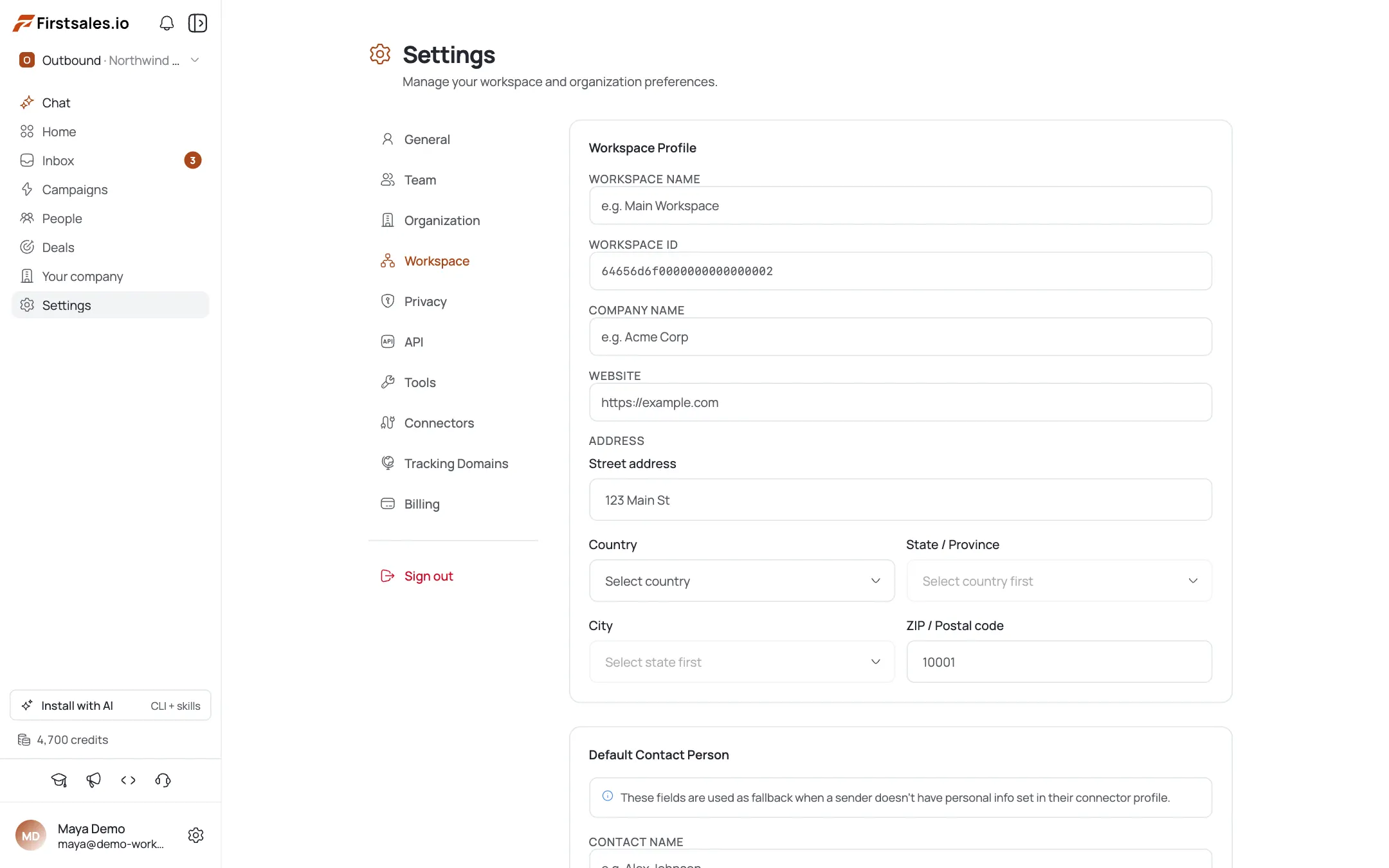
Create a workspace for the first client
Use the switcher in the sidebar and choose Create workspace. Set its profile, and configure the workspace's Default Contact Person: the sender fallback so drafts always have a sane “from” identity even before you've picked a specific sender.
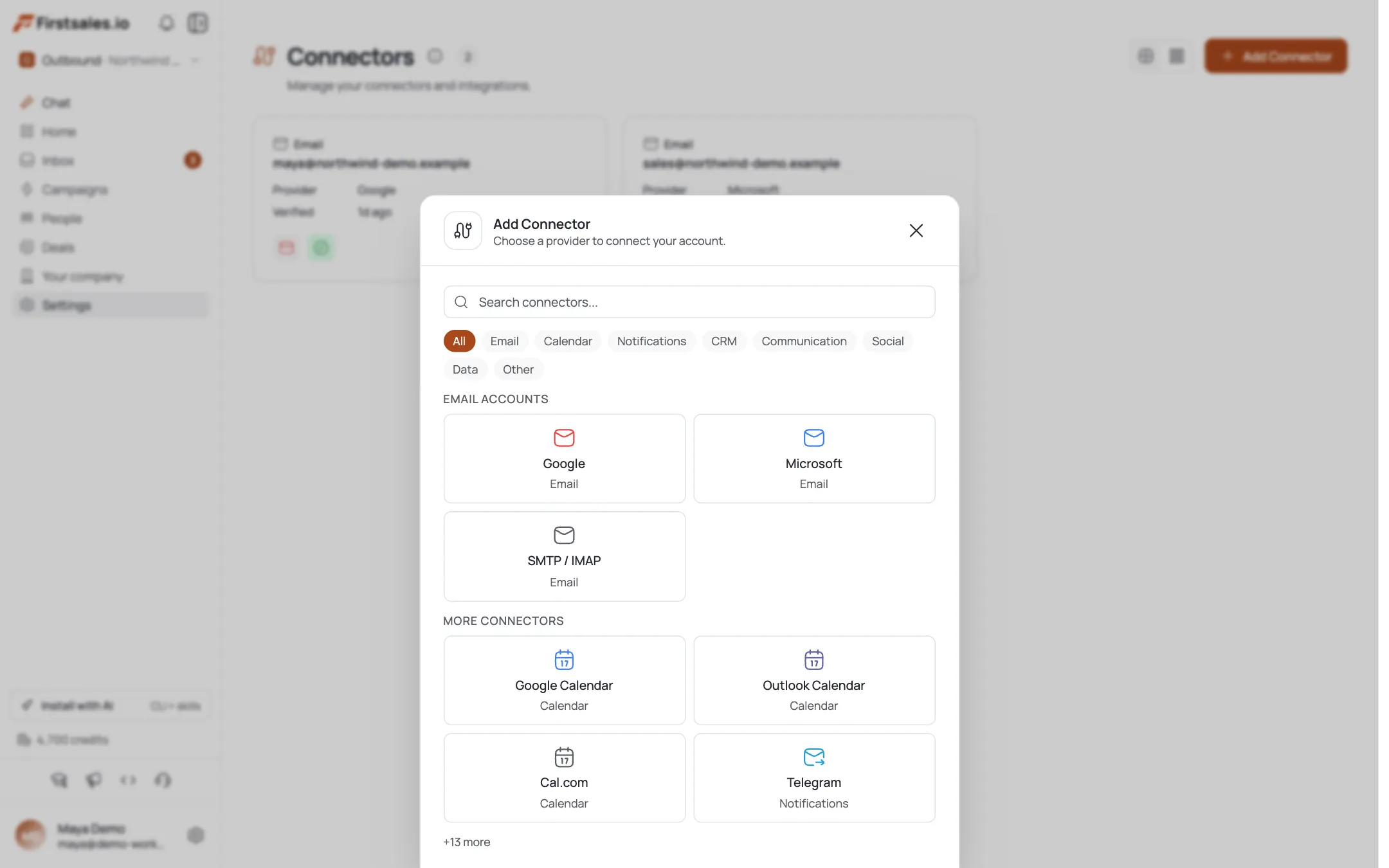
Connect and warm that client's own mailboxes
Inside the client's workspace, go to Connectors → Add Connector and connect mailboxes on that client's own sending domain. Toggle on Email Warmup for each. Never reuse a mailbox across clients: mixing sending domains mixes reputations and, worse, mixes one client's data into another's sends. See Connect a Mailbox and Email Warm-up Setup.
Design least-privilege access with permission groups
Open Settings → Team → Groups. Beyond the five built-in roles (owner/admin/manager/member/viewer), create a custom group for slices they don't cover: e.g. a “Client SDR” group that reads campaigns and reads/writes contacts, with no billing or team access. You can only grant permissions you hold yourself (the creator ceiling). See Roles & Permission Groups.
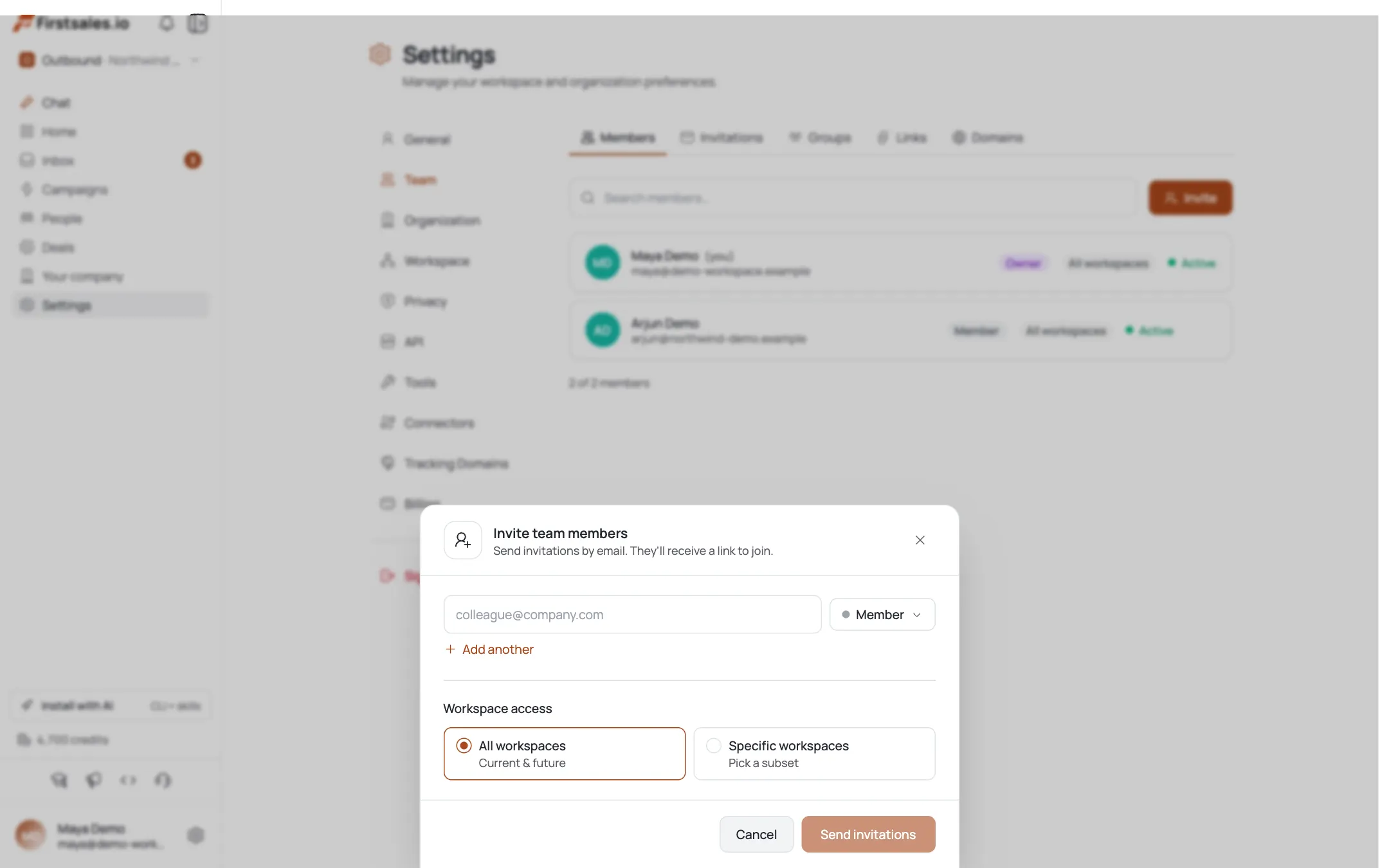
Invite the team and scope each person to their client(s)
On Settings → Team → Invitations, add each teammate's email, assign a role (and custom group if needed), and (critically) set workspace access to only the client workspaces that person actually manages, not “All workspaces.” This is what keeps a contractor on client A from ever seeing client B.
Onboard at scale with invite links or a domain allowlist
For your own staff joining across many clients, typing every invite is slow. Use the Links tab for a capped/expiring join link, or the Domains tab so anyone signing up with your company's email domain auto-joins up to a max role (member, viewer, or manager: never admin). See Invite & Manage Team Members.
Run each client's campaigns inside its workspace
Build each client's outreach (typically an Autopilot → Meeting campaign) from inside their workspace. Contacts, knowledge bases, offerings, and campaign history all stay isolated to that workspace, so nothing from client A leaks into client B's contact list or drafts. See Create an Autopilot Meeting Campaign.
Report per client and manage the shared org bill
Read each workspace's campaign Analytics for that client's report: replies, meetings booked, and sends, scoped to just their workspace. Credits are org-level and shared across every workspace, so watch the org's overall balance in Billing so one client's heavy month doesn't starve another's. See Read Campaign Analytics and Credits, Plans & Billing.
Pro tips
Workspaces isolate, orgs separate billing
Ten clients under one org with ten workspaces is right; ten orgs is a billing/admin nightmare you don't need. Reserve a new org for true billing separation.
Set the Default Contact Person first, per workspace
It's the sender fallback: configure it up front so no client campaign ships with a blank or wrong 'from'.
Scope contractors to their workspace only
Access is per-workspace. A contractor on client A should have zero visibility into client B: set workspace access deliberately, not just a role.
You can't out-grant yourself
The creator ceiling means a custom group never exceeds your own permissions. If a box is greyed out, an owner or admin needs to grant it first.
Frequently asked questions
Separate workspaces or separate orgs per client?
Workspaces, in almost every case: they isolate mailboxes, contacts, and campaigns while sharing one org's billing and team. Use a separate organization only when a client's billing or ownership must truly be separate.
Do clients share a mailbox or domain reputation?
Not if you set it up right: give each client's workspace its own connectors on their own sending domain. Reusing a mailbox across clients mixes reputations and data; don't.
Can a contractor see only their client?
Yes. Access is workspace-scoped: set their invite's workspace access to just that client's workspace, and optionally pair it with a least-privilege custom permission group.
How do I bill clients separately?
Credits are org-level and shared across all workspaces: there's no per-workspace balance. Report each client's usage from their workspace's Analytics, and reach for a separate organization only if billing must truly be separated.
What's a custom group for versus a built-in role?
The five built-in roles (owner/admin/manager/member/viewer) cover most needs. Build a custom group only for a permission slice the roles don't offer: like a client-scoped SDR who can't touch billing.
How do I onboard my whole team fast?
Use an invite link (capped uses, expiring) from the Links tab, or a domain allowlist from the Domains tab so anyone with your company email auto-joins at a set max role.
Where does per-client reporting come from?
Each client workspace's own campaign Analytics: sends, replies, and meetings booked, scoped to that workspace only.
Can one person manage several clients?
Yes: grant that person's invite (or later, their Edit workspace access) access to multiple client workspaces instead of just one.