New inboxes look like spam
A brand new mailbox that sends a lot on day one looks like a spammer to Gmail and Outlook. They filter it before a person ever sees it.
Inbox placement
Good writing only matters if a person sees it. FirstSales warms up every mailbox, checks every contact before it sends and grades the health of each inbox, so you catch trouble early.
$1 for 3 days · Cancel anytime · No contract
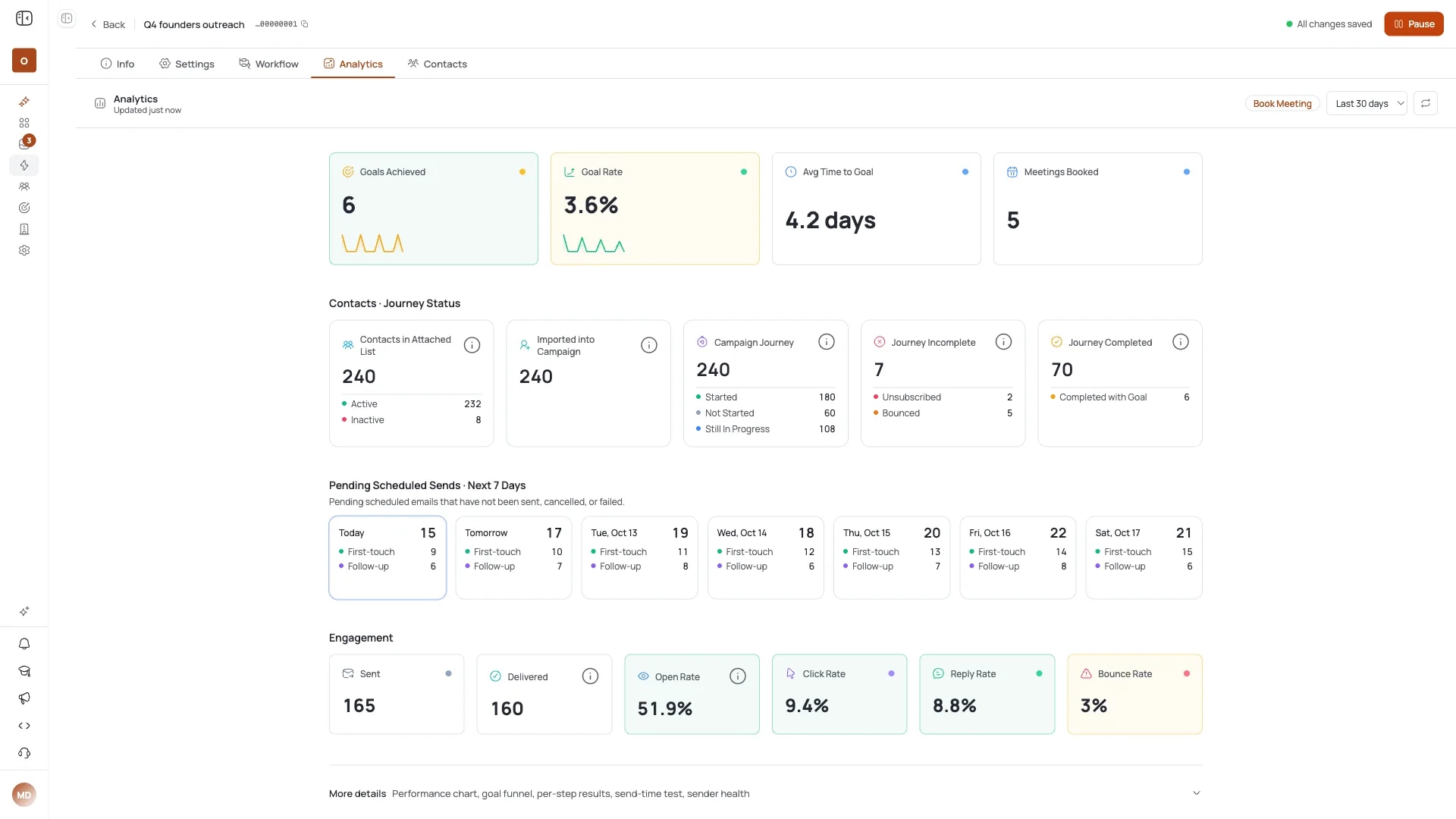
21-day warm-up on every mailbox
Every contact checked before it sends
A health grade for every inbox
SPF, DKIM and DMARC checked for you
You can write the best email of your life. If it lands in spam, nobody reads it, and nobody tells you.
A brand new mailbox that sends a lot on day one looks like a spammer to Gmail and Outlook. They filter it before a person ever sees it.
Old or bought lists are full of dead addresses. Every bounce tells inbox providers you do not know who you are writing to. Enough of them and your domain carries the mark for weeks.
Spam folders do not send reports. Most people find out when the replies stop, long after the damage is done.
You do step one. FirstSales keeps doing the rest for as long as you send.
Add Gmail, Outlook or any SMTP inbox. We check SPF, DKIM and DMARC the moment you connect, and show the exact record to add if one is missing.
Warm-up starts at once and grows over 21 days. Every contact is checked before it sends, and bad addresses are left out.
Each inbox gets a health grade, checked every hour. If one has trouble, sending moves to your healthy inboxes and you see what to fix.
The boring safety work, done for every inbox and every send. Included on every plan.
Warm-up runs in the background from day one. Build your campaign, read your drafts and go live while your inbox earns trust.
Each contact is checked before it sends. Broken, dead and throwaway addresses never reach a send, so they never touch your reputation.
One health grade per inbox, built from its bounce rate and warm-up score. You see a problem in hours, not weeks.
SPF, DKIM and DMARC are checked for you and explained in plain words. If a record is missing, copy the exact one we show you.
Sending rotates across your mailboxes. If one inbox has trouble, the others carry on while you fix it.
Unlimited mailboxes on every plan, each with warm-up and monitoring. Spread your sending as wide as you need.
Warm-up, list cleaning, sender health and authentication run for every inbox you connect.
A new inbox that sends a lot on day one looks like spam. Warm-up starts small and grows as inbox providers learn to trust you. It runs in the background while you build campaigns.
Every bounce hurts your sender reputation. FirstSales checks each contact before it sends and holds back the ones that would bounce or trap you.
Each inbox gets a health grade built from its bounce rate and warm-up score. Monitoring runs every hour, so a problem shows up early and you know what to fix.
Inbox providers check who really sent an email. FirstSales checks your records when you connect an inbox and tells you what to fix.
There is no magic trick. Inbox providers look at a handful of signals. Here is each one in plain words, and what FirstSales does about it.
Gmail and Outlook check that an email really came from the domain it claims. Three DNS records do this. SPF lists the servers allowed to send for you. DKIM adds a signature that proves nobody changed the email on the way. DMARC tells providers what to do when the first two fail. Missing records are one of the most common reasons good email lands in spam. FirstSales checks all three when you connect an inbox and shows you the exact record to add.
Every domain and inbox builds a history. Providers remember how people treated your past emails: did they open, reply, delete or mark it as spam? A good history gets you the benefit of the doubt. A bad one follows you for weeks. That is why FirstSales grades each inbox and warns you early, instead of letting a problem grow quietly.
Real people do not go from zero to hundreds of emails in a day. When a new inbox does, providers get suspicious. The fix is a slow ramp: a little each day, then more as trust builds. FirstSales warm-up does this for 21 days in three phases, while you build your campaigns.
Bouncing email is a loud signal that you do not know who you are writing to. Old lists, typos, closed company mailboxes and throwaway addresses all bounce. Some dead addresses are even watched by providers to catch senders with bad lists. FirstSales checks each contact before it sends and leaves out the ones marked Dirty.
A reply is the strongest good signal there is. Being marked as spam is the strongest bad one. Short, personal emails to people who might care get replies. One generic email sent to everyone gets reported. FirstSales writes each email for the person it goes to, and you can read the drafts before they send.
Big images, many links, link shorteners and pushy sales words make an email look like a mass mailing. Plain text that reads like one person writing to another looks like normal email. Keep the first email short and plain, and save the links for when someone asks.
Even a healthy inbox looks odd if it suddenly sends far more than it used to. Spreading your sending across several inboxes keeps each one at a normal pace. FirstSales rotates sending across your mailboxes, and you can add as many as you need on every plan.
Run through this before a new inbox sends its first campaign. FirstSales does most of it for you. The rest takes a few minutes.
“User Interface, Ease of Use, Able to hit the inbox in the first attempt.”
 Sadashiv B.Founder, small business · G2
Real words from real users. No paid reviews.
“One of the biggest pains in cold email is making sure that you have your DNS setup correctly. Firstsales has created a system to make sure you have done this correctly.”
Mike O
Trustpilot review
“One of the best email outreach tools I have ever seen in my 9 years of business experience. It has solved the problem of email outreach for my cold emails.”

Santhosh K.
Founder and CEO, small business
“If you are looking to fix your sales pipeline, you should definitely try [it]. My open rate has increased drastically. The UI and UX are easy to understand, even for a beginner like me.”

Pooja Dhole
@ThisIsPoojaD
What changes when the safety work runs on its own.
How most people learn deliverability: the hard way.
The checks run before every send.
Many cold email tools send what you give them. FirstSales also protects the inbox it sends from.
| What you get | Typical tool | FirstSales |
|---|---|---|
| 21-day warm-up | Varies | Included |
| Contact checks before every send | Varies | Every send, no add-on |
| Dirty contacts left out | Varies | Automatically, every send |
| Health grade per inbox | Varies | Bounce rate and warm-up score |
| SPF, DKIM and DMARC checks | Varies | On connect, with the exact record to add |
| Monitoring | Varies | Every hour |
| Sending rotation | Varies | Across all your mailboxes |
| Mailboxes | Varies | Unlimited on every plan |
| Price | Varies | $29/mo, all of the above included |
| Start your $1 trial | ||
Can’t find yours? Write to us.
It is where your email ends up: the main inbox, a promotions tab or the spam folder. A cold email that lands in spam is never read, however good it is.
No. Nobody honestly can. What we do: warm up your inbox, clean every list before it sends, warn you when a sender’s health drops, and rotate inboxes if one has trouble. You see the results on your dashboard.
21 days to full volume. It sends small amounts from day one and grows on its own, so you can build campaigns and read drafts while it runs.
The format of each address, whether the domain takes email, whether the mailbox exists, and whether it is a throwaway or shared address. Contacts marked Dirty are never sent to.
Its health grade drops and you see a warning. Sending rotates to your other inboxes, so your campaigns keep running while you fix it.
No. Warm-up, list cleaning and monitoring are included on every plan, from $29/mo, with unlimited mailboxes. Try it for $1 for 3 days. No contract: cancel any time from your dashboard.
Gmail, Outlook or any inbox that sends over SMTP. Each one is checked when you add it and starts warm-up straight away.
A lot. In the 3 days you connect your inbox, start warm-up, build a campaign, see your lead list and read the drafts written for your prospects. Warm-up sends small amounts from day one and grows by itself, so you never wait to start.
If you want to blast bought lists, or you want someone to promise 100% inbox placement, we are not your fit. FirstSales is for founders, sales teams and agencies who send real, targeted cold email and care that it reaches a person.
Every plan includes onboarding help, plain-English docs and real people on support. Most questions get an answer the same day.
Connect unlimited mailboxes and let AI agents find leads, write each email and follow up. Or send your own templates in manual mode. From $29/mo.
$1 for 3 days · Cancel anytime · No contract