Spam or rejected
Mail with no SPF, DKIM or DMARC is easy for providers to distrust. It lands in spam, or it never arrives at all, and nothing tells you which.
Email authentication
Three DNS records decide whether inbox providers believe your email is really from you. FirstSales shows the exact records for each mailbox, writes them for you on Cloudflare, can manage your DKIM keys, and checks that every record is live before you send.
$1 for 3 days · Cancel anytime · No contract
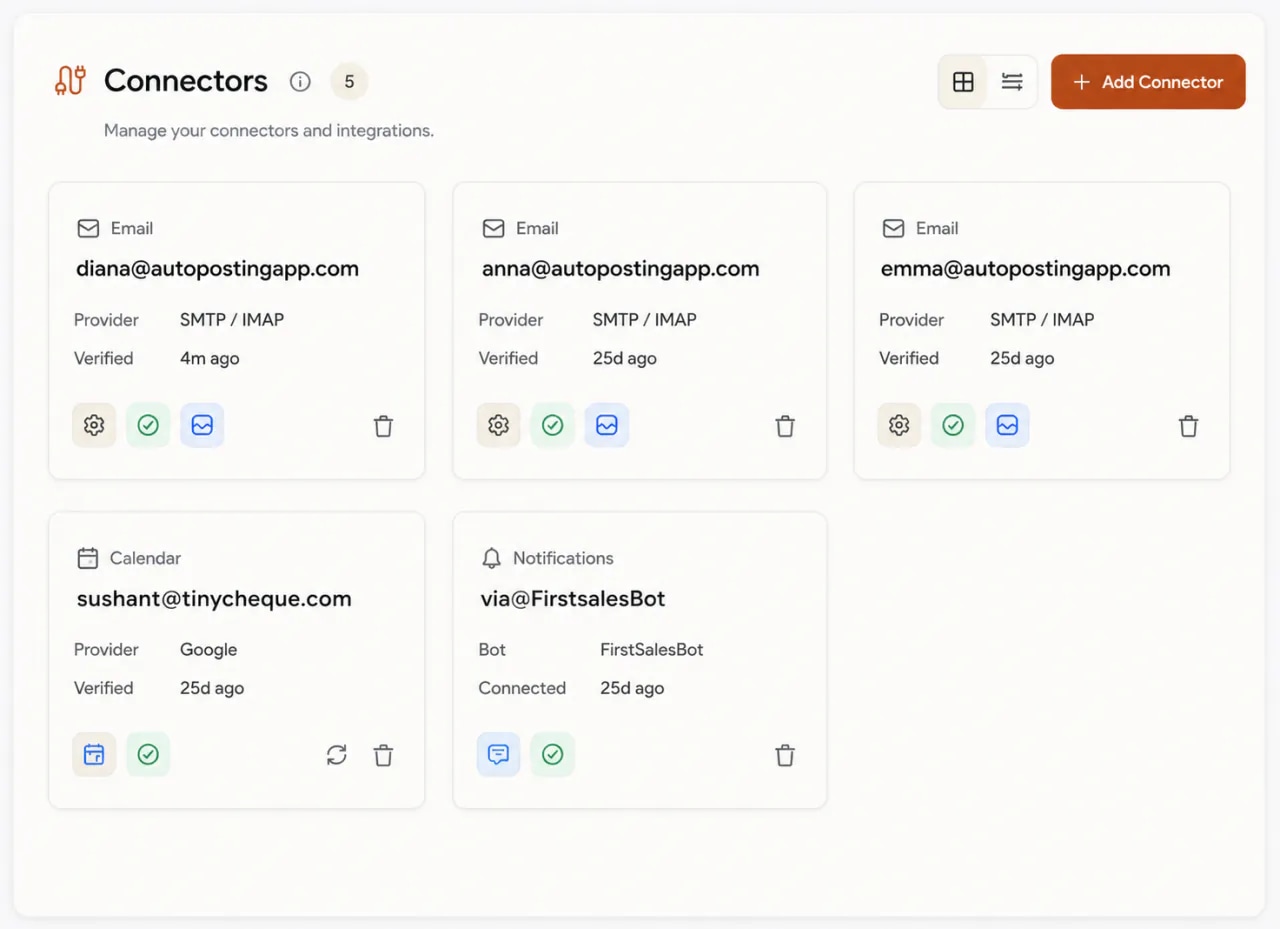
Exact records for every mailbox, ready to copy
One-click setup when your domain is on Cloudflare
Managed DKIM with automatic key rotation
Included in every plan, from $29/mo
Inbox providers see a flood of forged email every day. If your domain cannot prove a message is really yours, your careful, personal outreach gets treated like the rest.
Mail with no SPF, DKIM or DMARC is easy for providers to distrust. It lands in spam, or it never arrives at all, and nothing tells you which.
Hosts, values, TXT, CNAME, selectors. One wrong character and the record silently fails. Most people copy a value from a blog post and hope.
Gmail and Yahoo now reject unauthenticated bulk mail outright. At higher volume, skipping authentication is no longer a risk you can take.
Authentication lives on each mailbox's Technical tab. It tells you what to add, helps you add it, and confirms when it is live.
On the Connectors page, open your sending mailbox and go to Technical. You see SPF, DKIM and DMARC, each with the exact record for your domain.
Copy each record into your DNS host, or press Add to Cloudflare if your domain is there. The score bar shows how far along you are.
Press Check DNS Records. Each record shows pass or fail. When all three pass, you see All checks passed and you are ready to send.
SPF, DKIM and DMARC sound like one big technical chore. They are three short lines of text in your DNS, and each one answers a different question a mailbox provider asks about your email.
SPFSender Policy Framework
Declares which servers may send mail for your domain.
Anyone can claim to send as you, so providers trust nothing that says it is from you.
DKIMDomainKeys Identified Mail
Signs every outgoing email so it cannot be forged or changed on the way.
Providers cannot tell your real email from a copy someone tampered with.
DMARCDomain-based Message Authentication
Tells receivers what to do when SPF or DKIM fail.
Each provider guesses what to do with failing mail, and guesses tend to go badly.
Sample values. Your real records are generated for your domain, and the DKIM selector is unique to you. Always copy them from your own Technical tab.
Everything you need to prove your email is yours, in the same place you connect the mailbox.
No generic values from a guide. Each mailbox shows the records generated for its own domain, with the host and value side by side.
When your domain runs on Cloudflare, FirstSales can write the missing records for you. No copy and paste, and no typos.
For SMTP/IMAP and relay mailboxes, Managed DKIM creates the signing key and rotates it over time. You add one CNAME, once.
A single bar per mailbox shows how much of its authentication is in place, from Not Secured to Fully Authenticated.
Check DNS Records confirms each record from the outside, the way a mailbox provider sees it, and shows pass or fail per record.
Authentication works alongside warm-up, list cleaning and hourly health checks, so each layer protects the others.
Four parts of authentication in FirstSales, and what each one does for you.
Open any sending mailbox and go to Technical. SPF, DKIM and DMARC each get a row with its status and the exact record to add. Nothing to look up, nothing to guess.
If your domain uses Cloudflare, the Technical tab says so and offers Add to Cloudflare. Paste a scoped token, review the list, and apply. Only missing records are added.
For SMTP/IMAP and relay mailboxes, press Enable Managed DKIM. FirstSales creates the signing key and gives you one CNAME record. After that, it rotates the key over time with no more DNS changes.
Press Check DNS Records and each record shows pass or fail. DNS changes can take up to 48 hours to spread, so a fail right after adding a record usually just means wait, then Re-check.
Each mailbox gets an authentication score. SPF counts for 34 percent, DKIM and DMARC for 33 percent each, so the bar moves every time a record goes live.
Authentication score
SPF34%
DKIM33%
DMARC33%
Not Secured
No records pass yet
Mail from this mailbox is likely to be filtered or rejected. Start with whichever record is easiest for you.
Partially Protected
One or two records pass
Better, but partial authentication still gets filtered. Providers want the full set.
Fully Authenticated
All three records pass
The score reaches 100 percent. This is the foundation every other part of deliverability builds on.
The check is advisory. It never blocks you from sending, but unauthenticated mail tends to land in spam, so treat it as required.
What SPF, DKIM and DMARC are, why they matter for cold email, and how to get them right the first time.
Email was built without any way to prove who sent a message. Anyone can put any name in the From line. Email authentication fixes that with three small records in your domain's DNS. Together they let a receiving server check that a message really came from your domain, was not changed on the way, and should be trusted. Without them, a provider has to guess, and providers guess cautiously.
SPF, short for Sender Policy Framework, is a list of the servers allowed to send email for your domain. When a message arrives, the receiving server looks up that list and checks whether the sending server is on it. If it is not, the message looks like someone pretending to be you. You only get one SPF record per domain, so when you add a new sending service you add it to the same record instead of creating a second one.
DKIM, short for DomainKeys Identified Mail, adds a digital signature to every message you send. The matching public key lives in your DNS. The receiving server uses it to check the signature. If the signature holds, the message came from you and was not changed in transit. DKIM keys should be rotated from time to time, which is exactly the chore Managed DKIM takes off your plate.
DMARC, short for Domain-based Message Authentication, ties SPF and DKIM together. It tells receiving servers what to do when a message fails those checks: let it through, send it to spam, or reject it. It can also ask for reports about mail sent as your domain. Many senders start with a gentle policy while they confirm everything passes, then tighten it once they are confident.
A cold email arrives from someone the reader has never heard of. That alone makes providers careful. Authentication is how you remove the first and easiest reason to filter you. Partial setups still get filtered, because providers want the full set. Large providers now require authentication from anyone sending in bulk, and Gmail and Yahoo reject unauthenticated bulk mail with error 550-5.7.26. Below that level it is still strongly recommended for every sender.
Authentication records are not one size fits all. Your SPF lists your sending servers, and your DKIM selector and key are generated for your domain alone. Copying a value from someone else's guide is the most common reason a record fails. Always copy from your own Technical tab, and match each field exactly, without extra spaces or quotes unless your DNS host asks for them.
Passing SPF, DKIM and DMARC proves your email is yours. It does not prove anyone wants it. Inbox placement also depends on a warmed mailbox, a clean list, a steady sending pace and emails that people read and answer. Think of authentication as the foundation. Nothing else holds without it, and it is not enough by itself.
Every record is a type, a host and a value. Each DNS host just names those fields its own way. Here is where to paste each part at the hosts people use most.
| DNS host | Calls the host | Calls the value | Where to add it |
|---|---|---|---|
| Cloudflare | Name | Content | DNS → Records → Add record Keep mail records DNS-only, the grey cloud. Proxying them breaks them. Or skip all of this with one-click. |
| GoDaddy | Name | Value | Domain → DNS → Manage Zones Use @ for the root domain. Save, then give it time to spread. |
| Namecheap | Host | Value | Domain List → Manage → Advanced DNS Use @ for the root domain. Records live under Advanced DNS. |
| AWS Route 53 | Record name | Value | Hosted zones → your zone → Create record Wrap TXT values in quotes, the way Route 53 expects them. |
Using a different DNS host? It still asks for the same type, host and value. Match the fields and save.
Run through it each time you connect a mailbox or move a domain to a new DNS host.
“One of the biggest pains in cold email is making sure that you have your DNS setup correctly. Firstsales has created a system to make sure you have done this correctly.”
The same three records, a very different afternoon.
Guides, guesswork and waiting.
Exact records, checked for you.
Many tools tell you to set up SPF, DKIM and DMARC and leave the rest to you. FirstSales walks each mailbox through it.
| What you get | Typical tool | FirstSales |
|---|---|---|
| Records per mailbox | Varies | Exact SPF, DKIM and DMARC shown |
| Cloudflare setup | Varies | One click with a scoped token |
| DKIM keys | Varies | Managed, with automatic rotation |
| Live check | Varies | Pass or fail per record |
| Progress | Varies | Weighted score per mailbox |
| Token handling | Varies | Masked, used once, never stored |
| Existing records | Varies | Only missing ones are added |
| Price | Varies | From $29/mo, included |
| Start your $1 trial | ||
Real words from real users. No paid reviews.
“User Interface, Ease of Use, Able to hit the inbox in the first attempt.”

Sadashiv B.
Founder, small business
“One of the best email outreach tools I have ever seen in my 9 years of business experience. It has solved the problem of email outreach for my cold emails.”

Santhosh K.
Founder and CEO, small business
“I've been using FirstSales.io for several months now, and I can confidently say it has revolutionized how I approach lead generation and customer acquisition.”

Paweł Stelmach
Small business owner
Can’t find yours? Write to us.
It is three DNS records, SPF, DKIM and DMARC, that let inbox providers check your email really comes from your domain. FirstSales shows the exact records for each mailbox and checks that they are live.
On the Connectors page, open your sending mailbox and go to the Technical tab. It lists each record to add at your DNS host, then verifies them with Check DNS Records.
Yes. When FirstSales detects Cloudflare, press Add to Cloudflare, paste a token scoped to Zone, DNS, Edit on that domain, and apply. The token is masked, used once and never stored. Only missing records are added.
For SMTP/IMAP and relay mailboxes, FirstSales can create your DKIM key and rotate it over time. You add one CNAME record once. Google and Microsoft mailboxes manage DKIM themselves, so they do not show the button.
Usually DNS has not spread yet. Changes can take up to 48 hours. Wait, then press Re-check DNS Records. If it still fails, copy the record again exactly as your Technical tab shows it.
It is weighted: SPF counts for 34 percent, DKIM and DMARC for 33 percent each. All three passing reaches 100 percent, shown as Fully Authenticated.
Above 5,000 emails a day, yes. Gmail and Yahoo reject unauthenticated bulk mail with error 550-5.7.26. Below that it is strongly recommended, because unauthenticated mail tends to land in spam.
No. The check is advisory and never blocks a send. But mail without authentication often lands in spam or gets rejected, so finish the set before you scale up.
Connect unlimited mailboxes and let AI agents find leads, write each email and follow up. Or send your own templates in manual mode. From $29/mo.
$1 for 3 days · Cancel anytime · No contract