One mailbox hits a ceiling fast
A single inbox can only send so much before providers slow it down or start filtering it. Real people do not send hundreds of cold emails a day, and mail providers know it.
Sending infrastructure
Connect as many Google, Microsoft and SMTP/IMAP mailboxes as you need, on every plan. Give each one a safe daily limit, let campaigns send across the ones you choose, and run tracking on your own domain. More volume means more mailboxes, never one inbox pushed too hard.
$1 for 3 days · Cancel anytime · No contract
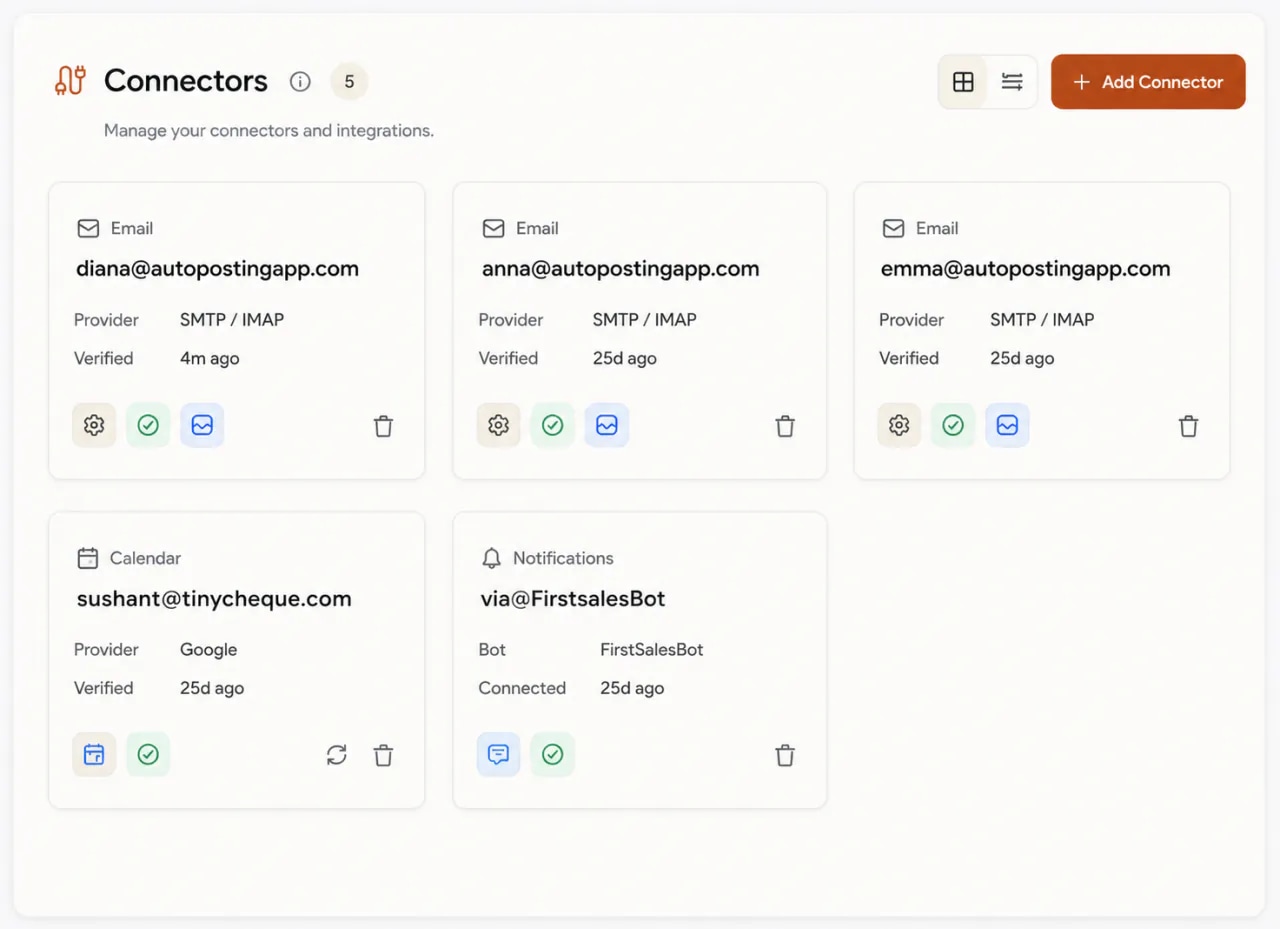
Unlimited mailboxes and workspaces on every plan
Google, Microsoft or any SMTP/IMAP provider
Bulk import up to 5,000 mailboxes from one CSV
From $29/mo, with no per-mailbox fees
Scaling cold email is an infrastructure problem before it is a copy problem. Push too much through one mailbox and its reputation drops. Spread it by hand and the spreadsheet becomes the risk.
A single inbox can only send so much before providers slow it down or start filtering it. Real people do not send hundreds of cold emails a day, and mail providers know it.
When every extra inbox costs extra, the safe move of adding mailboxes becomes the expensive one. Teams end up overloading the few they have.
Tracking which inbox sends next, which one is cold and which one lost access is how a mailbox quietly takes a spike or a campaign quietly stops.
Your sending setup lives on the Connectors page. Every campaign sends from connectors, so this is the first thing to set up and the place you come back to when you grow.
Click Add Connector and pick Google, Microsoft or SMTP/IMAP. Add one at a time, or bring a whole fleet in from a CSV. There is no cap on how many.
Give each mailbox a modest daily limit, leave Auto-adjust on and turn on warm-up. New mailboxes build reputation before they carry real campaigns.
In each campaign, pick the mailboxes that should send. FirstSales spreads the sends across them. Need more volume later? Add more senders.
There is no secret dial for more sends. Each mailbox has a daily limit, and a campaign sends across the mailboxes you give it. To send more, add mailboxes. Keep each one modest.
| Stage | Mailboxes | Per mailbox, per day | Daily volume |
|---|---|---|---|
| Getting started | 5 | × 40 | 200 |
| Growing | 15 | × 40 | 600 |
| At scale | 40 | × 40 | 1,600 |
Sample numbers to show the math, not a target. Daily Limit can be set from 20 to 500 per mailbox, with a default of 50. Auto-adjust tunes it each night from that mailbox's sending health.
Everything you need to run outreach across many mailboxes, without a spreadsheet and without paying more for every inbox.
Every plan includes unlimited mailboxes and unlimited workspaces. Plans meter monthly credits, not how many inboxes you connect.
Google Workspace and Microsoft connect with a sign-in and no stored password. Any other provider connects with SMTP and IMAP details.
Bring in up to 5,000 SMTP/IMAP mailboxes from one CSV, with daily limits and warm-up settings set per row.
Each mailbox gets its own daily limit, from 20 to 500. Auto-adjust tunes it each night from yesterday's sending health.
Open, click and unsubscribe tracking runs on a subdomain you own. You add one CNAME. SSL is set up for you.
When a Google or Microsoft mailbox loses access, it shows an alert and a Reconnect Account button. Its settings stay in place.
Four parts of your sending infrastructure, and what each one does for you.
Open Connectors, click Add Connector and choose Google, Microsoft or SMTP/IMAP. Google and Microsoft open a sign-in popup. SMTP/IMAP asks for your server details, then Test connection must pass before Add account unlocks, so a broken mailbox never slips into a campaign.
In the SMTP/IMAP flow, switch to Bulk Upload (CSV). Download the sample file, add one row per mailbox and upload it. Columns map by name, a preview flags any bad rows, and the import reports how many mailboxes succeeded and why any failed.
In each campaign, open Email Accounts and choose the warmed, authenticated mailboxes that should send. The selector shows how many you picked. FirstSales spreads the campaign across them, each within its own daily limit. To grow, add senders in waves.
In workspace settings, open Tracking Domains and enter a subdomain such as track.yourcompany.com. Add the one CNAME it shows, and FirstSales handles the rest, from the CNAME check to SSL to HTTPS. The card re-checks every 5 minutes until it reads Verified.
Every sending mailbox in FirstSales is a connector. Google and Microsoft connect with a sign-in. Anything else connects with server details. Here is how the three compare.
| Question | Microsoft | SMTP / IMAP | |
|---|---|---|---|
| How you connect | Sign in with Google (OAuth) | Sign in with Microsoft (OAuth) | Server details for sending and reading |
| Is your password stored? | No, a revocable token | No, a revocable token | Yes, use an app password if you can |
| Before you can save | Approve access in the popup | Approve access in the popup | Test connection must pass |
| If access lapses | Reconnect Account, settings kept | Reconnect Account, settings kept | Re-test, or re-add with new details |
| Many at once | One sign-in per mailbox | One sign-in per mailbox | Bulk Upload (CSV), up to 5,000 rows |
Google connects Google Workspace accounts only. Personal @gmail.com addresses are not supported, and cold email should send from your own domain anyway.
What sending infrastructure is, why it decides how far cold email can scale, and how to grow it without hurting the mailboxes you already have.
Sending infrastructure is everything between your email and the reader's inbox that you control: the mailboxes you send from, the domains they live on, how much each one sends per day, and the domain your tracking links use. Good copy cannot fix weak infrastructure. If the mailbox sending your email has a poor reputation, the best message in the world still lands in spam.
Mail providers judge each mailbox by how it behaves. A person sends a handful of new emails a day, gets replies, and rarely bounces. A mailbox that suddenly sends hundreds of cold emails looks like a bot. So the safe way to send more is to send from more mailboxes, each at a modest pace, rather than pushing one mailbox to its limit.
In FirstSales, each mailbox has a Daily Limit, the most emails it may send in a day. It can be set from 20 to 500, and starts at 50. With Auto-adjust on, which is the default, FirstSales tunes that number each night from the mailbox's sending health, lowering it when metrics slip and raising it as the mailbox recovers. An optional Send ceiling sets a hard top that Auto-adjust will never pass.
There is no separate rotation switch to set up. When you build a campaign, you choose which mailboxes send it. FirstSales spreads the campaign across those senders, and each one stays within its own daily limit. That means your total daily volume is roughly the number of senders times their safe limits. To double your volume, roughly double your warmed senders.
Mailboxes on the same domain share that domain's reputation. Ten mailboxes on one domain are ten paths to the same risk. Spreading mailboxes across a few sending domains isolates the damage if one domain gets flagged. Each domain needs its own SPF, DKIM and DMARC records and its own tracking domain, or the extra volume simply gets filtered.
When you track opens and clicks, your emails carry links and a small image that point somewhere. On a shared tracking domain, you share that domain's reputation with every other sender who uses it. A custom tracking domain is a subdomain you own, such as track.yourcompany.com, pointed at FirstSales with one CNAME record. It is separate from email authentication, and both matter.
Grow in waves. Add new mailboxes, authenticate their domains, warm them up, and only then add them to a campaign as senders. Turn on Delivery Protection so a campaign pauses itself if bounces reach 5% or spam complaints reach 0.1%. Watch each mailbox's sending health as you go, and widen the pool only while the numbers stay clean.
Mailboxes on the same domain share that domain's reputation. If the domain gets flagged, every mailbox on it feels it. Spreading mailboxes across a few domains keeps one bad day from stopping everything.
One flag on the domain and all nine mailboxes carry it.
acme-mail.exampleFlagged
One domain gets flagged. The other six mailboxes keep sending.
acme-mail.example
Flagged
acme-hq.example
Still sending
acme-team.example
Still sending
Sample layout. Every sending domain needs its own SPF, DKIM, DMARC and tracking domain, and every new mailbox needs warm-up before real campaigns.
Run through it each time you add mailboxes or widen a campaign's sender pool.
“One of the best email outreach tools I have ever seen in my 9 years of business experience. It has solved the problem of email outreach for my cold emails.”
 Santhosh K.Founder and CEO, small business · G2
The same goal, sending at volume without burning domains, done two very different ways.
Spreadsheets, caps and surprises.
One place for every mailbox.
Many tools let you connect mailboxes. FirstSales is built for the moment you need many of them, without paying more for each one.
| What you get | Typical tool | FirstSales |
|---|---|---|
| Mailboxes per plan | Varies | Unlimited, on every plan |
| Workspaces | Varies | Unlimited |
| Providers | Varies | Google, Microsoft, any SMTP/IMAP |
| Bulk import | Varies | CSV, up to 5,000 rows |
| Daily limits | Varies | Per mailbox, 20 to 500, auto-adjusted |
| Tracking domain | Varies | One CNAME, SSL automatic |
| Lost access | Varies | Alert and Reconnect Account |
| Price | Varies | From $29/mo, no per-mailbox fees |
| Start your $1 trial | ||
Real words from real users. No paid reviews.
“If you are looking to fix your sales pipeline, you should definitely try [it]. My open rate has increased drastically. The UI and UX are easy to understand, even for a beginner like me.”

Pooja Dhole
@ThisIsPoojaD
“One of the biggest pains in cold email is making sure that you have your DNS setup correctly. Firstsales has created a system to make sure you have done this correctly.”
Mike O
Trustpilot review
“I've been using FirstSales.io for several months now, and I can confidently say it has revolutionized how I approach lead generation and customer acquisition.”

Paweł Stelmach
Small business owner
Can’t find yours? Write to us.
As many as you need. Unlimited mailboxes and unlimited workspaces are included on every plan. Plans differ on monthly credits, not on how many mailboxes you connect.
Google Workspace and Microsoft accounts connect with a sign-in. Any other provider connects with SMTP and IMAP details. Personal @gmail.com addresses are not supported.
Yes. In the SMTP/IMAP flow, use Bulk Upload (CSV). One file can hold up to 5,000 rows and must be under 5MB. A preview checks each row before anything is imported.
Daily Limit can be set from 20 to 500 per mailbox, with a default of 50. With Auto-adjust on, FirstSales tunes it every night from yesterday's sending health. Keep it modest and add mailboxes to grow.
No separate setting is needed. You choose which mailboxes send each campaign, and FirstSales spreads the sends across them, each within its own daily limit.
A subdomain you own, such as track.yourcompany.com, pointed at FirstSales with one CNAME record. Opens, clicks and unsubscribes are then tracked on your own domain. SSL is set up for you.
A Google or Microsoft mailbox shows an alert with a Reconnect Account button, and reconnecting keeps its daily limit, warm-up and signature. For SMTP/IMAP, run Test Connection and re-add it with new details if needed.
Yes. A new mailbox has no reputation yet. Turn on warm-up and let it build trust before you add it to a campaign as a sender.
Connect unlimited mailboxes and let AI agents find leads, write each email and follow up. Or send your own templates in manual mode. From $29/mo.
$1 for 3 days · Cancel anytime · No contract