Pick autopilot, tune once, then approve-and-forget
As one person, you don't have time to hand-source contacts or hand-write every email. The whole point of this playbook is Autopilot mode: the app finds the contacts and drafts the emails, and your job is a little setup up front plus light-touch approval as it runs.
The path: warm one mailbox → ground the AI in what you sell → create an Autopilot → Meeting campaign → point it at a small, specific audience → tune the AI's voice once → set approval to auto-approve → triage the replies that come back.
Warm the one mailbox you'll send from
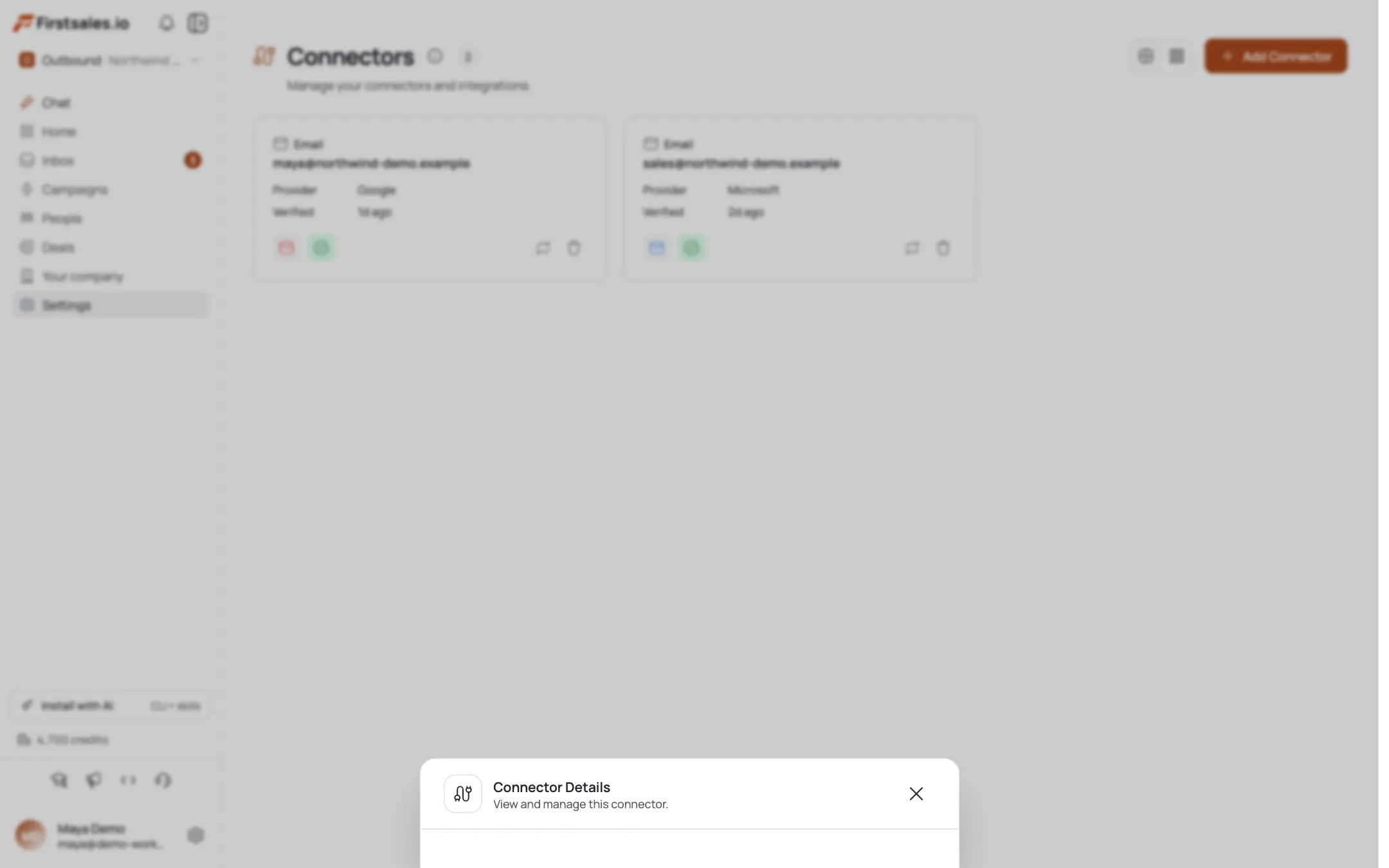
Go to Connectors → Add Connector and connect the mailbox you'll send outbound from. Confirm SPF, DKIM, and DMARC show green, then toggle on Email Warmup and leave auto-adjust on. Warm-up needs real runway: plan on roughly two weeks before you lean on this mailbox for cold outreach. See How to Set Up Email Warm-up for the full walkthrough.
Ground the AI in your product
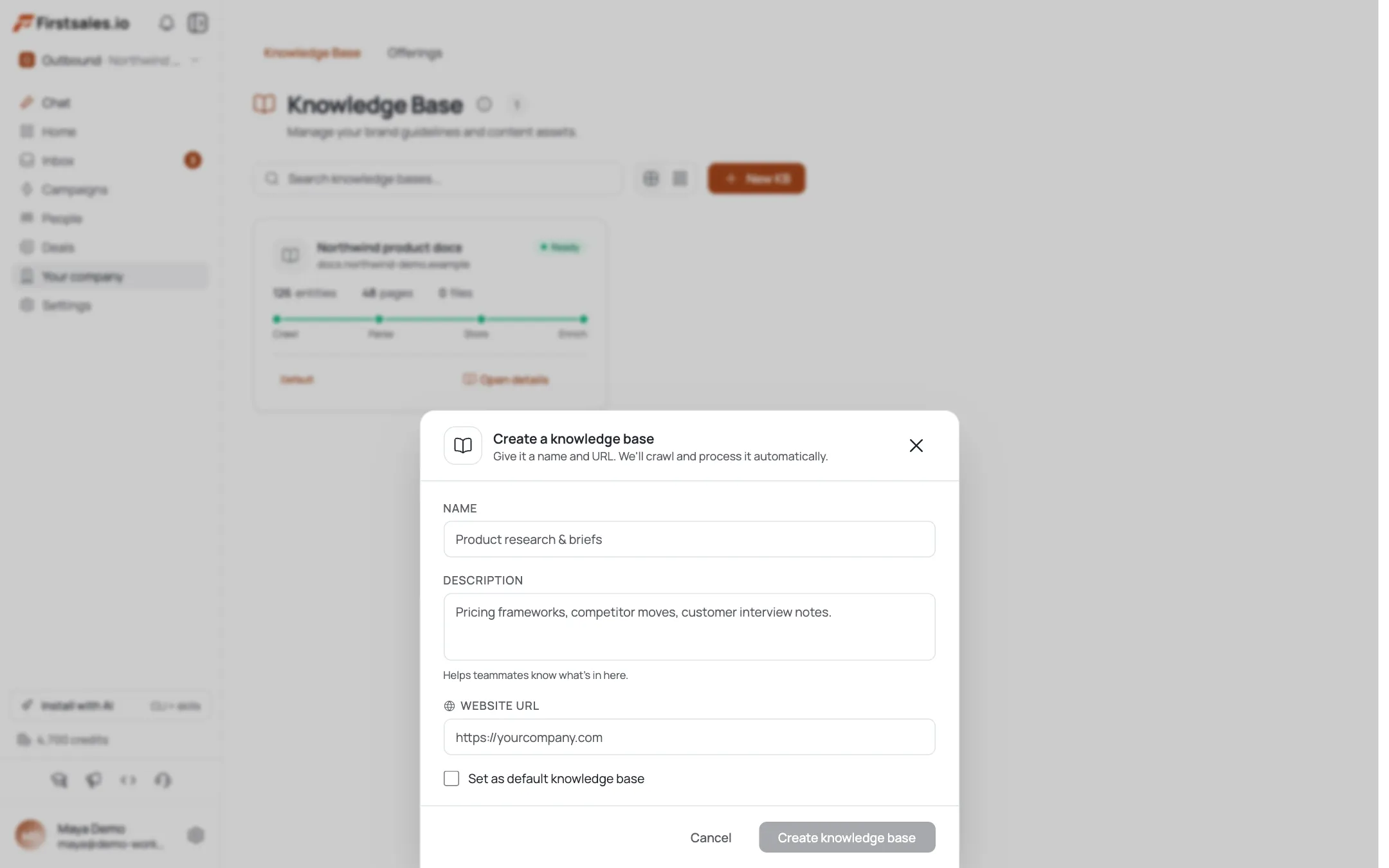
Before the AI can write a good email, it needs real facts. Create a Knowledge Base from your site URL (Knowledge Base → New KB) so drafts cite what you actually built, and add one Offering (Offerings → Create Offering) describing the specific thing you're selling: its benefits and a link. These two are what keep AI drafts specific instead of generic. See Build a Knowledge Base and Create Offerings.
Create an Autopilot → Meeting campaign
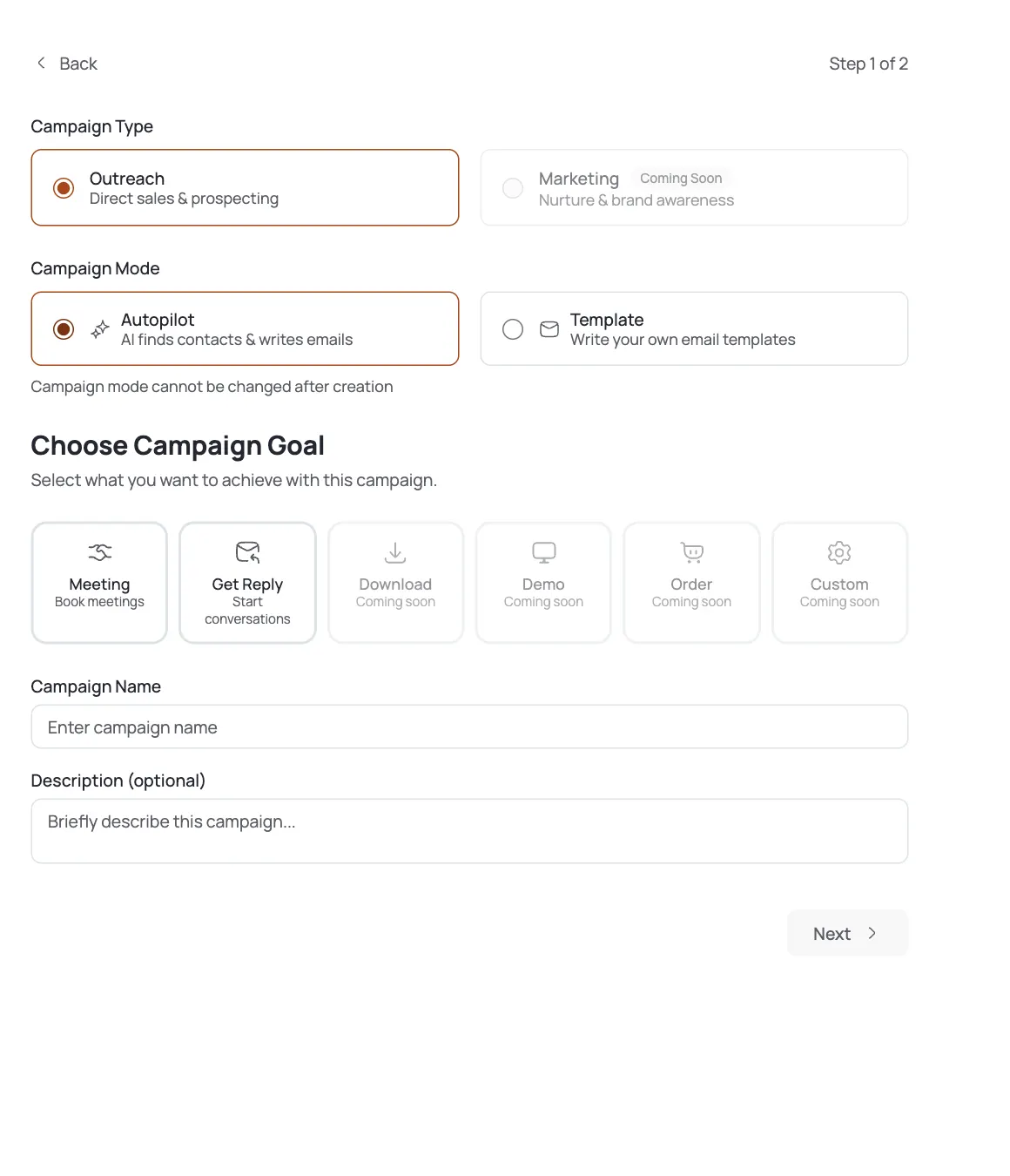
Open Campaigns → Create Campaign. Set Campaign Type to Outreach, Campaign Mode to Autopilot (so the AI sources and writes for you), and Campaign Goal to Meeting (so every email drives toward a booked call). Name it and describe your ICP in Contact Search Criteria: mode can't be changed after creation, so pick deliberately. See Create an Autopilot Meeting Campaign.
Point AI Leads at a small, specific list
In the builder's Contact Harvester, enable AI Leads and write a tight Target Audience line: narrower is better than broad for one sender. Apply the AI's recommendation card for Max results and frequency instead of guessing; it factors in your mailboxes and send capacity, so you don't source 500 leads a mailbox or two can never reach. See Use AI Leads to Source Contacts.
Tune the AI SDR once with a preset
Open the campaign's AI Instructions (Email Drafter SDR Config). Apply a starting preset, then set Persona & Voice and a one-line CTA so every draft sounds like you, not a generic template. This is the single biggest quality lever you have: ten minutes here does more than fifty later.
Set Content Approval to auto-approve and launch
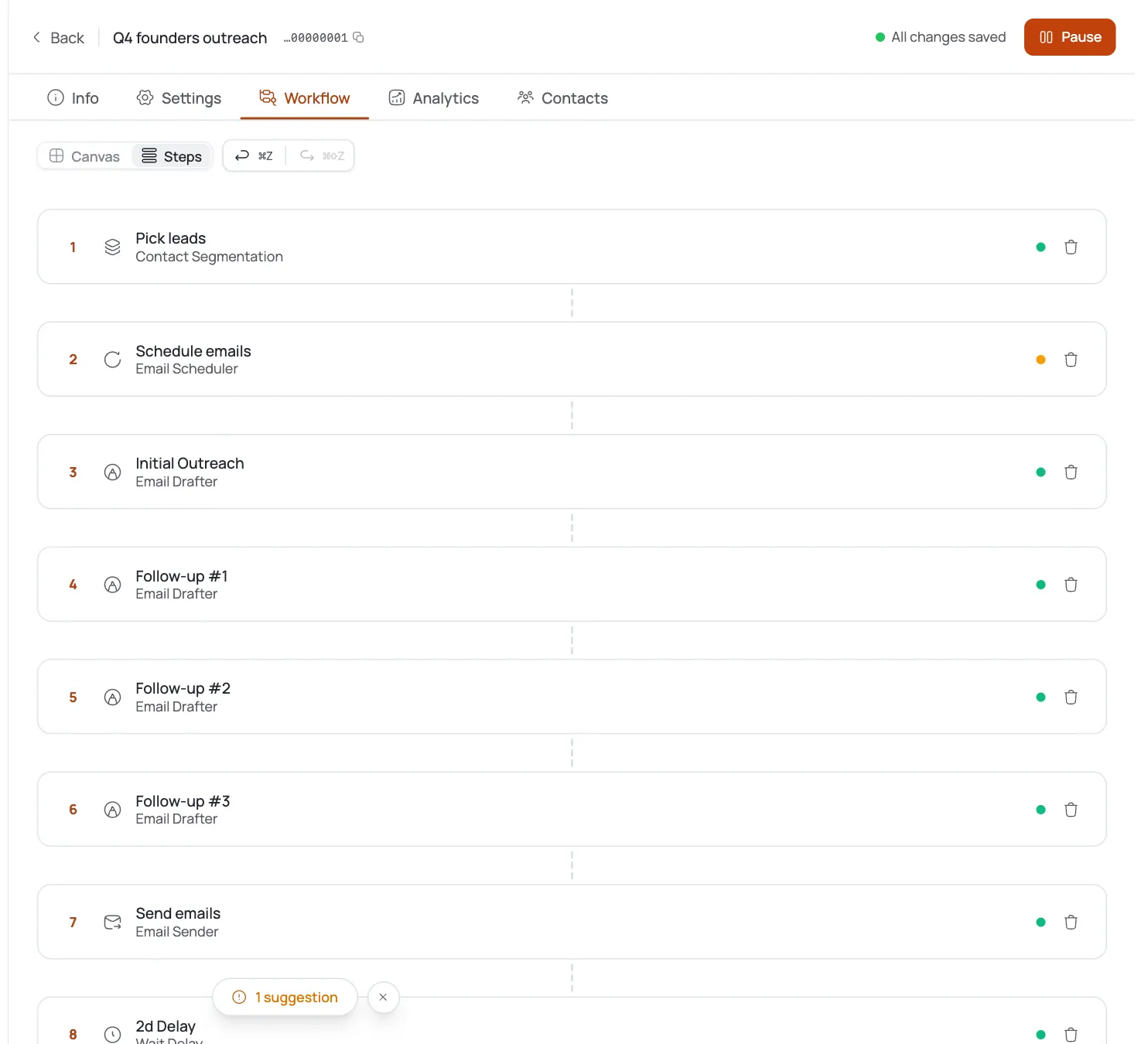
In the Workflow, the Content Approval step gates every draft before it sends. Choose auto-approve (you're notified to review, and “no response within 24 hours? Email sends automatically”) so the campaign never stalls waiting on a busy founder. Pick a warmed connector on Settings, then set the campaign Active.
Triage replies and book meetings
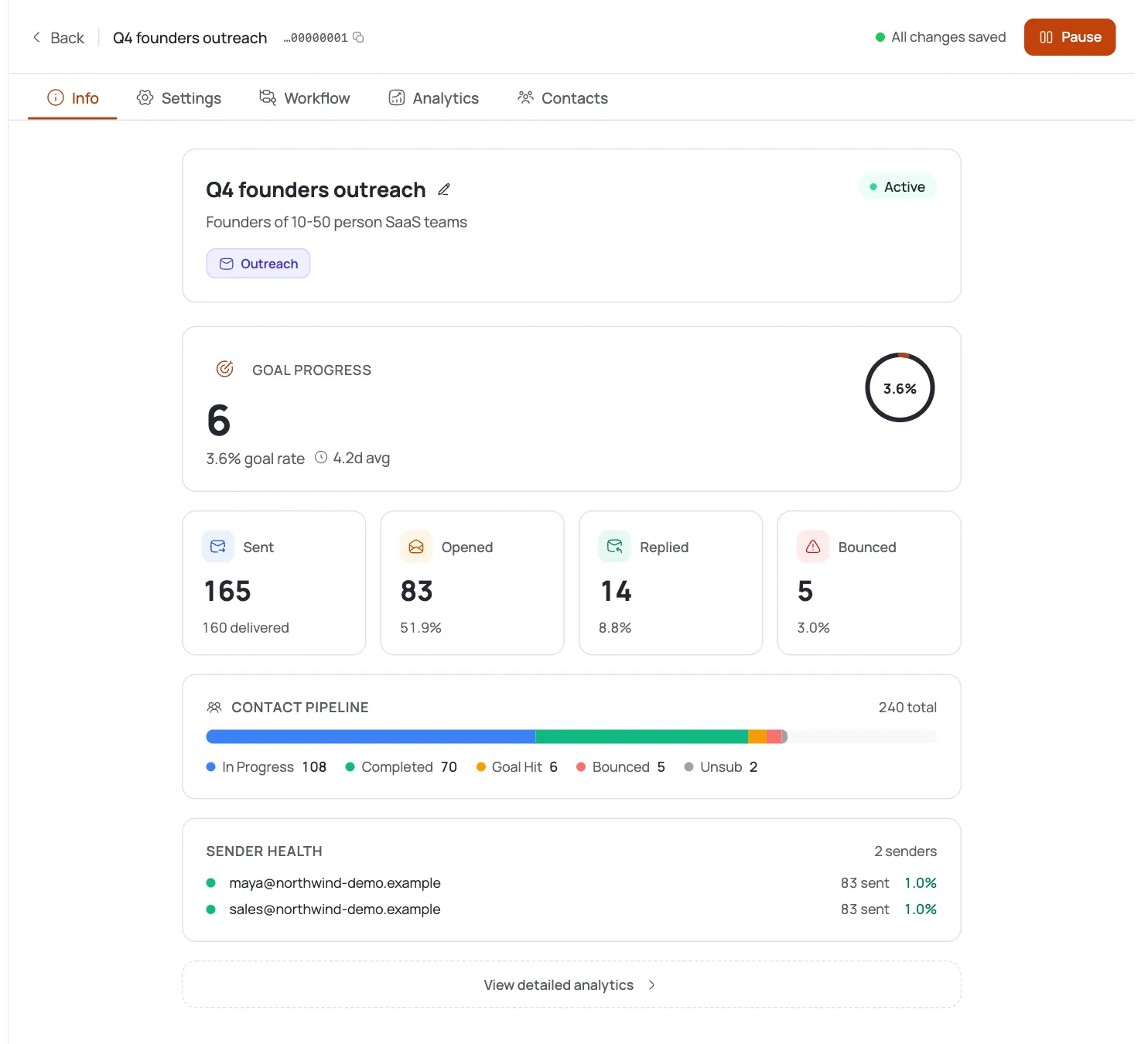
From here, work only the real replies in the Inbox: approve, answer, and book the call. Judge the campaign by Analytics: replies and meetings booked, not opens. A thin reply rate means tighten the Target Audience line and the SDR voice before you raise volume; sending more to the wrong list just burns credits.
Pro tips
Autopilot is the point: don't hand-run it
Auto-approve plus a tuned SDR means the campaign runs while you build product; only real replies need your attention.
Source to your capacity, not your ambition
One founder with one mailbox can't email 500 a day: apply the AI Leads recommendation so credits aren't burned on leads you'll never reach.
Tune the SDR once, well
Ten minutes in AI Instructions (voice + one-line offer) beats fifty small tweaks later. It's your whole brand voice living in one place.
Judge on replies and meetings, not opens
With a Meeting goal, a low reply rate means tighten the audience line and SDR voice: not raise send volume.
Frequently asked questions
I'm one person: is FirstSales actually hands-off enough?
Yes, if you set it up that way: auto-approve Content Approval plus a tuned AI SDR and AI Leads sourcing means the app finds contacts, drafts emails, and sends without you touching each one. You step in for replies and the occasional voice tweak.
Do I need to write any emails myself?
No: in Autopilot mode the Email Drafter writes every email. You steer it with AI Instructions (persona, voice, CTA). If you'd rather write your own copy, a Template campaign is the alternative, but it won't source contacts for you.
How small can my list be?
AI Leads' Max results goes down to 10. For one founder, a tight, specific ICP beats a broad blast: apply the recommendation card so volume matches what you can actually send.
How long before I can send?
Plan on roughly two weeks of warm-up before leaning on a new mailbox for real cold sends. You can set up the Knowledge Base, Offering, and campaign in parallel while warm-up runs.
Will it send bad emails while I'm not watching?
With auto-approve, you're notified and get a 24-hour window to review before anything auto-sends. Keep it on for the first batch so you can sanity-check the AI's voice before trusting it fully.
One mailbox or two?
You can start with one, but two lets you split volume and hedge one mailbox's reputation. It's not required to start: see Add Unlimited Mailboxes when you're ready to add more.
What does this cost to run?
AI Leads runs roughly 1 credit per lead found plus 0.2 credits per contact for cleaning; AI-drafted emails add on top. See Credits, Plans & Billing for the full rate list and how to watch your balance.
What if replies dry up?
Tighten the Target Audience line and the SDR's Persona & Voice/CTA before adding volume. A narrower, sharper campaign usually outperforms a wider, sloppier one.