Set up one shared workspace for the team
Run the team from a single workspace so contacts, mailboxes, and campaigns are visible to everyone on it. Leads own the workspace's settings; reps work inside it day to day. See Manage Organizations & Workspaces if you're setting this up for the first time.
Invite reps as Members, leads as Managers
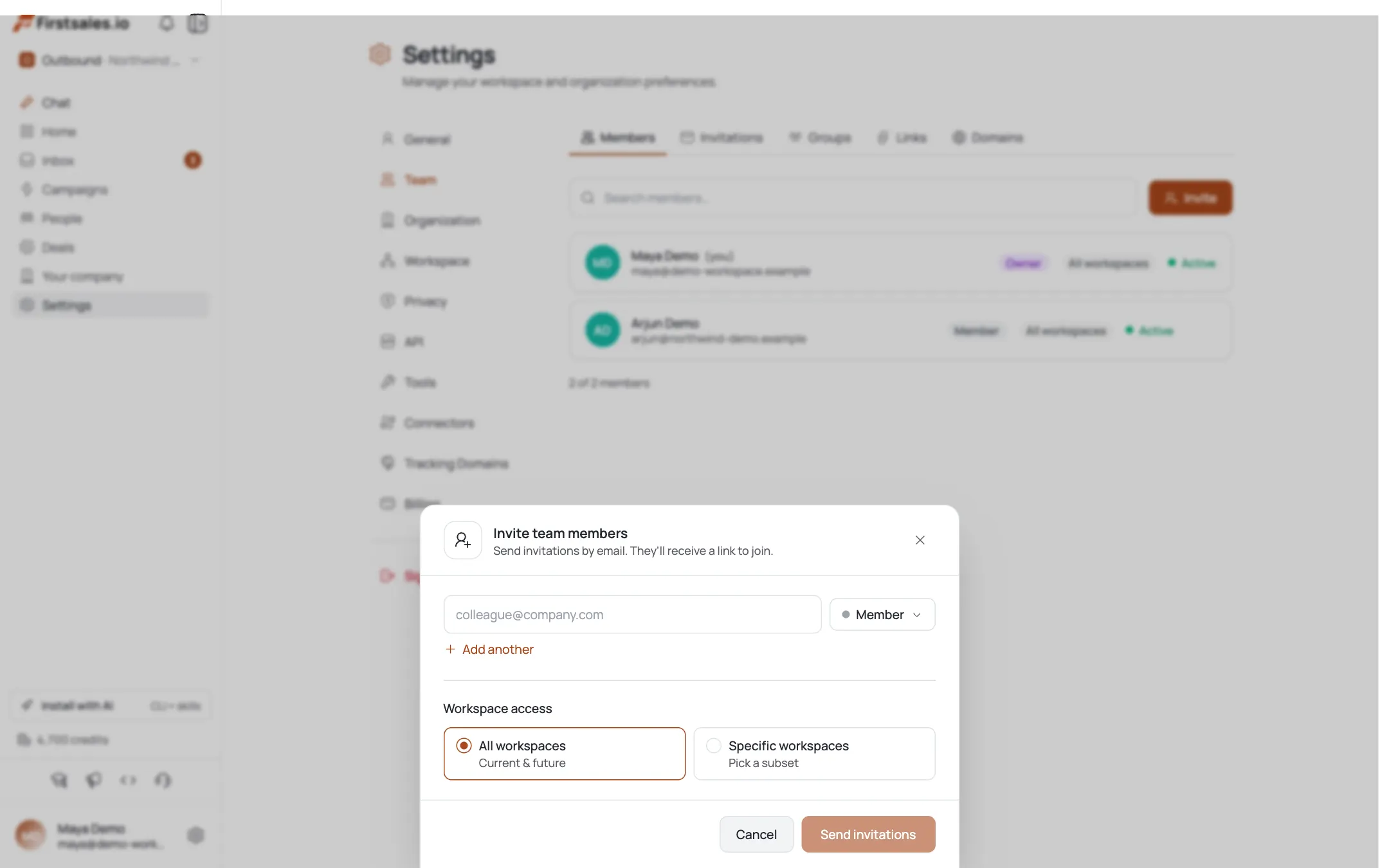
On Settings → Team → Invitations, invite each rep as Member (standard day-to-day access) and each team lead as Manager (can manage campaigns, contacts, and content: including approvals). Pair roles with a custom permission group if you need a tighter slice than the built-in roles offer. See Invite & Manage Team Members and Roles & Permission Groups.
Give each rep a warmed mailbox: the sender pool
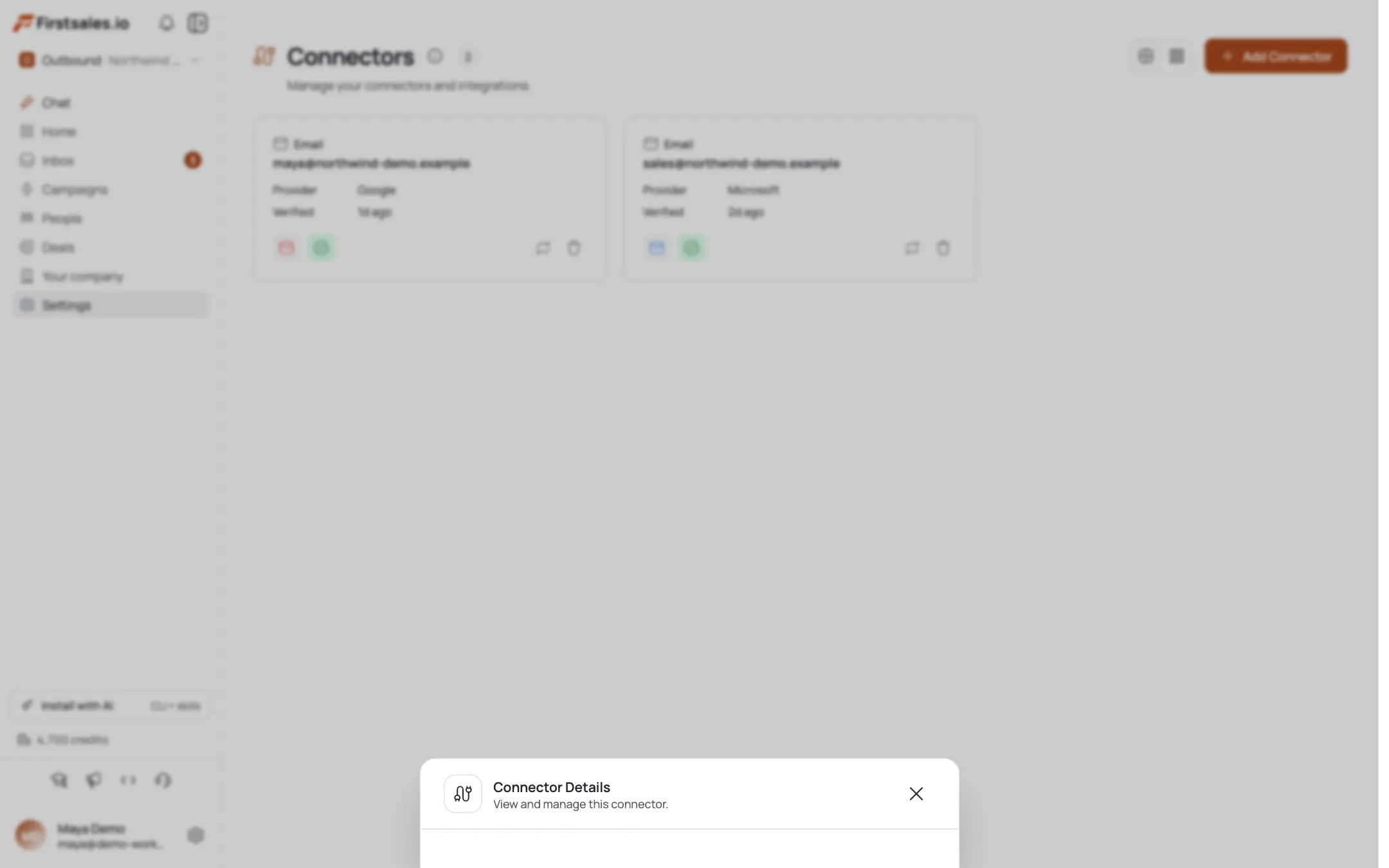
Every rep connects and warms their own mailbox (Connectors → Add Connector, toggle Email Warmup). There's no separate rotation toggle: the campaign's sender pool is simply every rep's mailbox assigned as a sender, so volume spreads across the team automatically instead of one mailbox carrying it all. See Add Unlimited Mailboxes and Email Warm-up Setup.
Build the team's outreach campaign
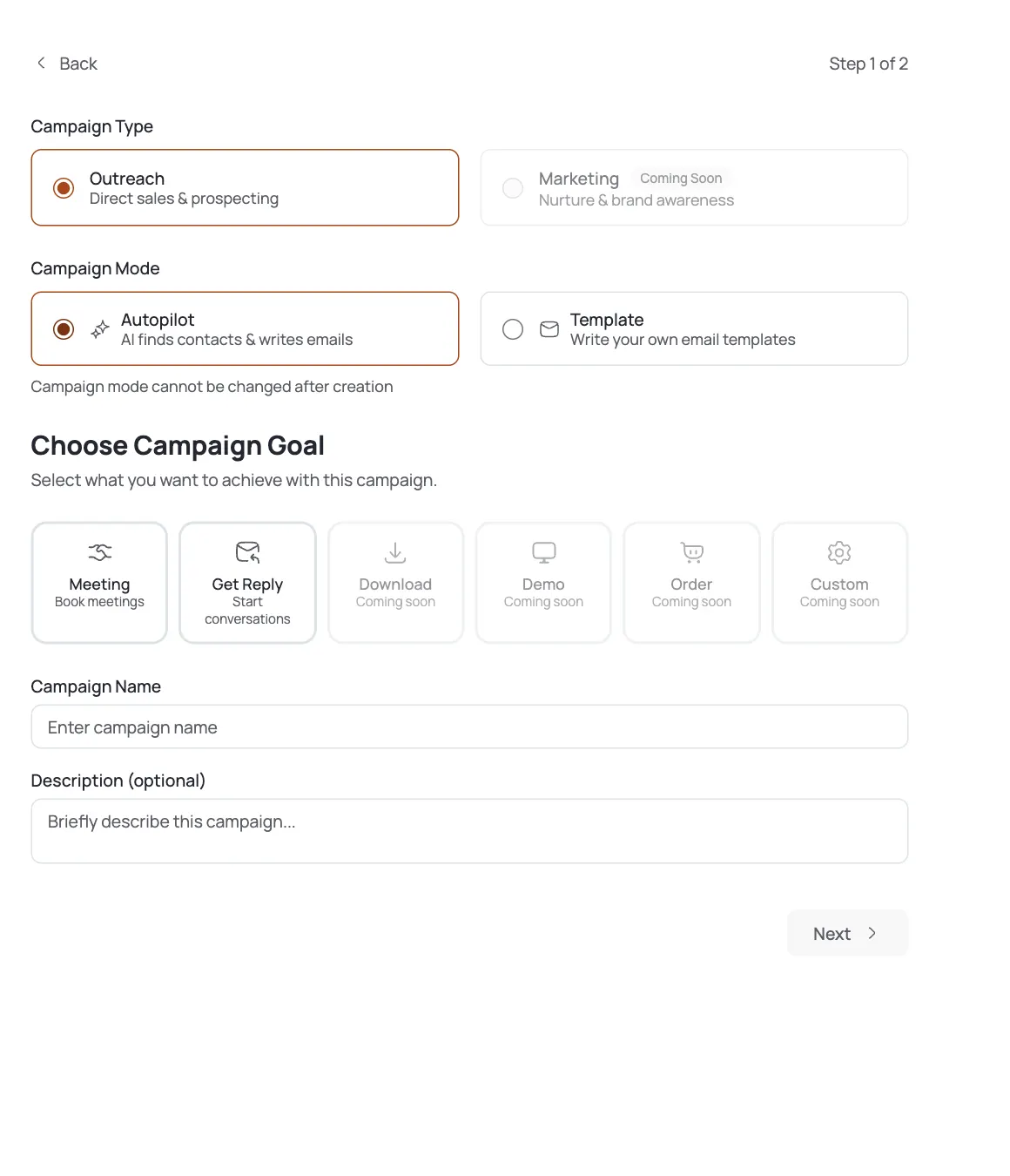
Create the campaign: Campaigns → Create Campaign, Outreach, Autopilot, goal Meeting. Describe the team's ICP in Contact Search Criteria, then on Settings assign each rep's warmed connector as a sender so the pool is in place before launch. See Create an Autopilot Meeting Campaign.
Tune one shared SDR voice
Open AI Instructions and set Persona & Voice, structure, and CTA once at the campaign level. Every rep's drafts inherit this voice, so brand consistency doesn't depend on how any one person writes: it's set centrally, not per sender.
Turn on the approval workflow: Must Approve
In the Workflow's Content Approval step, set the mode to Must Approve (
require-approve): “Emails stay on hold until you explicitly approve. No action = no send.” Unlike auto-approve's 24-hour timeout, nothing goes out without an explicit yes: the right default while reps ramp. Wire a Telegram connector so approval prompts land wherever a manager already is.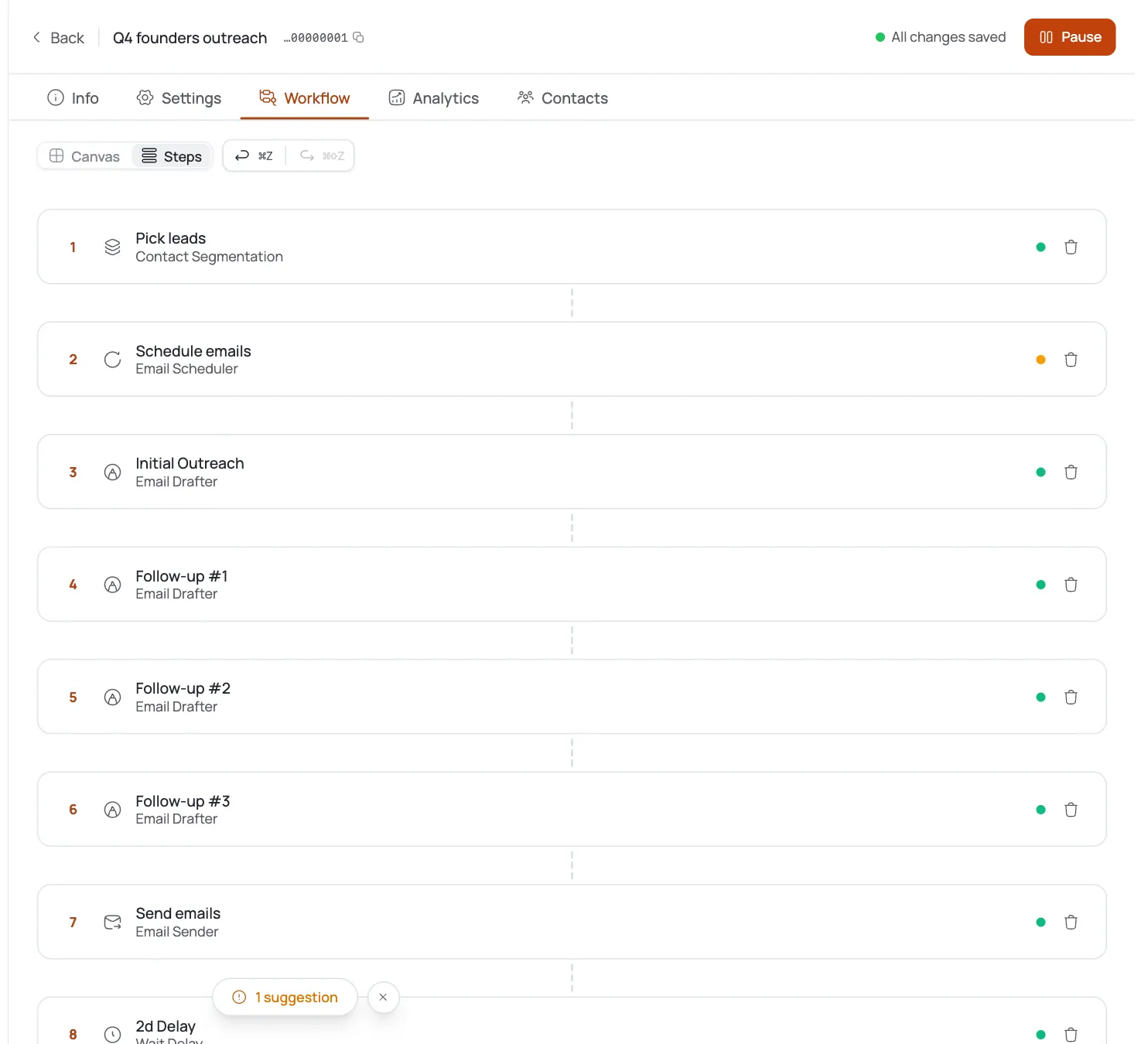
Work the approval queue
Managers review the drafts waiting in the needs-approval queue: approve on-brand ones, reject or fix the rest. Because the mode is Must Approve, nothing reaches a candidate's or prospect's inbox unreviewed: the gate is real, not a formality.
Share the inbox and drive to meetings
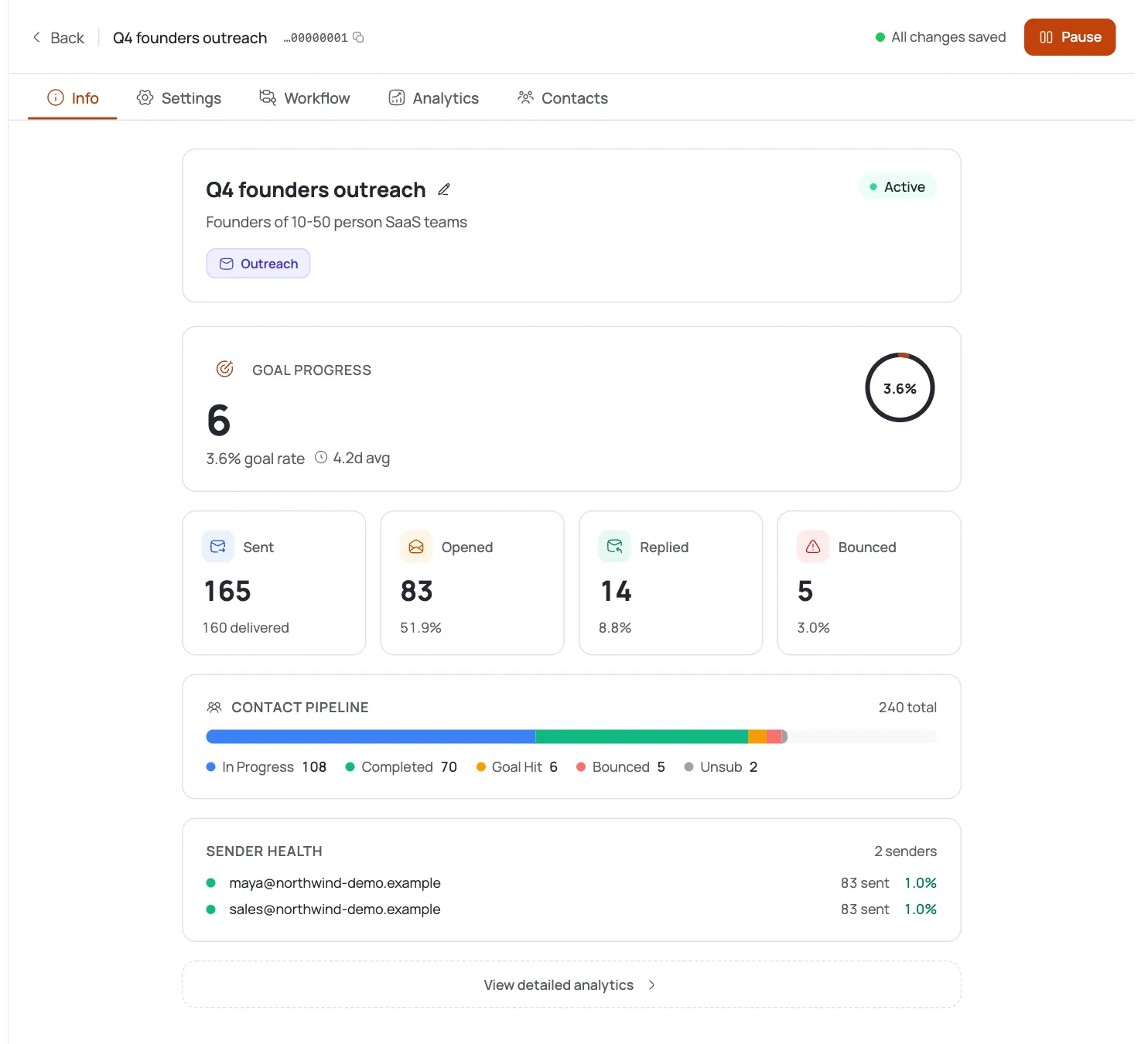
Reps triage replies together in the shared Inbox and book calls as they come in. Managers watch Analytics (replies and meetings booked) as the team's scoreboard, not opens. See Read Campaign Analytics.
Pro tips
Must Approve is the manager's safety catch
Unlike auto-approve's 24h auto-send, Must Approve never sends without an explicit yes: the right default while a new rep ramps up.
One SDR voice, many senders
Tune Persona & Voice once at the campaign level so brand consistency doesn't depend on each rep's individual writing.
The sender pool is the rotation
There's no separate rotation toggle: assign each rep's warmed mailbox as a campaign sender and volume spreads across the pool automatically.
Wire Telegram for approvals
With Must Approve, prompts land in Telegram so a manager can approve from their phone instead of living inside the app all day.
Frequently asked questions
How do I stop reps from sending unreviewed email?
Set the campaign's Content Approval step to Must Approve (require-approve): drafts hold until a manager explicitly approves them; no timeout auto-send.
Manager vs. Member: who can approve?
Managers can manage campaigns and content, which includes working the approval queue. Scope the Manager role to team leads and keep reps at Member.
How does the sender pool actually work?
Assign each rep's own warmed mailbox as a sender on the campaign's Settings tab. There's no rotation toggle: the app spreads volume across whichever connectors are assigned.
Where do managers approve drafts?
In the needs-approval queue tied to the campaign's Content Approval step; with a Telegram connector wired in, prompts also land there so managers can approve from their phone.
Auto-approve vs. Must Approve: what's the difference?
Auto-approve notifies you but auto-sends after 24 hours if you don't act. Must Approve holds indefinitely until you explicitly approve: better for a controlled team where nothing should ship unreviewed.
Should the whole team share one inbox?
Yes: one shared workspace means one shared Inbox, so reps triage replies together and managers can see the same activity the team does.
One shared SDR voice or one per rep?
Set it once at the campaign level. A single, tuned voice keeps outreach on-brand regardless of which rep's mailbox a given email sends from.
How do we measure the team?
Watch Analytics for replies and meetings booked, not opens: with a Meeting goal, that's the number that reflects real pipeline.