Know when Maps is the right source
Local prospects (plumbers, clinics, restaurants, shops) don't live in a job-title database; they live on Google Maps. When your ICP is defined by trade and city rather than by role, the Maps Scraper is the right harvester. One catch: harvesting only runs inside an Autopilot campaign, so that's where you start. See Create a Maps-Scraper-Based Campaign.
Create an Autopilot campaign
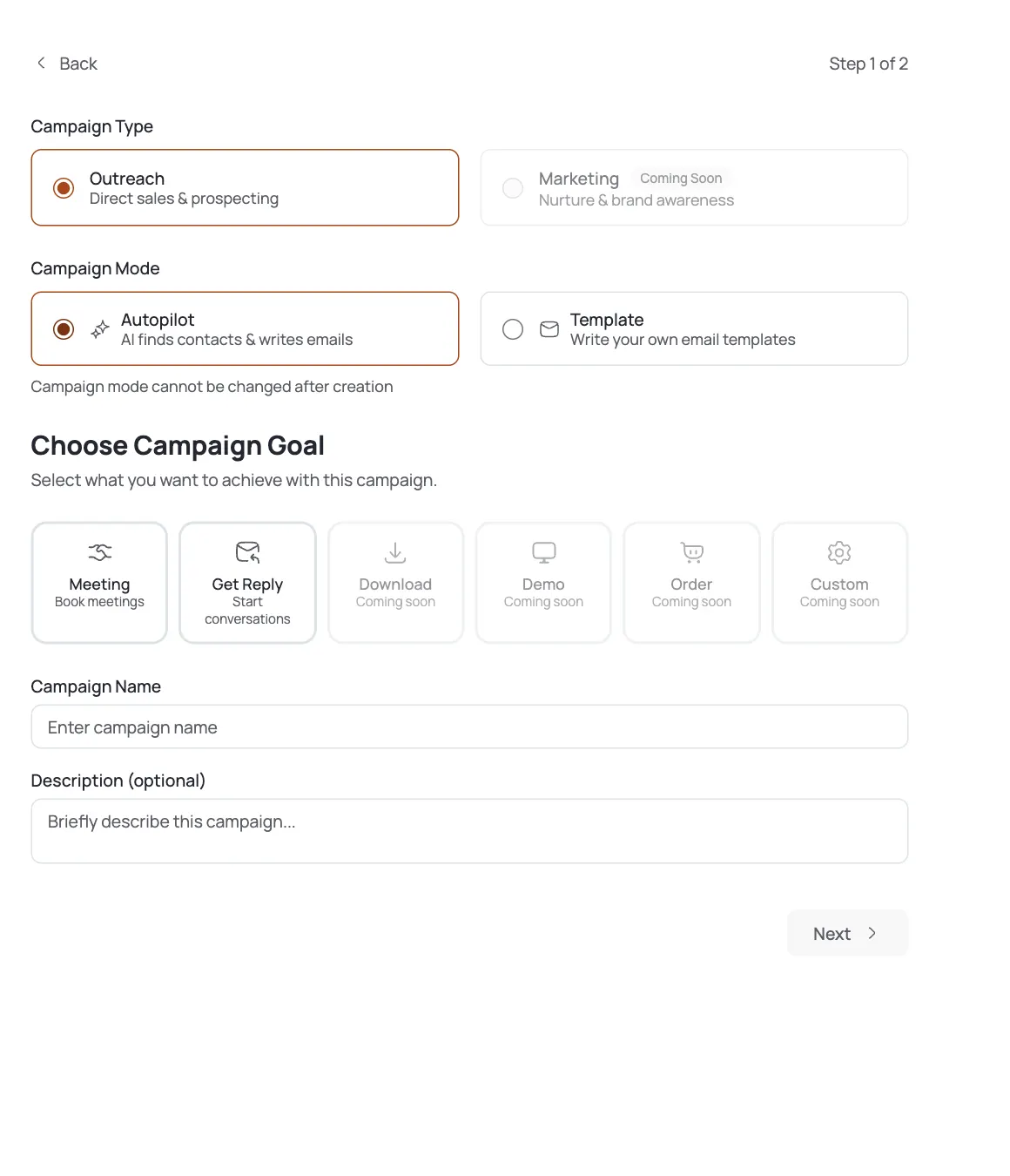
Open Campaigns → Create Campaign. Set Campaign Type to Outreach and Campaign Mode to Autopilot. Pick a goal that matches local intent: Meeting if you want a call or visit booked, Get Reply if you just want the conversation started.
Open the Contact Harvester and pick Maps Scraper
In the builder's Workflow, open the Contact Harvester node. It lists four sources: AI Leads, Maps Scraper, File Upload, Signal. Click Maps Scraper and toggle it ON to reveal its config.
Configure search terms and locations
Fill two fields, one entry per line: Search terms (the trade (
plumber,hvac) and Locations (the place)Austin, TX). Every term runs against every location, so two terms across three cities is six searches. Set Max results, Language/Country, and Frequency alongside them.Turn on Find emails deliberately, save to a list
Google Maps gives you name, phone, and website by default (not always an email. Turn on Find emails (paid, roughly 5 credits per place) when you specifically need addresses to send to. Businesses with no discoverable email stay in the list as phone-only records; email steps simply skip them. Point the harvest at a contact list) this is required and feeds the rest of the pipeline.
Verify the contacts before sending
Maps data is scraped and uneven, so turn on Contact cleaning (or re-clean an existing list) before your first send. Dirty or unverifiable addresses are auto-excluded, which protects a young sending domain from bounces. See Clean a Contact List.
Let the standard pipeline run
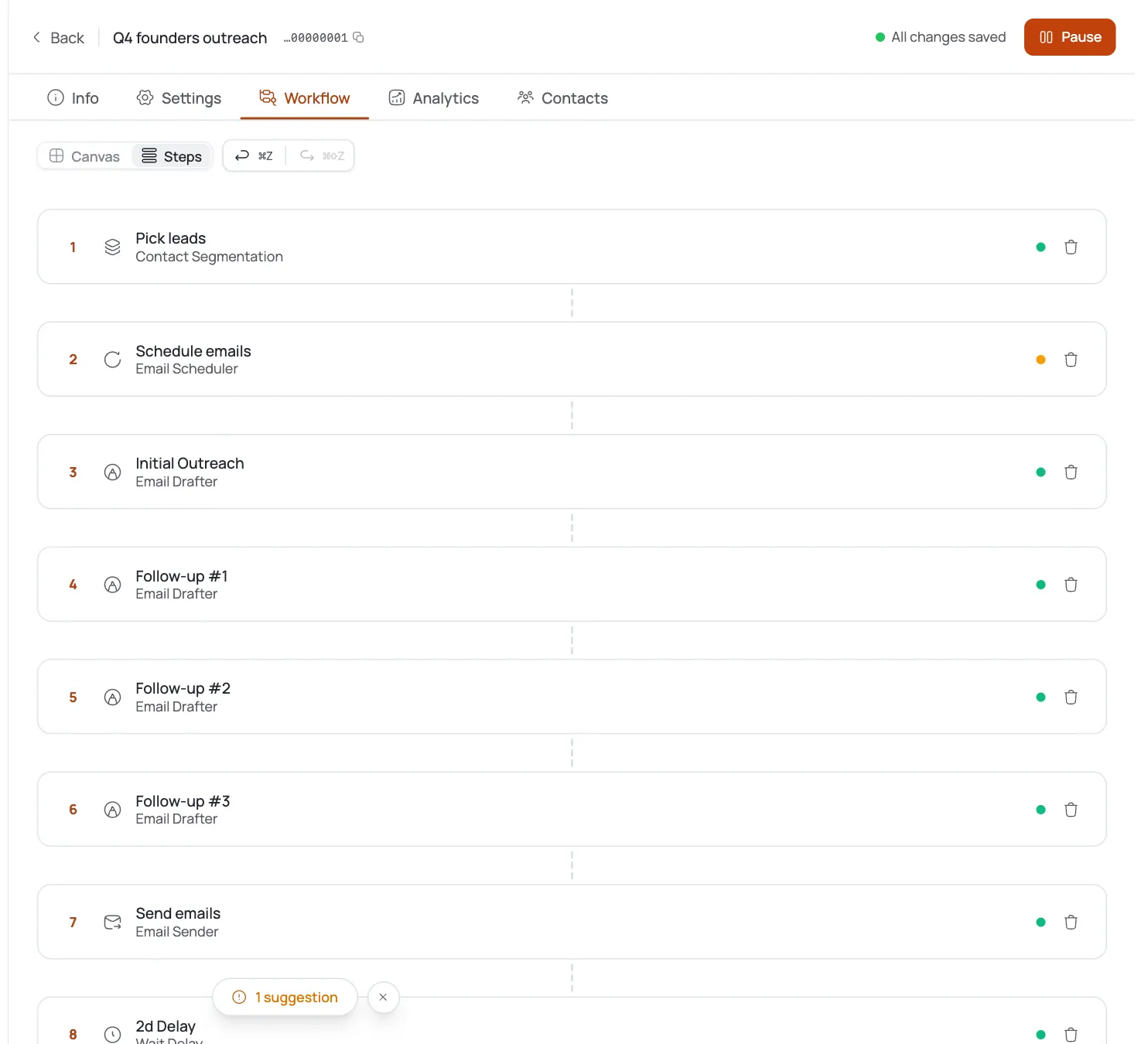
From here it's the normal Autopilot flow: Segmentation → Email Scheduler → Email Drafter → Content Approval → Email Sender. Keep Content Approval on for the first batch so you can sanity-check that the local tone reads right before trusting it to run unattended.
Work the replies
Triage replies in the Inbox and book the visit or call. If a city comes back thin, widen the search term or add nearby cities rather than raising Max results: relevance beats volume for local outreach.
Pro tips
Relevance beats volume locally
A thin city means broaden the search term or add nearby cities: don't just crank Max results. Term × location multiplies fast, so start narrow.
Find emails is paid: flip it with intent
Roughly 5 credits per place plus per-email cost. Leave it off for a phone-first list; turn it on when you specifically need to email.
Always clean a Maps list
Maps emails are scraped and uneven. Run cleaning so bounces don't torch a young sending domain's reputation.
Phone-only isn't wasted
Businesses with no discoverable email stay as phone records: useful if you also call, but your emailable count will be lower than your scraped count.
Frequently asked questions
Why use Maps instead of AI Leads?
Local businesses live on Google Maps by trade and city, not in a job-title database. AI Leads is built for role-based ICPs; Maps Scraper is built for local/brick-and-mortar ones.
Do I need Autopilot?
Yes: harvesting, including Maps Scraper, only runs in Autopilot mode via the Contact Harvester node. A Template campaign has no harvester.
How do terms and locations combine?
Every search term runs against every location: two terms across three cities produces six searches. Start narrow and expand once you see result quality.
Does it get email addresses?
Only if you turn on Find emails, a paid enrichment option (roughly 5 credits per place plus more per email found). It's off by default.
What about businesses with no email?
They're saved as phone-only records in your list. Email steps in the campaign skip them, so your emailable count is lower than your total scraped count.
Should I verify the list?
Yes: run Contact cleaning before sending. Maps data is uneven, and cleaning auto-excludes dead or unverifiable addresses.
Can I target exact places?
Yes: the tool accepts specific Place IDs or Google Maps Start URLs if you already know exactly which businesses you want, instead of relying on term-and-location search.
A city returned few results: what now?
Widen the search term or add nearby cities rather than raising Max results: that's usually a relevance problem, not a volume one.