Export your leads from Smartlead
In Smartlead, open your leads — either from a single campaign or the master leads list — and use its export-to-CSV option to download everything to a
.csvfile. Grab every column you use for personalization; you'll map them in the next step.Open the FirstSales contact importer
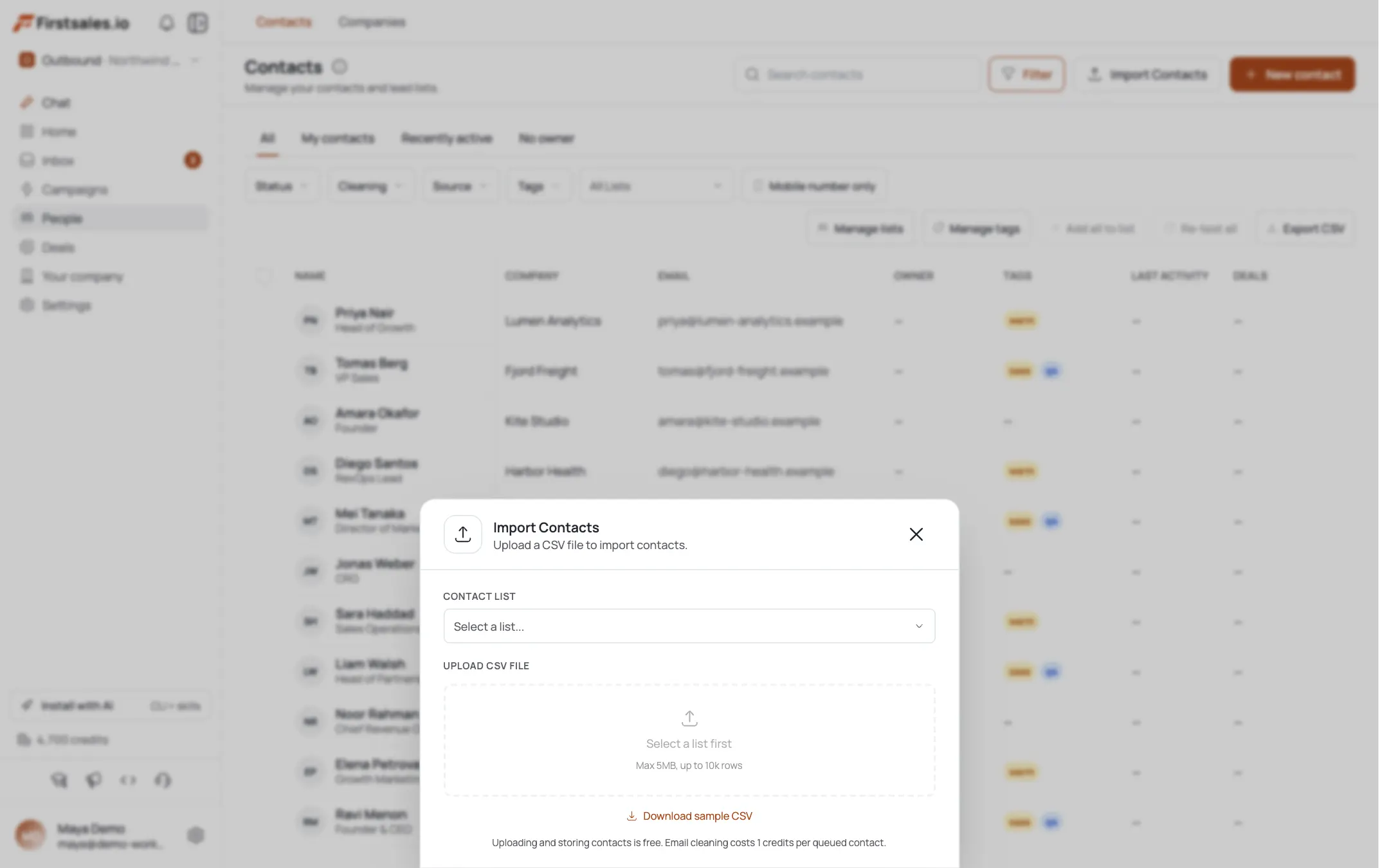
Go to Contacts, choose an existing list or create a new one, and open Import. The wizard walks you through upload → map → import.
Upload the CSV and map columns
Drop your Smartlead export — files up to 5 MB and 10,000 rows per import are supported. FirstSales auto-maps common headers; confirm the rest against the field list:
email(required),firstName/lastName/fullName,title,phone,linkedinUrl,company.name/company.domain, andtags(semicolon-separated). Set anything you don't need to Skip.Run the import and verify the counts
Confirm the import. FirstSales reports how many rows were imported, duplicates, and skipped so you can see the full list landed before you move on.
Reconnect your sending mailboxes
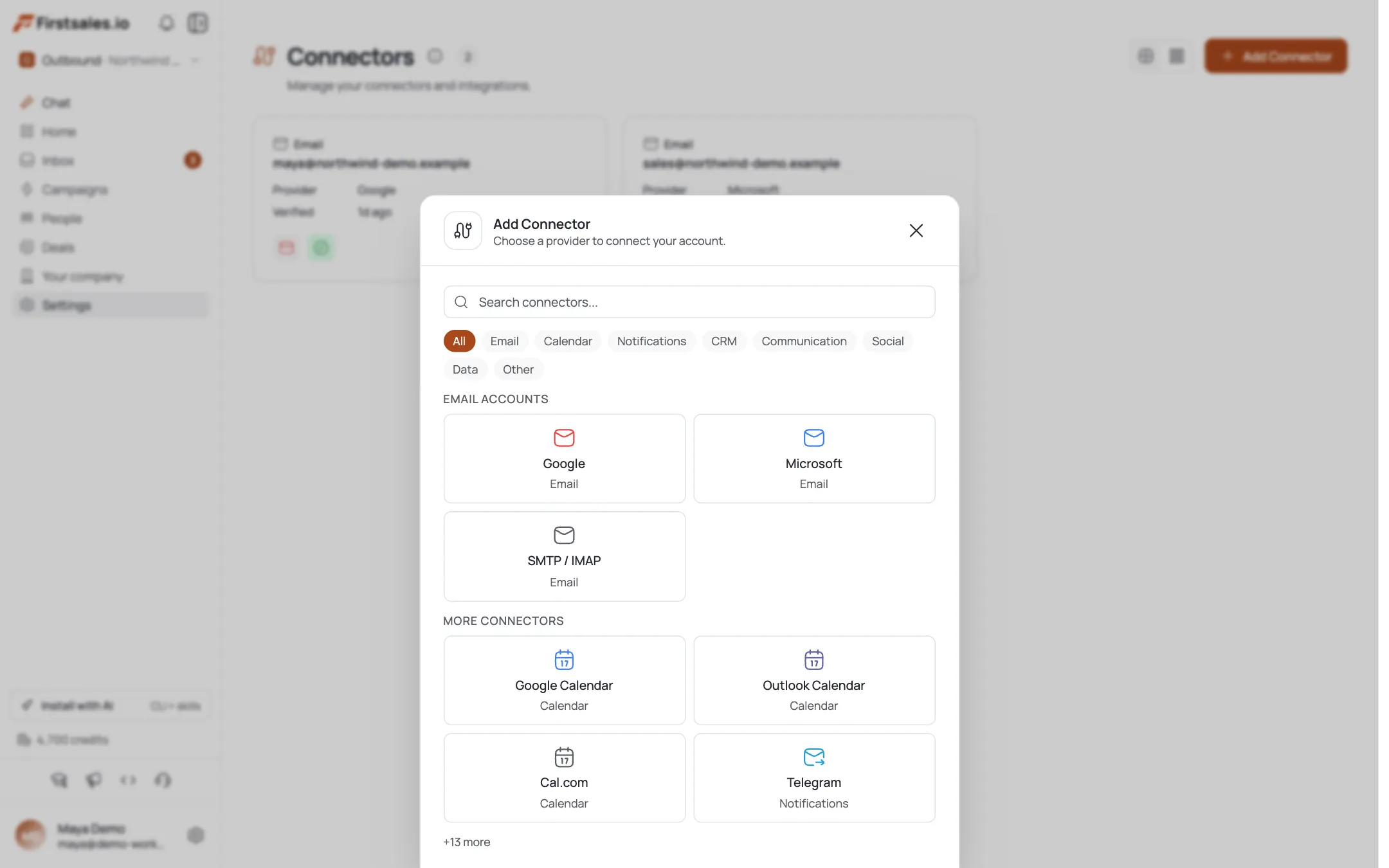
Go to Connectors → Add Connector and reconnect the same domains you sent from in Smartlead. Google and Microsoft connect with one OAuth click; any other provider connects over SMTP / IMAP with host, port, and app password.
Start warm-up before you send
Open each reconnected connector's Warm Up tab and switch it on; leave auto-adjust on to ramp volume for you. See the Set up email warm-up tutorial for the full walkthrough.
Rebuild your sequence in the campaign builder
Create a campaign and fill in the required pieces: name, goal, audience (your imported list), an email content source, a sender (your warmed connector), and an approval flow. Re-type your Smartlead sequence steps as the content source, then launch only once warm-up is healthy.
Pro tips
Warm up before you blast
Reputation does not come across in the CSV: a reconnected mailbox is a cold mailbox to inbox providers. Run warm-up for at least 2 weeks before pointing real campaigns at it, or you'll tank deliverability on day one.
Keep your domains: just re-authenticate
You don't need new domains. Reconnect the same sending domains and re-confirm SPF/DKIM/DMARC in the connector; your DNS records carry over, only the platform connection is new.
Clean while you map
Use Skip on junk columns and split full names into firstName/lastName where you can: personalization tokens read from these fields, so a clean import means better first lines.
Import in batches under 10,000
The importer caps at 10,000 rows / 5 MB per file. Split a large Smartlead export into multiple CSVs rather than forcing one oversized file.
Frequently asked questions
Will my warm-up reputation transfer from Smartlead?
No. Warm-up reputation lives with the mailbox/domain's sending history, not the platform, and it isn't exportable. Reconnect the mailbox and run FirstSales warm-up fresh for 2+ weeks before real sends.
Can I keep my existing sending domains?
Yes. Reconnect the same domains and re-verify SPF/DKIM/DMARC in the connector — the DNS records stay; only the platform link changes.
Is there a one-click Smartlead importer?
No — migration is a manual CSV export → CSV import plus mailbox reconnect. That's by design and takes about 10 minutes.
How many contacts can I import at once?
Up to 10,000 rows and 5 MB per file. Split larger exports into multiple imports into the same list.
Which mailbox types can I reconnect?
Google and Microsoft via OAuth, or any other provider via SMTP / IMAP with host, port, and app password.
Do my Smartlead sequences import automatically?
No — rebuild the sequence in the campaign builder. It's quick: paste your existing steps as the email content source and set audience + sender.
Will I double-contact people I already emailed in Smartlead?
Manage this on your side — import only the contacts you intend to (re)touch, and use list/tag segmentation. FirstSales de-dupes within an import and reports duplicates, but it doesn't know your Smartlead send history.