Connect the mailbox you'll warm up
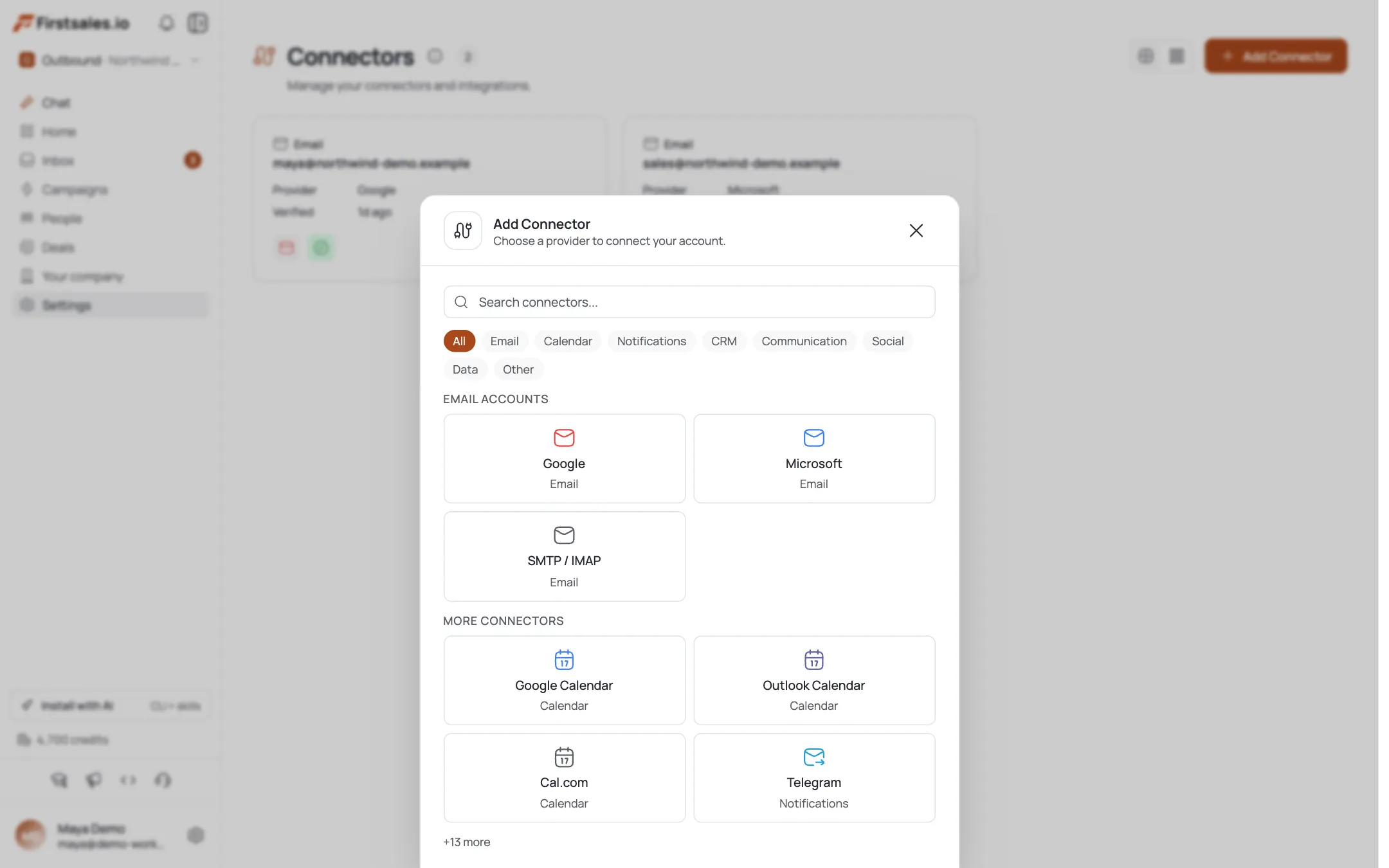
Warm-up runs on a real mailbox, so connect it first. Open Connectors from the left nav and click Add Connector. Google Workspace and Microsoft 365 connect with one OAuth click; any other provider connects over SMTP/IMAP with your host, port, and app password.
Use the domain you actually plan to send cold email from. Warming a throwaway address builds reputation you'll never use.
Confirm SPF, DKIM, and DMARC are passing
Authentication is what tells inbox providers your mail is really from you. Open the connector and check the Email Authentication panel on the Details tab (FirstSales scores your domain and marks SPF, DKIM, and DMARC with a red ✗ if they're failing. Anything red caps your warm-up before it starts.
- SPF) one
v=spf1record that includes your sending provider. - DKIM (the signing key your provider gives you, published as a TXT record.
- DMARC) start at
p=noneso you collect reports without blocking mail.
Click Set Up DNS Records for the exact records to add at your DNS host, then re-run the check until the score reaches 100%.
- SPF) one
Turn on AI warm-up
Open the connector's Warm Up tab and switch Email Warmup on. FirstSales begins sending small volumes of AI-generated conversation between our warm-up network and your inbox. Those messages get opened, replied to, and Spam Rescued (pulled back out of the spam folder) (the exact signals providers use to trust a new sender.
This runs quietly in the background. You don't write or manage any of it) the Warmup score, Days Active, and a 7-day breakdown track it for you.
Let auto-adjust manage the ramp
You don't set warm-up volume by hand. On the Details tab under Sending Configuration, leave Auto-adjust on: it sets each day's sending limit nightly based on yesterday's sending health, climbing as your reputation builds.
Set a Send ceiling only if you want a hard cap; leave it blank for none. The Daily Target on the Warm Up tab shows today's warm-up volume so you can see the ramp working.
Give the domain time to build reputation
Reputation is earned over days, not minutes. Let warm-up run for at least 2 weeks before you point real campaigns at the mailbox; 3–4 weeks is safer for a domain with no history.
Keep warm-up running after you go live too. It keeps a baseline of positive engagement flowing even on days you send fewer real emails.
Watch the warm-up metrics
Track progress on the connector, not a guess. Two places tell you how it's trending:
- Warmup score (Warm Up tab): moves from Placement pending to a placement rating as data comes in.
- Sending health (Details tab): scored nightly from yesterday's metrics. Keep it climbing toward Healthy.
The Daily Breakdown table shows Sent, Delivered, Replied, Bounced, and Spam Rescued per day. If health stalls or bounces climb, it's almost always authentication or ramping too fast: revisit steps 2 and 4 before sending real volume.
Launch your first campaign on the warmed mailbox
Once the Warmup score is healthy and you've cleared the 2-week minimum, the connector is ready. When you build a campaign, select this connector as a sender. FirstSales runs your free list cleaning first so no bounce hits your freshly-built reputation, then blends real sends with continued warm-up traffic.
Start real campaigns at modest daily volume and let them ramp alongside warm-up rather than replacing it overnight.
Pro tips
Warm the domain you'll actually send from
Reputation is tied to the sending domain. Warming a throwaway address builds trust you'll never spend: connect the real mailbox from day one.
Get authentication to 100% before you ramp
A red SPF, DKIM, or DMARC caps warm-up before it starts. Fixing the DNS records is the single biggest lever on how fast reputation climbs.
Never switch warm-up off after launch
Keep it running alongside live campaigns. It keeps a baseline of opens and replies flowing on days you send little real mail, so reputation never sags.
Let auto-adjust set the pace
Don't hand-tune daily volume. Auto-adjust reads yesterday's sending health each night and ramps only as fast as your inbox placement allows.
Frequently asked questions
How long should I warm up before sending real campaigns?
At least 2 weeks for a mailbox on a domain with some history, and 3–4 weeks for a brand-new domain with none. Watch the Warmup score and Sending health rather than the calendar: launch when they're trending Healthy, not just when time is up.
Do I have to write the warm-up emails myself?
No. FirstSales generates the conversation with AI and our warm-up network opens, replies, and Spam Rescues them automatically. You turn the toggle on once and it runs quietly in the background: there's nothing to write or manage.
Can I warm up more than one mailbox at a time?
Yes. Each connector warms independently, so connect as many mailboxes as your plan allows and toggle warm-up on for each. Reputation is built per-domain, so warming several inboxes on the same domain compounds nicely.
Will warm-up fix a domain that's already flagged as spam?
It helps rebuild trust, but it isn't magic. If a domain is already burned, fix SPF, DKIM, and DMARC first, ramp slowly, and give it several weeks. A severely damaged domain is sometimes best retired in favour of a fresh sending domain.
What happens if SPF, DKIM, or DMARC show a red ✗?
Anything red caps your warm-up before it can build momentum. Open the connector's Details tab, click Set Up DNS Records, add the records at your DNS host, then re-run the check until the score reaches 100% before you rely on the mailbox.
How much daily volume does warm-up send?
You don't set it by hand. Auto-adjust calculates each day's limit nightly from yesterday's sending health, climbing as reputation builds. Set a Send ceiling only if you want a hard cap; leave it blank for none.
Should I keep warm-up running after I go live?
Yes: leave it on. It keeps a steady stream of positive engagement flowing even on low-send days, which protects the reputation you spent weeks building. Real campaigns and warm-up traffic are designed to run side by side.
How do I know warm-up is actually working?
Three signals on the connector: the Warmup score moves from Placement pending to a placement rating, Sending health trends toward Healthy, and the Daily Breakdown table shows Sent, Delivered, Replied, Bounced, and Spam Rescued per day. Stalling health or rising bounces almost always trace back to authentication or ramping too fast.