
#Google Postmaster Tools for Cold Email: Read the Data
Copy page
TL;DR: Google Postmaster Tools (GPT) is a free dashboard that shows how Gmail grades your sending domain. It tracks spam rate, domain reputation, authentication pass rates, and delivery errors - all the signals that decide whether your cold emails land in the inbox or disappear. Set it up on every cold email domain you own, check it twice a week, and treat any reputation drop below High as an emergency.
The catch: you need at least 100 daily emails reaching Gmail recipients before the panels populate. Low-volume senders get "insufficient data" until they scale. For everyone above that floor, this is the closest thing to an official report card from Google.
#Table of Contents
- What Google Postmaster Tools Actually Measures
- Setting Up GPT for Cold Email Domains
- Reading the Domain Reputation Panel
- Reading the Spam Rate Dashboard
- Authentication: SPF, DKIM, and DMARC Pass Rates
- Delivery Errors: What the Failure Panel Tells You
- Encryption and Feedback Loop Panels
- The Metric-to-Action Table
- What GPT Cannot Tell You
- Alternatives and Supplements for Low-Volume Senders
- Building a Weekly Monitoring Routine
- FAQs
- Conclusion
#What Google Postmaster Tools Actually Measures
Google Postmaster Tools is a free service at postmaster.google.com. It pulls aggregated data from Gmail's receiving infrastructure and surfaces it as a sender-facing dashboard. Every metric inside GPT reflects how Gmail - specifically Gmail's filters, not just the user - perceives your domain.
The key word there is "domain." GPT is domain-scoped. You verify ownership of a sending domain, and GPT shows you data for mail sent from that domain to Gmail accounts.
This makes it directly useful for cold email, where you typically send from a dedicated domain separate from your main company domain.
The dashboards it provides fall into six categories:
- Spam Rate - the percentage of your authenticated sends that Gmail users marked as spam
- Domain Reputation - a four-tier rating (High, Medium, Low, Bad) reflecting Gmail's trust in your domain
- IP Reputation - historically tracked your sending IPs, though Google deprecated the dedicated IP Reputation dashboard in late 2025; IP-level signals are still factored into filtering but are no longer shown as a standalone panel
- Authentication - pass rates for SPF, DKIM, and DMARC on your outbound mail
- Delivery Errors - a breakdown of rejections and temporary failures, sorted by error type
- Encryption - what fraction of your mail is delivered over TLS
Together these panels give you a read on what Google already knows about your domain. The information is 24-48 hours delayed, so this is not real-time monitoring - but it is authoritative. No third-party tool gives you data sourced directly from Gmail's own filters.
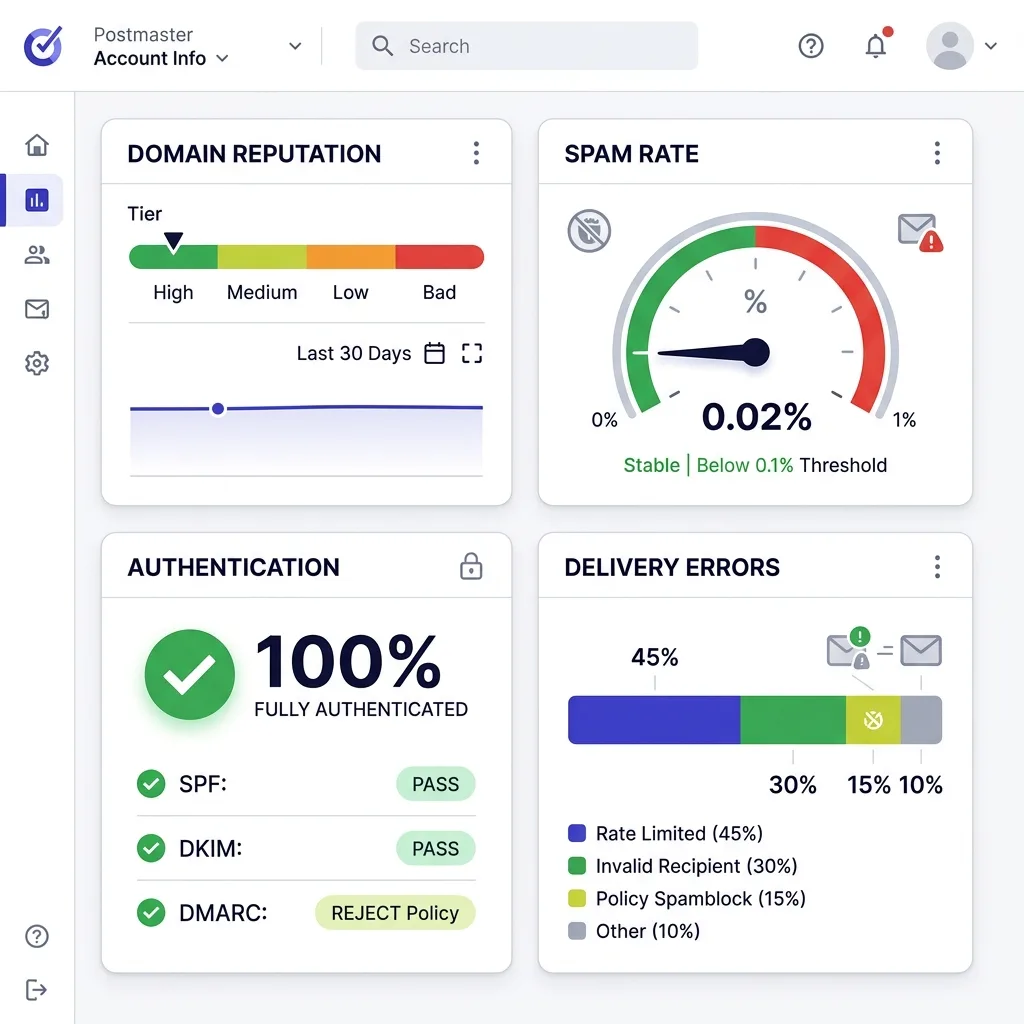 Google Postmaster Tools dashboard panels overview
Before you can use any of it, though, you need to connect your domains.
#Setting Up GPT for Cold Email Domains
The setup process takes about 15 minutes per domain, and you should do this for every cold email domain you operate - not just your primary one. If you run three sending domains, you want three verified properties in GPT.
Step 1: Go to postmaster.google.com
Sign in with any Google account. It does not have to be the Google Workspace account associated with the domain - any personal Gmail works.
Step 2: Click "Add Domain"
Enter the root domain you want to track. If you send from [email protected], you enter firstsales-sends.com. Do not enter the subdomain or the full email address.
Step 3: Verify via DNS TXT record
Google gives you a TXT record to add to your domain's DNS. This is the same process as SPF or DMARC. Log into your DNS provider (Cloudflare, Route 53, GoDaddy, Namecheap - wherever your domain lives), add the TXT record, and click Verify in GPT.
DNS propagation takes anywhere from 15 minutes to 2 hours depending on your provider's TTL settings.
Step 4: Wait for data
Once verified, the dashboard shows "Pending" until enough mail flows through to populate the panels. Google requires roughly 100+ emails per day reaching unique Gmail accounts before data appears. If you are in early warm-up sending 20-30 emails a day, expect to see "insufficient data" everywhere.
That is normal, not a sign that something is broken.
A few things to do while you wait: set up SPF, DKIM, and DMARC records if you have not already - GPT's authentication panel will show failures immediately if those records are misconfigured. Also bookmark the dashboard and add a recurring calendar reminder to check it. There are no automatic email alerts when reputation drops; you have to pull the data manually.
One structural note: GPT verifies root domains, not subdomains. If your sending infrastructure uses mail.firstsales-sends.com as the subdomain, you still verify firstsales-sends.com as the domain property. The reputation and spam signals aggregate at the root domain level, which is one reason using a separate sending domain rather than a subdomain of your main brand domain protects your primary web presence.
#Reading the Domain Reputation Panel
Domain Reputation is the most important number in GPT. It is a qualitative four-tier rating, not a numeric score, and it represents Gmail's overall trust in your sending domain based on historical behavior - complaint rates, spam trap hits, list quality, and engagement patterns.
The four tiers are:
| Tier | What It Means | Action |
|---|---|---|
| High | Strong sending history, low complaints, trusted domain | Normal operations, keep monitoring |
| Medium | Some concerns detected, mixed signals | Audit recent list quality and complaint rate immediately |
| Low | Serious problems; Gmail actively throttling or filtering | Pause outbound, deep audit, ramp back slowly |
| Bad | Domain flagged; bulk rejections likely | Stop sending, investigate, potentially retire domain |
For cold email, you should always be targeting High. Medium is not a plateau to accept - it is an early warning. Domains that sit at Medium without intervention typically drift to Low within a few weeks if the underlying behavior does not change.
Domain Reputation is also a leading indicator relative to spam rate. Reputation often moves first. If your spam rate looks acceptable but reputation just dropped from High to Medium, something changed in how Gmail's algorithms are reading your domain - even before users started hitting Report Spam at higher rates.
Investigate immediately.
A few behaviors that reliably drag domain reputation down: sending to unverified lists, blasting the same template to thousands of recipients in a short window, triggering spam traps hidden in purchased or scraped lists, and getting abuse reports even below the 0.10% threshold over an extended period.
The fix for a degraded domain reputation is almost always the same: stop sending volume temporarily, clean your list, fix any authentication gaps, and slowly ramp back up with a smaller, better-targeted audience. There is no shortcut. The domain's behavior over the preceding 30-90 days is what GPT is reflecting, and changing that reading requires changing that behavior across the same time window.
#Reading the Spam Rate Dashboard
Spam Rate is the metric most directly tied to Google's published bulk sender requirements. Google's official thresholds are:
- Below 0.10%: acceptable
- At or above 0.10%: Google starts enforcing consequences
- At or above 0.30%: hard failure, significant deliverability impact
In practice, cold email practitioners who track this closely set their personal thresholds tighter. A working guideline used by many outbound teams is to target below 0.08% and treat 0.04% as the comfortable operating ceiling. The gap between 0.04% and the official 0.10% limit gives you runway to catch a problem before Google acts on it.
The Spam Rate dashboard in GPT v2 (the current version as of 2026) shows the percentage of your authenticated messages that reached a recipient's inbox and were then marked as spam by the user. There are two things to pay close attention to in how that definition is constructed.
First, it measures authenticated mail. If your DKIM is misconfigured and your emails are not being authenticated, those messages may not count toward your tracked spam rate in GPT - but they also are not going to the inbox, so you are getting a false read on your situation. Authentication is a prerequisite for useful spam rate data.
Second, it measures inbox-delivered mail that was subsequently marked spam. Messages that went directly to the spam folder do not contribute to this metric. This means your GPT spam rate is actually a measure of how recipients react to the emails that did reach them - it is a behavioral signal about your content and targeting quality, not just a technical filter metric.
What moves spam rate in cold email:
- Sending to contacts who never opted in and do not recognize your name
- Using subject lines or preheaders that create expectations the email does not meet
- Sending the same message to a large list with no personalization - recipients who see generic templated outreach hit Report Spam at higher rates than those who receive targeted, relevant messages
- Not including an easy unsubscribe path, which pushes frustrated recipients toward the spam button as their only way out
- Following up too aggressively after no response
The spam complaint rate thresholds that Google enforces are not negotiable ceilings - they are floors. Competent cold email operations run well below 0.10% not because they are trying to comply but because their targeting and copy quality keep recipients from wanting to report them in the first place.
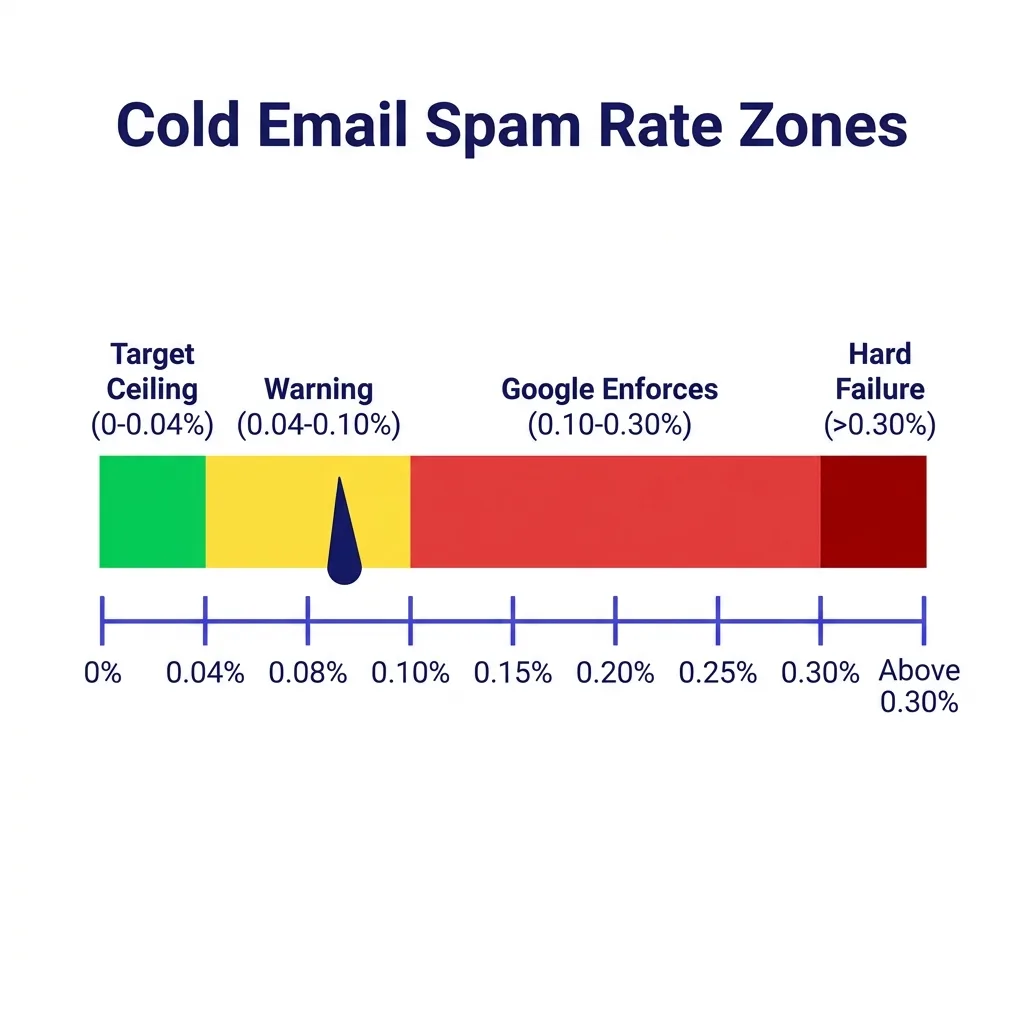 Spam rate chart showing 0.04% target ceiling and Google thresholds at 0.10% and 0.30%
#Authentication: SPF, DKIM, and DMARC Pass Rates
The Authentication dashboard shows the percentage of your outbound mail that passed SPF, DKIM, and DMARC checks. For a properly configured cold email domain, this number should be 100% and should never move.
If your authentication panel shows anything below 100%, you have a DNS configuration problem that needs same-day attention. It is not something to monitor and revisit - authentication failures mean some portion of your mail is being sent unauthenticated, which has immediate deliverability consequences and likely signals a misconfiguration that is actively harming your inbox placement.
Common causes of authentication failures in cold email setups:
SPF failures: You added a new sending tool - a CRM, a cold email platform, a warm-up service - and did not update your SPF record to authorize that tool's IP addresses. SPF records have a 10 DNS lookup limit, and complex setups can exceed it, causing intermittent failures. Use an SPF flattening tool if your record has many mechanisms.
DKIM failures: The DKIM key you configured on your email provider does not match the public key in your DNS. This happens most often during domain migrations or when a provider rotates their DKIM keys. Some cold email tools require you to manually set up DKIM rather than using the provider's default key.
DMARC failures: DMARC alignment requires that the domain in the From header aligns with either the SPF-authenticated domain or the DKIM-signing domain. When cold email tools use their own sending infrastructure (SMTP relays) but put your domain in the From, alignment can break. Make sure your DMARC record matches how your sending chain actually works.
The GPT authentication panel shows pass rates as a daily percentage. A sudden drop on a specific day points to when something changed - a new tool was connected, a DNS record was edited, or a key expired. Cross-reference the date of the drop with any infrastructure changes you made that day.
Since Google's bulk sender requirements became mandatory, authentication is no longer optional for domains sending to Gmail at any meaningful volume. A DMARC policy of at least p=none is the minimum, and most deliverability practitioners recommend moving to p=quarantine or p=reject once you have confidence in your authentication setup.
#Delivery Errors: What the Failure Panel Tells You
The Delivery Errors dashboard shows the percentage of your emails that Gmail rejected or temporarily failed, broken down by error code. This is where you diagnose infrastructure problems, not reputation problems.
The three most common error categories you will see in cold email:
Rate limit exceeded: Gmail is throttling your sending rate because you are sending too fast from a given IP or domain. This is a pacing problem, not a reputation problem - though sustained rate-limit errors do contribute to reputation degradation over time. The fix is to slow down your sending rate, add delays between sends, and if you are managing multiple inboxes, spread volume across them rather than concentrating it.
Suspected spam: Gmail's content filters flagged the message before delivery. This can happen even if your overall spam rate looks fine, because content-level filtering operates independently of the aggregate spam rate metric. Look at which messages triggered this - often it is specific subject line patterns, link shorteners, or phrases that overlap with known spam campaigns.
Bad or unsupported content: Usually means attachment types that Gmail blocks, or HTML formatting that triggers filter rules. For cold email, the simplest fix is to send plain text or minimal HTML and avoid attachments entirely in prospecting sequences.
One important nuance: GPT sometimes shows delivery errors for mail that ultimately did get delivered. This happens because Gmail may initially reject a message temporarily (a soft bounce or greylisting) and then accept it on a retry. GPT logs the initial rejection as a delivery error even if the message arrived on the second attempt.
So do not treat every error in this panel as a permanent failure - context matters. A delivery error rate that spikes briefly and then recovers may reflect a short greylisting episode rather than a hard block.
Persistent delivery error rates above 5-10% on any single error type are worth investigating. Patterns that span multiple days in a single error category almost always signal a fixable infrastructure problem.
#Encryption and Feedback Loop Panels
Two smaller panels round out GPT's dashboard: Encryption and Feedback Loop.
Encryption shows the percentage of your outbound mail delivered over TLS (Transport Layer Security). For any properly configured modern email provider, this should be near 100%. TLS in transit does not directly affect spam filtering, but Google tracks it as a basic infrastructure hygiene signal.
If you see low TLS rates, your email provider or SMTP relay may have a configuration issue worth escalating to their support team.
Feedback Loop shows aggregated complaint data for senders who have enrolled in Gmail's feedback loop program. This panel is primarily relevant to ESPs and high-volume marketing senders, not cold email domains. Most cold email operators will not find actionable data here, but it is worth checking once to confirm there are no patterns in complaint timing.
Neither of these panels drives the same urgent action as Reputation or Spam Rate. Think of them as baseline hygiene metrics - you want them to look normal, and if they do not, you investigate, but they are rarely the primary signal for a deliverability problem.
#The Metric-to-Action Table
Here is the complete picture of what each GPT reading means and what you should do about it:
| Metric | Reading | Urgency | Action |
|---|---|---|---|
| Domain Reputation | High | - | Normal operations, check weekly |
| Domain Reputation | Medium | High | Pause new list sends, audit last 14 days of targeting, check spam rate trend |
| Domain Reputation | Low | Critical | Pause all outbound, full infrastructure audit, slow ramp back over 4-6 weeks |
| Domain Reputation | Bad | Critical | Stop sending, escalate to domain retirement decision |
| Spam Rate | Under 0.04% | - | Healthy, maintain targeting discipline |
| Spam Rate | 0.04%-0.08% | Medium | Review recent sends, tighten targeting, improve list hygiene |
| Spam Rate | 0.08%-0.10% | High | Pause highest-volume sends, scrub list, audit subject lines |
| Spam Rate | Above 0.10% | Critical | Pause outbound immediately, implement email deliverability monitoring across all sends |
| Authentication | 100% | - | No action needed |
| Authentication | Below 100% | Critical | Same-day DNS audit - find and fix failing record before next send |
| Delivery Errors | Under 2% | - | Normal, monitor |
| Delivery Errors | 2%-10% | Medium | Identify dominant error type, address root cause |
| Delivery Errors | Above 10% | High | Infrastructure problem - slow sends, diagnose error codes |
| Encryption | Near 100% | - | Normal |
| Encryption | Below 95% | Medium | Contact sending provider about TLS configuration |
The action column uses deliberate language. "Pause" means stop new sends to the affected list or domain. "Audit" means systematic review, not a casual glance.
"Critical" means you do not wait until the next scheduled monitoring window - you act the same day.
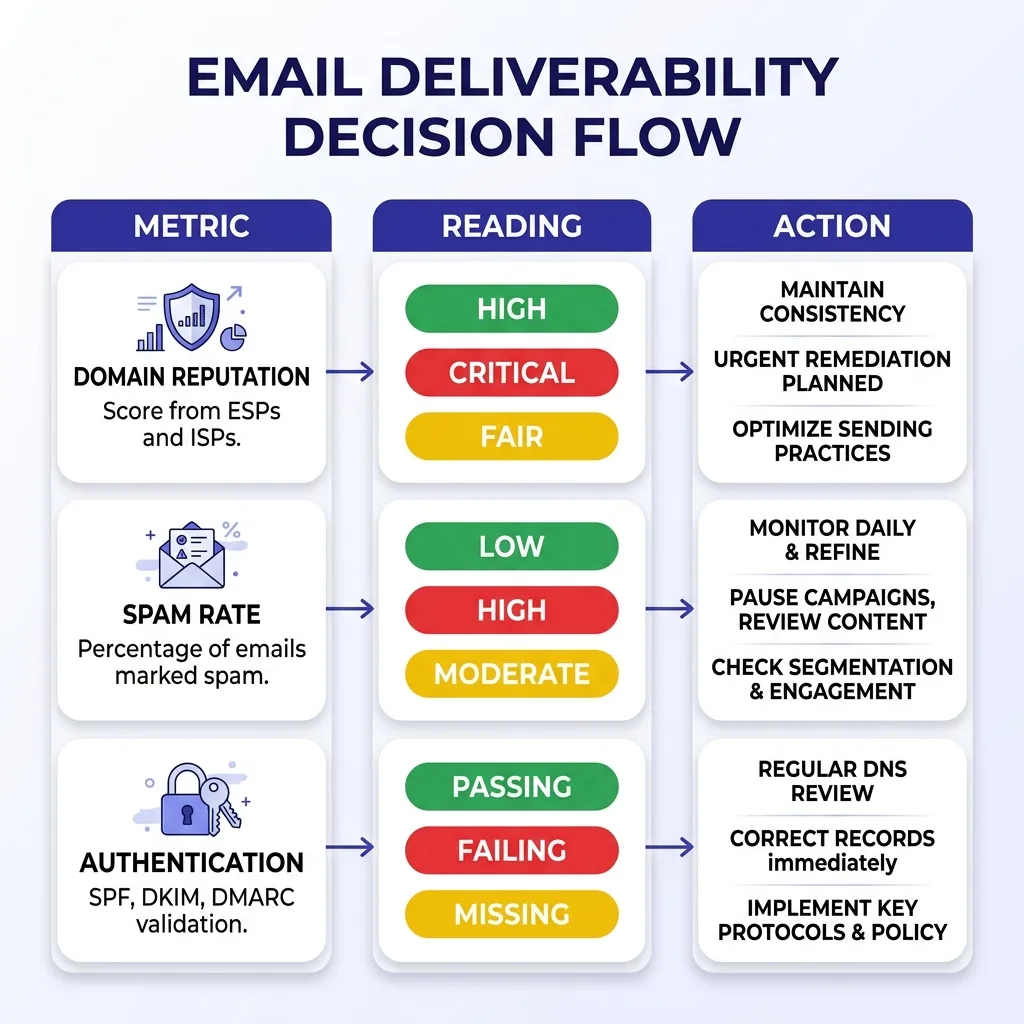 Infographic showing metric-to-action decision flow for Google Postmaster Tools readings
#What GPT Cannot Tell You
Google Postmaster Tools is authoritative about Gmail. It tells you nothing about what happens to your email at Outlook, Yahoo, corporate mail servers, or any other destination. If a significant portion of your prospect list uses Microsoft 365 or Outlook.com addresses, you are flying partially blind with GPT alone.
It also does not tell you about individual-level filtering. A campaign that lands in the inbox for 95% of Gmail recipients but hits the spam folder for a specific company's Google Workspace setup - because of that company's custom filtering rules - will not show up in GPT's aggregate data.
Data latency is another real constraint. GPT updates 24-48 hours after sending. By the time you see a spam rate spike in the dashboard, the damage may already be accumulating.
For high-volume campaigns, this delay means you cannot use GPT as a real-time safety net. You need to set conservative volume limits and monitor open rates from your sending tool on a shorter cycle.
And then there is the volume floor. This is the most significant limitation for cold email operators who run careful, targeted outbound. If you are sending 30 targeted, highly personalized emails per day to Gmail accounts - which is a legitimate and healthy sending cadence for protecting your inbox placement rate - GPT will show you "insufficient data" on every panel.
You are sending too little to trigger the dashboard.
The 100+ daily message threshold to unique Gmail recipients is not officially documented with that specific number by Google, but it is the widely observed practical floor. Below it, the panels simply do not populate.
#Alternatives and Supplements for Low-Volume Senders
If you are a low-volume cold email sender, or if you need data on non-Gmail destinations, several tools complement GPT or substitute for it in cases where GPT does not populate.
GlockApps runs seed list tests - you send a test email, it goes to a panel of real inboxes across providers (Gmail, Outlook, Yahoo), and it reports back where the message landed. This gives you inbox vs. spam vs. promotions tab data across multiple providers with a single send. It is not free at the business tier, but for cold email teams it is one of the most direct ways to see actual inbox placement data rather than proxy metrics.
The limitation is that seed tests use static mailboxes, not your real prospects - they catch filter issues but cannot measure recipient engagement.
MxToolbox, Spamhaus, and Sender Score check your IP and domain reputation against third-party blocklists. These are worth running monthly on any active sending domain. A Spamhaus listing in particular causes widespread deliverability failures across many providers, and it does not show up in GPT.
Check it separately.
Your sending tool's bounce and reply rate data is often underused as a deliverability proxy. Sustained low open rates (below 20% for a cold list with average targeting) often signal deliverability problems before GPT data reflects them. If opens are declining week over week and GPT shows "insufficient data," treat the open rate trend as your primary early warning system.
One pattern that works for low-volume senders trying to get GPT data: concentrate your sends slightly. If you are spreading 30 emails a day across all providers, consider checking what fraction of your list uses Gmail. If you have enough Gmail recipients to push 100+ messages to Gmail accounts per day even temporarily, you can run a short higher-volume period purely to populate GPT data, then review the results and return to lower volume.
It is a manual workaround, but it works.
For ongoing email warmup phases specifically, most warmup services generate artificial sends to their network of mailboxes, many of which are Gmail accounts. This can sometimes push your volume above the GPT threshold during warmup even when your real outbound volume is low - giving you early reputation data on a new domain before your actual campaign volume is high enough to generate it.
#Building a Weekly Monitoring Routine
GPT is not useful as a set-and-forget tool. It requires a regular review cycle, and that cycle should be short enough to catch problems before they compound.
A functional weekly routine for cold email teams:
Monday: Log into GPT for each active sending domain. Check domain reputation - has it changed tiers since last week? Check spam rate for the trailing 7 days - any single day above 0.08%?
If yes, identify which sends happened that day in your sending tool.
Wednesday: Check authentication - still 100%? Check delivery errors - any new error type appearing in volume? Cross-reference with any infrastructure changes (new tools connected, DNS edits, provider changes) from the preceding week.
Friday: Compare current week's GPT data to prior week. Are any metrics trending in the wrong direction even if they are still within acceptable ranges? Spam rate at 0.03% last week and 0.06% this week is a trend worth noting even though both numbers are below the threshold.
Beyond the weekly check, set up third-party monitoring for anything GPT does not cover. Run your sending domains through Spamhaus's blocklist checker monthly. Use your sending tool's analytics to watch open and reply rates as leading indicators.
Keep a simple log of your GPT readings in a spreadsheet. Date, domain, reputation tier, spam rate, authentication percentage. After two months you have a trend line that shows whether your program is healthy or slowly degrading.
That historical view is something the GPT dashboard itself does not provide - it only shows recent data, and the default view window is limited.
The email deliverability monitoring discipline is not glamorous work, but it is what separates teams that maintain clean sending infrastructure over months and years from teams that burn through domains. Google Postmaster Tools is the clearest signal available for Gmail-bound mail - using it consistently is table stakes for any serious cold email program.
#FAQs
#How long does it take for Google Postmaster Tools to show data after verifying a domain?
After DNS verification, GPT typically starts showing data within 48-72 hours - but only if you are sending enough volume. The practical threshold is roughly 100+ emails per day reaching unique Gmail accounts. If you are below that volume, all panels will show "insufficient data" regardless of how long the domain has been verified.
#Does Google Postmaster Tools show data for emails that land in the spam folder?
Partially. The spam rate metric specifically measures messages that arrived in the inbox and were then marked as spam by the user - it does not count messages that went directly to the spam folder. Delivery errors may reflect some filtering-level rejections, but GPT does not give you a direct "spam folder placement rate."
For that, you need a seed testing tool like GlockApps.
#What should I do if my domain reputation drops from High to Medium overnight?
Treat it as high priority, not a watch-and-wait situation. Check your spam rate for the day it dropped. Review which sends went out in the 24-48 hours before the change - which list, which template, what volume.
If your spam rate is still below 0.08%, the reputation change may reflect something Google detected algorithmically rather than user complaints. Pause volume to the affected domain while you audit and clean your list. Do not keep sending at normal volume hoping it self-corrects.
#Can I use Google Postmaster Tools for subdomains?
GPT verifies root domains, not subdomains. If you send from mail.yourdomain.com, you verify yourdomain.com as the property. The data aggregates at the root domain level.
This is also why using a subdomain of your main brand domain for cold email is risky - reputation data (and problems) roll up to the same root domain your website and marketing emails use. A separate root domain gives you clean separation.
#Is Google Postmaster Tools useful for Microsoft Outlook recipients?
No. GPT only covers Gmail and Google Workspace accounts. It tells you nothing about how Outlook.com, Microsoft 365, or corporate mail servers hosted on Microsoft infrastructure handle your mail.
For Outlook deliverability monitoring, check your Microsoft SNDS (Smart Network Data Services) account and monitor your Sender Score through third-party tools.
The two systems require separate monitoring workflows.
#My GPT spam rate shows 0.00% but my open rates are declining. What is happening?
Several explanations are possible. First, your emails may be going to Gmail's Promotions or Spam tab without users hitting "Report Spam" - GPT only tracks user-reported spam, not tab placement. Second, the issue may be on non-Gmail recipients where GPT has no visibility.
Third, your open tracking may reflect deliverability problems with specific segments that are not large enough to move the aggregate GPT spam rate. Use inbox placement seed tests to check where mail is actually landing, and look at whether the open rate decline is uniform across all recipients or concentrated in specific domains or segments.
#Conclusion
Google Postmaster Tools is the only deliverability data source that comes directly from Gmail's own infrastructure. It is free, accurate within its scope, and gives you the most authoritative read available on how your sending domain is perceived by the world's largest email provider.
The practical workflow is straightforward: verify every cold email domain you operate, check reputation and spam rate twice a week, treat any authentication reading below 100% as a same-day emergency, and keep historical records so you can spot trends before they become crises. Supplement GPT with seed testing tools for non-Gmail destinations and third-party blocklist monitoring for IP reputation.
Where GPT falls short - the volume floor, the 48-hour data delay, the Gmail-only scope - know the gaps and fill them with the right tools. No single dashboard gives you complete deliverability visibility. GPT is a critical layer, not the whole picture.
If you want to run cold email without burning domains and relationships, the monitoring discipline starts here. Ready to put it into practice? Start your first campaign for $1 at FirstSales and run clean, monitored outbound from day one.