Choose Outreach → Autopilot → Meeting
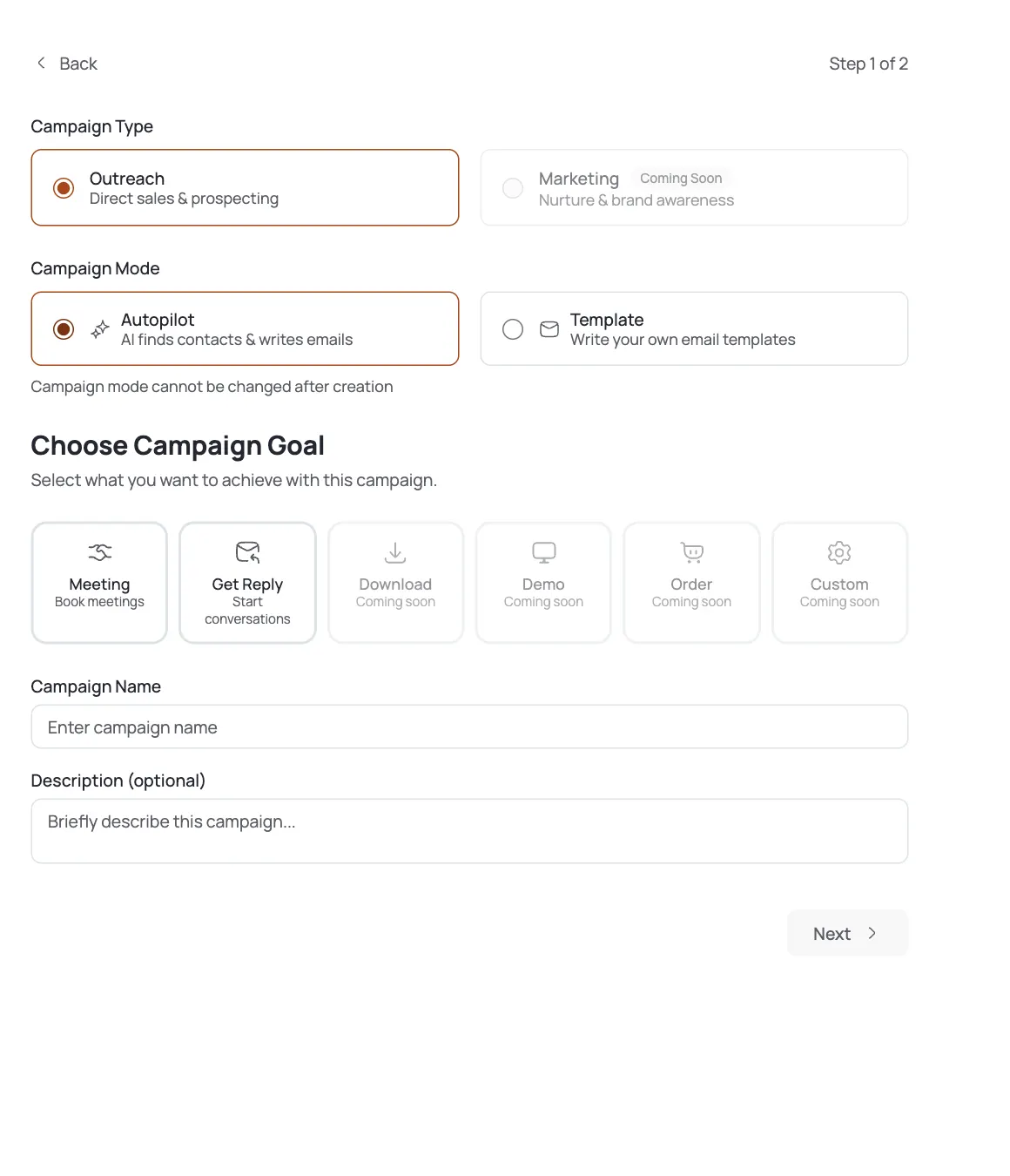
Open Campaigns from the left nav and click Create Campaign. Step 1 sets the three choices that shape everything after it:
- Campaign Type (pick Outreach (direct sales & prospecting).
- Campaign Mode) pick Autopilot. This is the mode where the AI finds the contacts and writes the emails for you. (The other mode, Template, is where you write your own emails: covered in a separate tutorial.)
- Campaign Goal: pick Meeting. This tells the AI the outcome is a booked call, so every email is written to drive toward "grab 15 minutes" rather than just starting a chat.
Give it a name and click Next. One thing to know before you commit: campaign mode cannot be changed after creation: if you want AI sourcing, choose Autopilot here.
Tell the AI who to target
Step 2 is Contact Search Criteria: this only appears for Autopilot, because it's what the AI uses to go find people. Describe your ideal buyer in the Target Audience box in plain language, e.g. "Founders and heads of sales at B2B SaaS companies (10–200 employees) in the United States."
- Industry: narrow the search (e.g. B2B SaaS).
- Geography: optionally pin Country, State, and City.
The more specific the audience line, the tighter the AI's list. Click Create Campaign and FirstSales builds the campaign and opens its builder.
Meet the seven builder tabs
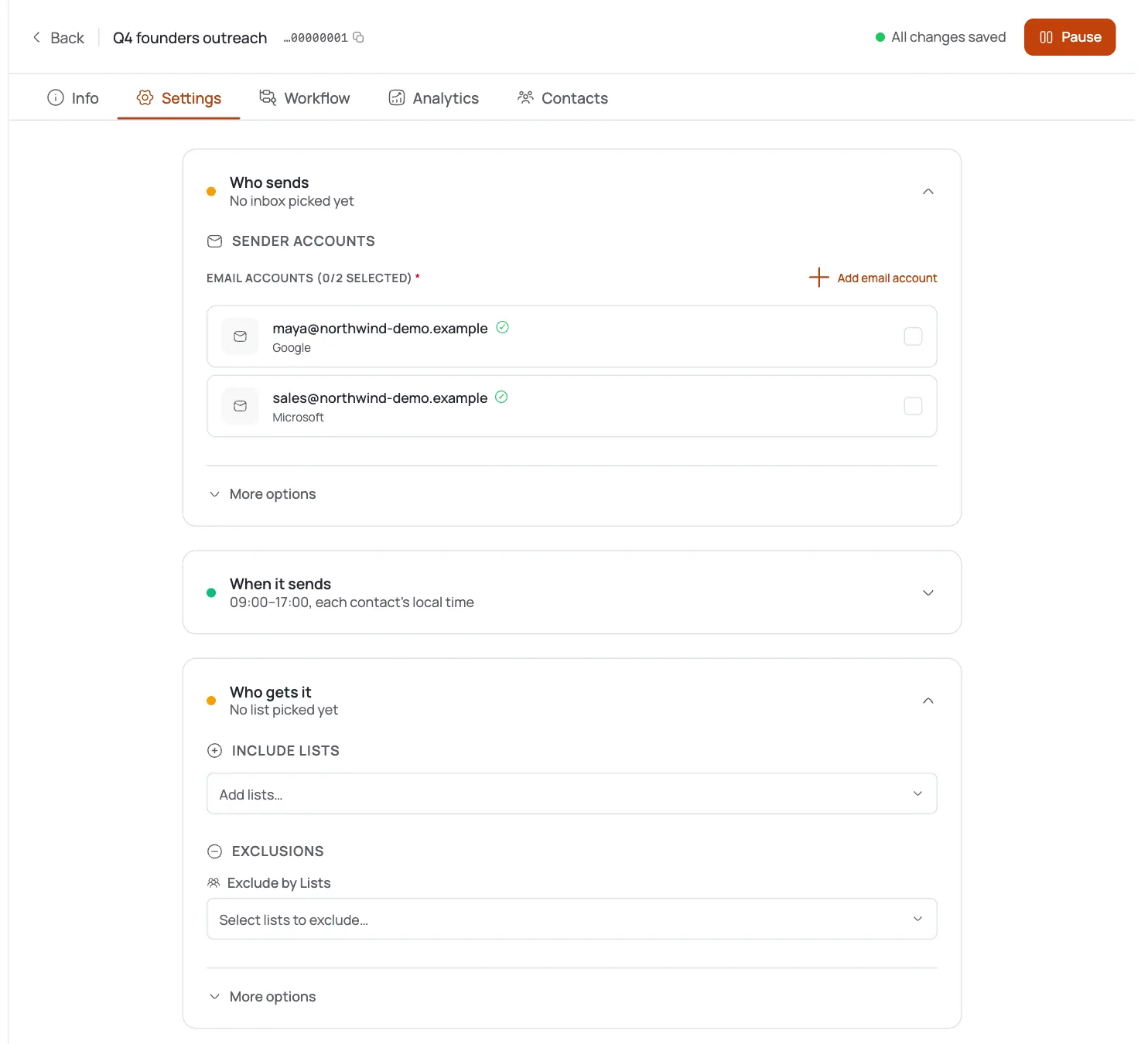
Every campaign opens on a builder with seven tabs across the top. Here's what each one is for:
- Info (name, description, goal, and status of the campaign.
- Settings) the sending mailbox (connector), daily sending limits, and schedule.
- AI Instructions (where you teach the AI how to write for this campaign (next step).
- Workflow) the AI pipeline that runs the campaign, as a canvas or a numbered step list.
- Analytics: sent, opened, replied, and meetings booked over time.
- Contacts: the people the AI harvested, with their status in the sequence.
- Logs: a running record of every action the AI took, for debugging.
You mostly live in AI Instructions and Workflow before launch, then Analytics and Contacts after.
Teach the AI your voice
Open AI Instructions. Whatever you write here is appended to the AI's prompt for every email in this campaign (it's your single biggest lever on quality. Use it to set tone ("plain, no hype"), rules ("never more than 90 words"), and your offer in one line.
Style starters let you heart the email shapes that feel like you) different structures, not just different words. This never blocks launching, so skip it if you're in a hurry, but a couple of confirmed shapes noticeably sharpens the drafts.
Review the autopilot workflow
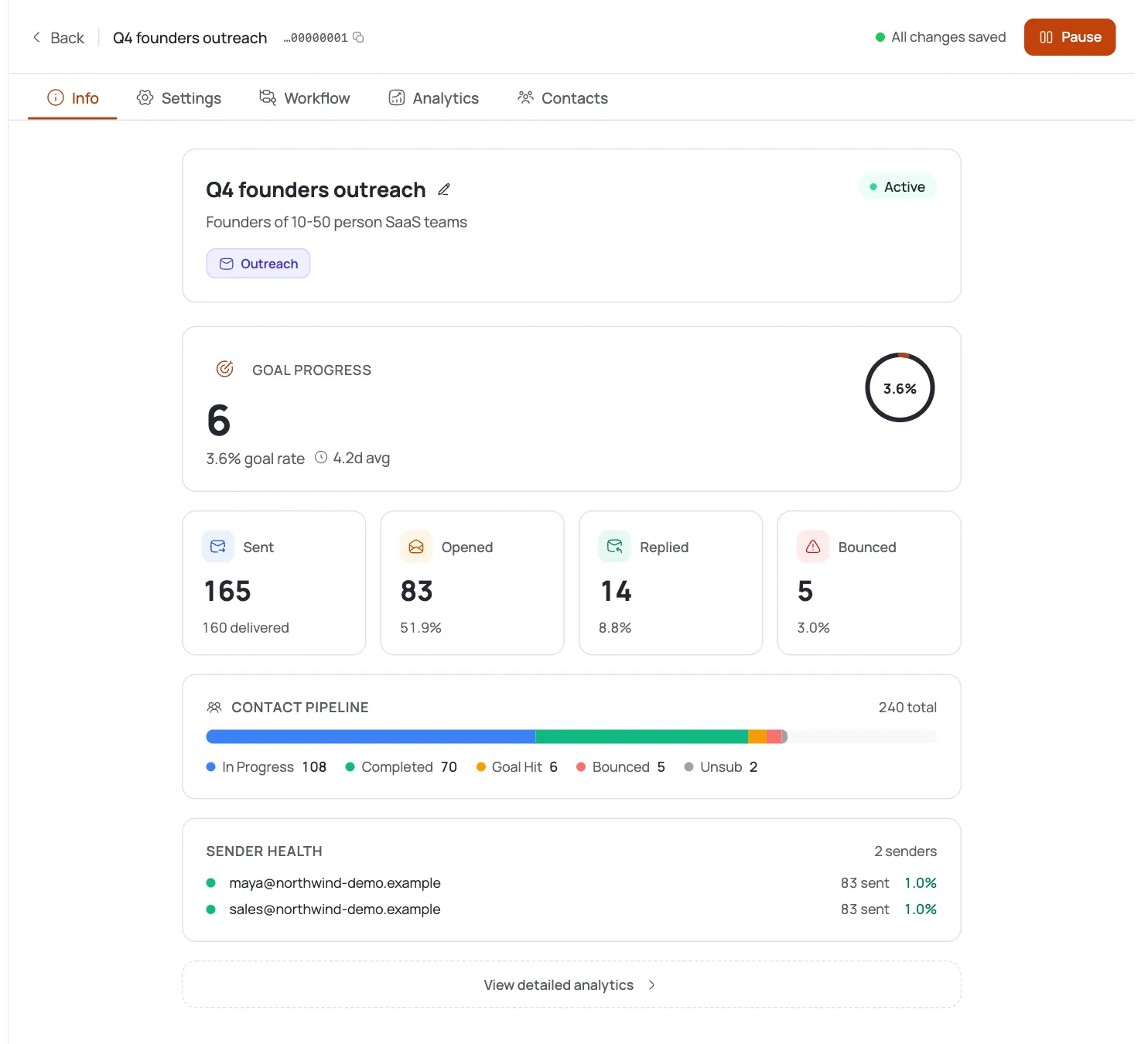
Open the Workflow tab and switch to Steps for a clean numbered view. This is the pipeline the AI runs on its own:
- Contact Harvester (finds and collects contacts matching your criteria.
- Contact Segmentation) filters and segments them.
- Email Scheduler (sets the follow-up cadence.
- Email Drafter) writes a personalized email per contact.
- Content Approval: a human-or-timeout gate before anything sends (Approved / Rejected branches).
- Email Sender: delivers approved emails.
You don't have to build any of this: it's pre-wired for Autopilot. Use Canvas if you want to see the branches visually.
Approve the first emails, then set it live
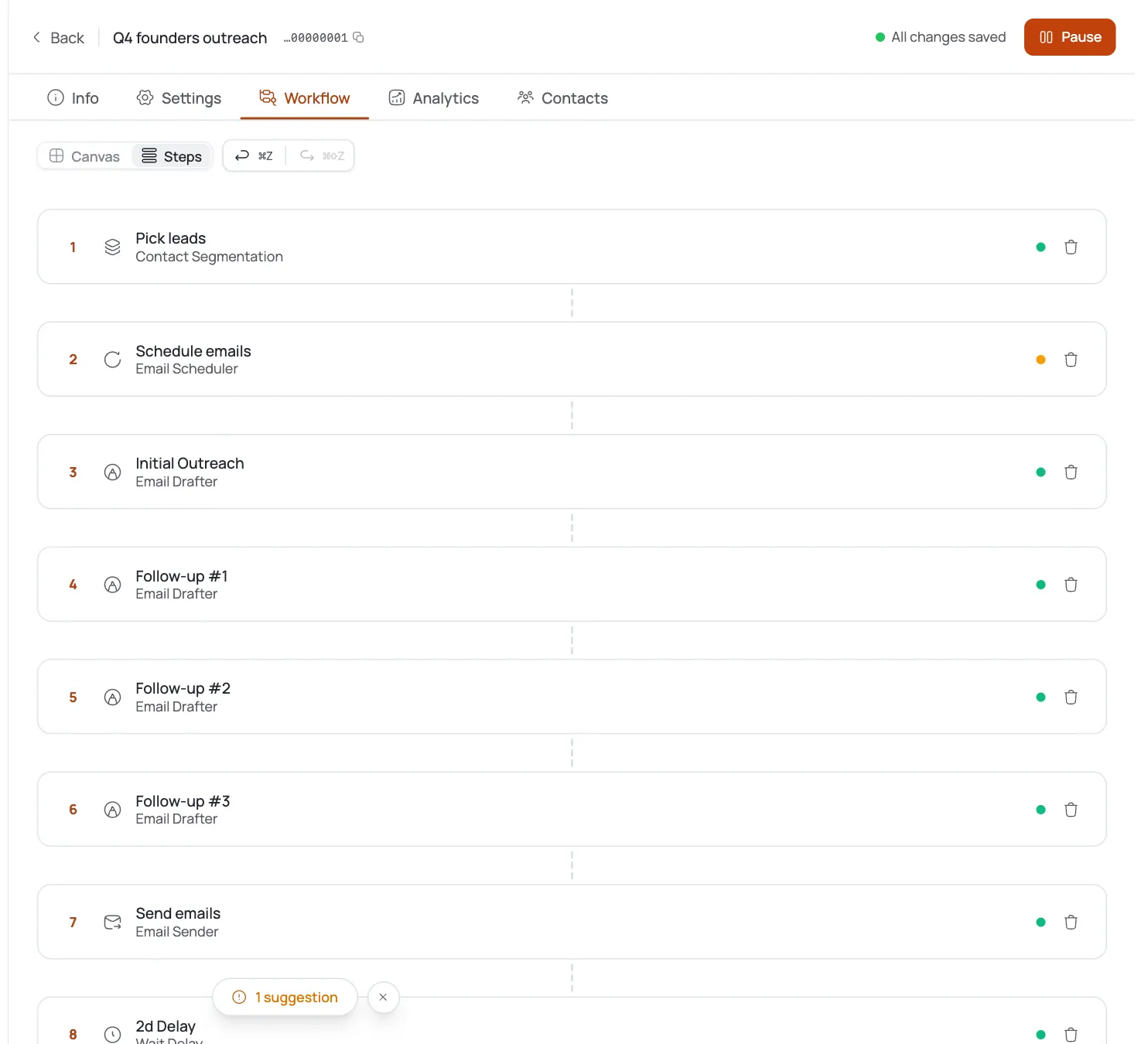
Before launching, open Settings and pick the connector (a warmed-up mailbox) the campaign sends from, and confirm the daily limit. Then set the campaign Active.
Because of the Content Approval step, the first batch of AI-written emails waits for your yes. Review a few, approve, and the AI keeps drafting, approving on timeout, and sending from there: you only step in when you want to.
Track meetings booked
Once it's live, three tabs tell you how it's doing:
- Analytics: sent, opened, replied, and meetings booked.
- Contacts: every harvested person and where they are in the sequence.
- Logs: what the AI did and when, if you need to trace a decision.
Since the goal is Meeting, watch replies and bookings, not just opens. If replies are thin, tighten AI Instructions and the audience line rather than sending more volume.
Pro tips
The Meeting goal writes toward the ask
Choosing Meeting makes every email drive to a booked call, not just a conversation. Pick it only when a 15-minute meeting is the real win: otherwise the ask lands too early.
Mode is permanent: choose deliberately
Campaign mode can't change after creation. Pick Autopilot when you want the AI to source and write; if you already have a list and copy, a Template campaign fits better.
Spend your effort in AI Instructions
In Autopilot the AI handles sourcing and drafting, so your leverage is the instructions and the audience line: not chasing contacts. A tight one-line offer beats ten tweaks to the list.
Keep Content Approval on for the first batch
Let the approval gate hold the first emails so you can sanity-check the AI's voice. Once a batch reads well, it approves on timeout and flows on its own.
Frequently asked questions
What's the difference between Autopilot and Template mode?
Autopilot is a two-step setup where the AI finds the contacts and writes the emails: you give it a target audience and it runs the whole pipeline. Template is a one-step setup where you write your own email templates and bring your own contacts. You choose the mode at creation and it can't be changed afterward.
What's the difference between the Meeting and Get Reply goal?
Meeting writes every email toward booking a call: the call-to-action is "grab 15 minutes." Get Reply optimizes for starting a conversation, so the CTA is softer (a question, not a calendar link). Same machinery, different intent; pick Meeting when a booked call is the actual goal.
Can I change the campaign mode after creating it?
No. The builder shows "Campaign mode cannot be changed after creation." If you picked the wrong mode, create a new campaign with the right one: it only takes a minute.
Where do the contacts come from in an Autopilot campaign?
From the Contact Harvester step in the workflow. It reads your Target Audience, Industry, and Geography from the Contact Search Criteria and finds matching people automatically: you don't upload a list. You can see everyone it collected on the Contacts tab.
Do I have to write any of the emails myself?
No. The Email Drafter writes a personalized email for each contact. Your job is to steer it in AI Instructions (tone, length, and your one-line offer) and to approve the first batch. If you'd rather write the copy yourself, use a Template campaign instead.
What is the Content Approval step?
It's a gate in the workflow that holds AI-written emails for a human yes/no before they send, with Approved and Rejected branches. It approves on timeout if you don't act, so it protects the first sends without blocking the campaign long-term.
Which mailbox does the campaign send from?
Whichever connector you select on the Settings tab. Use a mailbox you've already warmed up so your first real sends land in the inbox: see the email warm-up tutorial for that setup.
How do I know the campaign is booking meetings?
Check the Analytics tab for replies and meetings booked, and the Contacts tab to see who's moved through the sequence. Because the goal is Meeting, judge it on replies and bookings rather than open rate.