Choose Outreach → Template → Get Reply
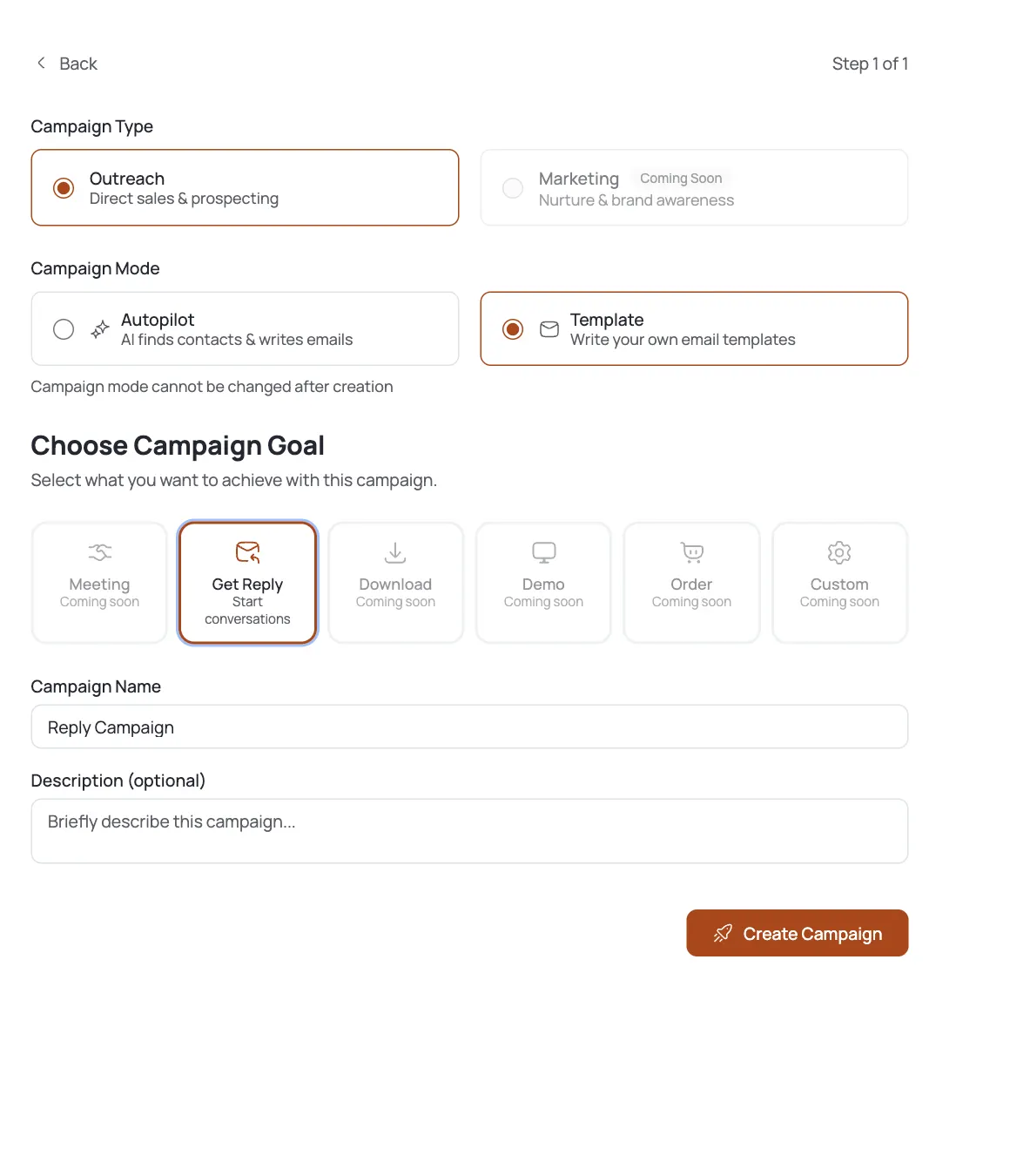
Open Campaigns → Create Campaign. Set Campaign Type to Outreach and Campaign Mode to Template. Template mode is the opposite of Autopilot: you write the emails yourself and bring your own contacts (the AI doesn't source or draft for you.
For Campaign Goal, pick Get Reply. Note the Meeting goal is disabled in Template mode) meeting booking is an Autopilot-only feature. Template setup is a single step: there's no Contact Search Criteria screen, because you're not asking the AI to find anyone. Name it and click Create Campaign. Remember: mode can't be changed after creation.
Meet the builder tabs (six, not seven)
A Template campaign opens with six tabs (one fewer than Autopilot, because there's no AI Instructions tab (you write the copy, so there's nothing to instruct the AI to write):
- Info) name, description, goal, status.
- Settings (sending mailbox (connector), daily limits, schedule.
- Contacts) the Contact Lists you bring in (no AI harvest).
- Email Templates: your sequence of hand-written emails.
- Analytics: sent, opened, replied.
- Logs: a record of every send.
The two tabs you'll actually build in are Contacts and Email Templates.
Bring your own contacts
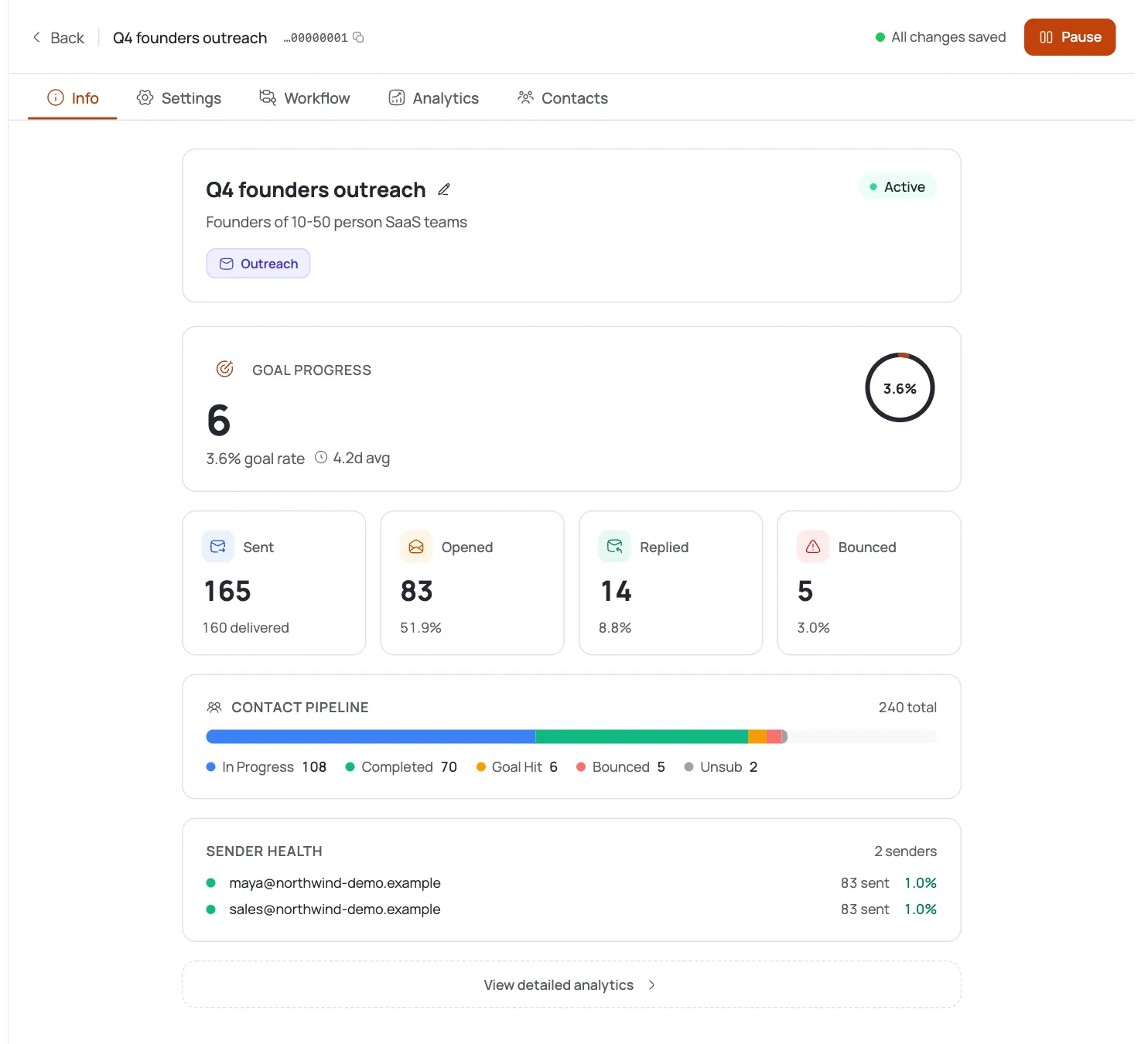
Open Contacts. Unlike Autopilot, a Template campaign doesn't harvest anyone (you supply the list. Add a Contact List (import a CSV or pick an existing list). Each contact carries the fields your templates will personalize with, such as first name and company.
Because you own the list, you also own its quality. Clean, verified emails are what keep a Template campaign out of spam folders) there's no AI filtering step to catch a bad address for you.
Write the email sequence
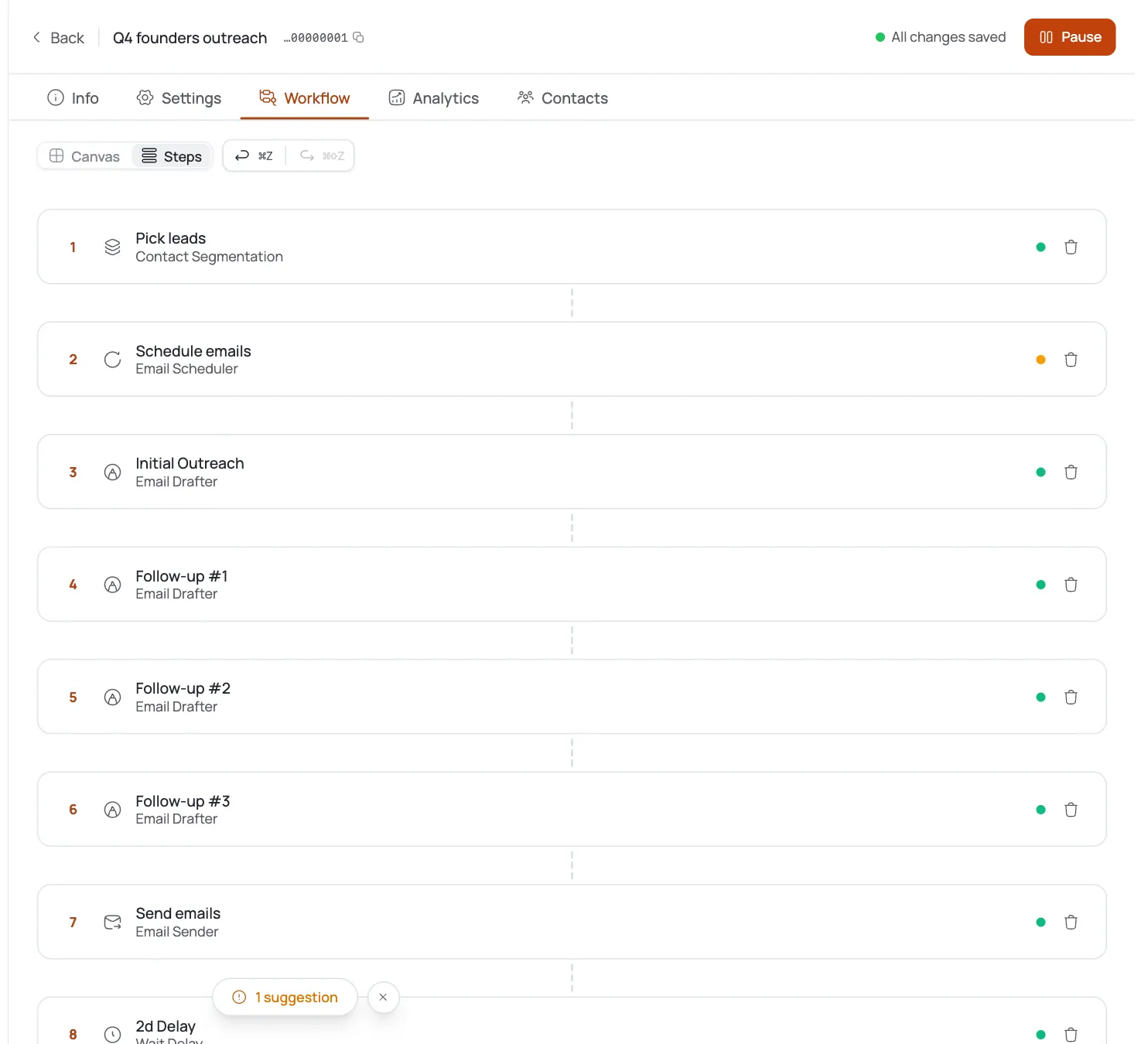
Open Email Templates (this is the heart of a Template campaign. Add your first email, then follow-ups, each with a delay before it sends (e.g. 2 days after the previous step). A typical Get-Reply sequence is a short opener plus two or three polite nudges.
- Use personalization variables like
{{first_name}}and{{company}}so each send reads one-to-one. - Keep the ask soft) one easy question (since the goal is Get Reply, not a booked call.
- Save shapes you like to the template library to reuse across campaigns.
What you write is exactly what goes out) there's no AI drafting layer, so proofread every template.
- Use personalization variables like
Set the mailbox and schedule
Open Settings. Pick the connector (a warmed-up mailbox) the campaign sends from, and set the daily limit and sending window. Template campaigns send on a fixed cadence from your sequence delays, so the daily limit is your main throttle for staying under provider send limits.
Warm the mailbox first: a Template campaign has no AI approval gate softening your first sends, so deliverability rests entirely on sender reputation and list quality.
Launch and track replies
Set the campaign Active and it starts working through your list on the schedule you set. Because there's no Content Approval step, sending begins immediately (so make sure the first template is right before you flip it live.
- Analytics) sent, opened, replied. Judge it on replies.
- Contacts: who's moved through the sequence.
- Inbox: the conversations, where you take over.
If a template underperforms, edit it directly: in Template mode you change the copy yourself rather than re-steering an AI.
Pro tips
Template mode = full control, full responsibility
You write every email and bring every contact, so quality is entirely on you. There's no AI drafting or harvesting to lean on: great when you have proven copy, more work when you don't.
No Meeting goal here
The Meeting goal is disabled in Template mode: it's an Autopilot-only feature. If a booked call is the real aim, use an Autopilot Meeting campaign instead.
Personalize with variables, not by hand
Use {{first_name}} and {{company}} in every template so each send reads one-to-one without editing each email. Save the shapes that work to the template library for the next campaign.
List quality does the deliverability work
There's no AI approval gate in a Template campaign, so clean, verified contacts and a warmed mailbox are what keep you out of spam. Clean the list before you launch.
Frequently asked questions
How is a Template campaign different from an Autopilot campaign?
Template is a one-step setup where you write the emails and bring your own contacts: no AI sourcing, no AI drafting, and no AI Instructions tab (six tabs instead of seven). Autopilot finds contacts and writes every email for you. Choose Template when you already have copy and a list you trust.
Why can't I pick the Meeting goal?
The Meeting goal is disabled in Template mode: meeting booking is an Autopilot-only feature. In a Template campaign you can use Get Reply. If you need calls booked, create an Autopilot Meeting campaign instead.
Where do the contacts come from?
From a Contact List you supply on the Contacts tab: a CSV import or an existing list. A Template campaign never harvests contacts, so the list quality (and deliverability) is entirely yours to manage.
How do I personalize a template email?
Use personalization variables like {{first_name}} and {{company}} in the template body. They're filled per contact from your Contact List fields at send time, so each email reads one-to-one.
How do follow-ups work?
In Email Templates you add a sequence of emails, each with a delay before it sends (for example two days after the previous step). The campaign advances a contact through the sequence until they reply or the sequence ends.
Is there an approval step before emails send?
No. The Content Approval gate belongs to Autopilot, where an AI writes the emails. In a Template campaign you wrote the emails yourself, so they send on schedule as soon as the campaign is Active: proofread before you launch.
Can I reuse my templates across campaigns?
Yes: save the shapes that work to the template library and pull them into future campaigns instead of rewriting from scratch.
Can I switch a Template campaign to Autopilot later?
No. Campaign mode cannot be changed after creation. If you want AI sourcing and drafting, create a new Autopilot campaign: it only takes a minute.