Choose Outreach → Autopilot → Get Reply
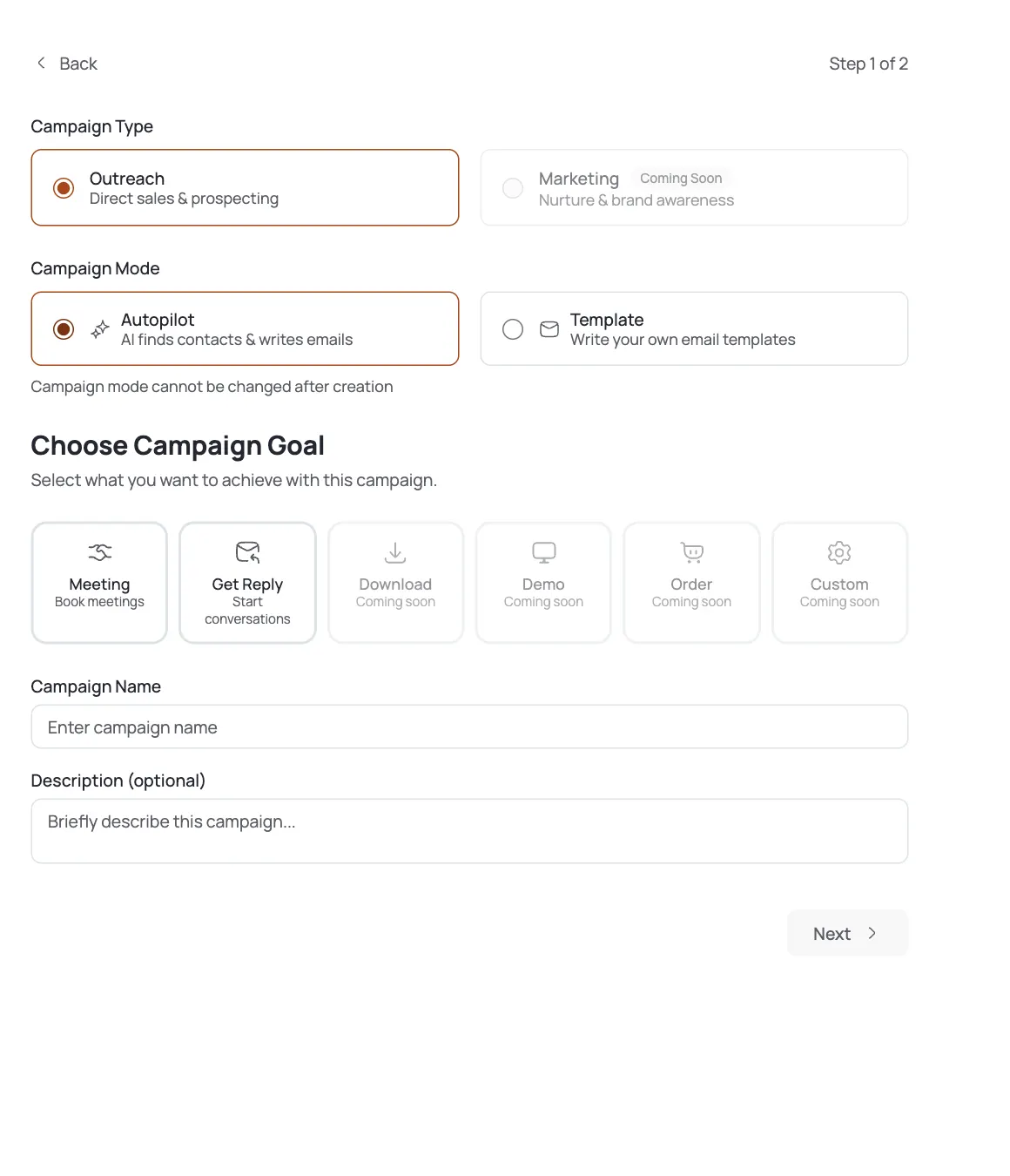
Open Campaigns → Create Campaign. Set Campaign Type to Outreach and Campaign Mode to Autopilot (the AI finds contacts and writes the emails). For Campaign Goal, pick Get Reply.
This is the one choice that separates this campaign from an Autopilot Meeting campaign. Get Reply optimizes every email to start a conversation: the call-to-action is a low-friction question, not a calendar link. Use it when you want to open a dialogue, qualify interest, or warm up a list before ever asking for a call. Name it and click Next. Remember: mode can't be changed after creation.
Tell the AI who to target
Step 2 is Contact Search Criteria (the same as any Autopilot campaign. Describe your ideal buyer in the Target Audience box in plain language, e.g. "Heads of growth at Series A–B fintech startups in the UK." Add an Industry and optional Geography to tighten the AI's search, then click Create Campaign.
Because the goal is Get Reply, aim the audience at people who'll actually engage in a back-and-forth) the win here is a reply you can build on, so relevance matters more than raw volume.
Meet the seven builder tabs
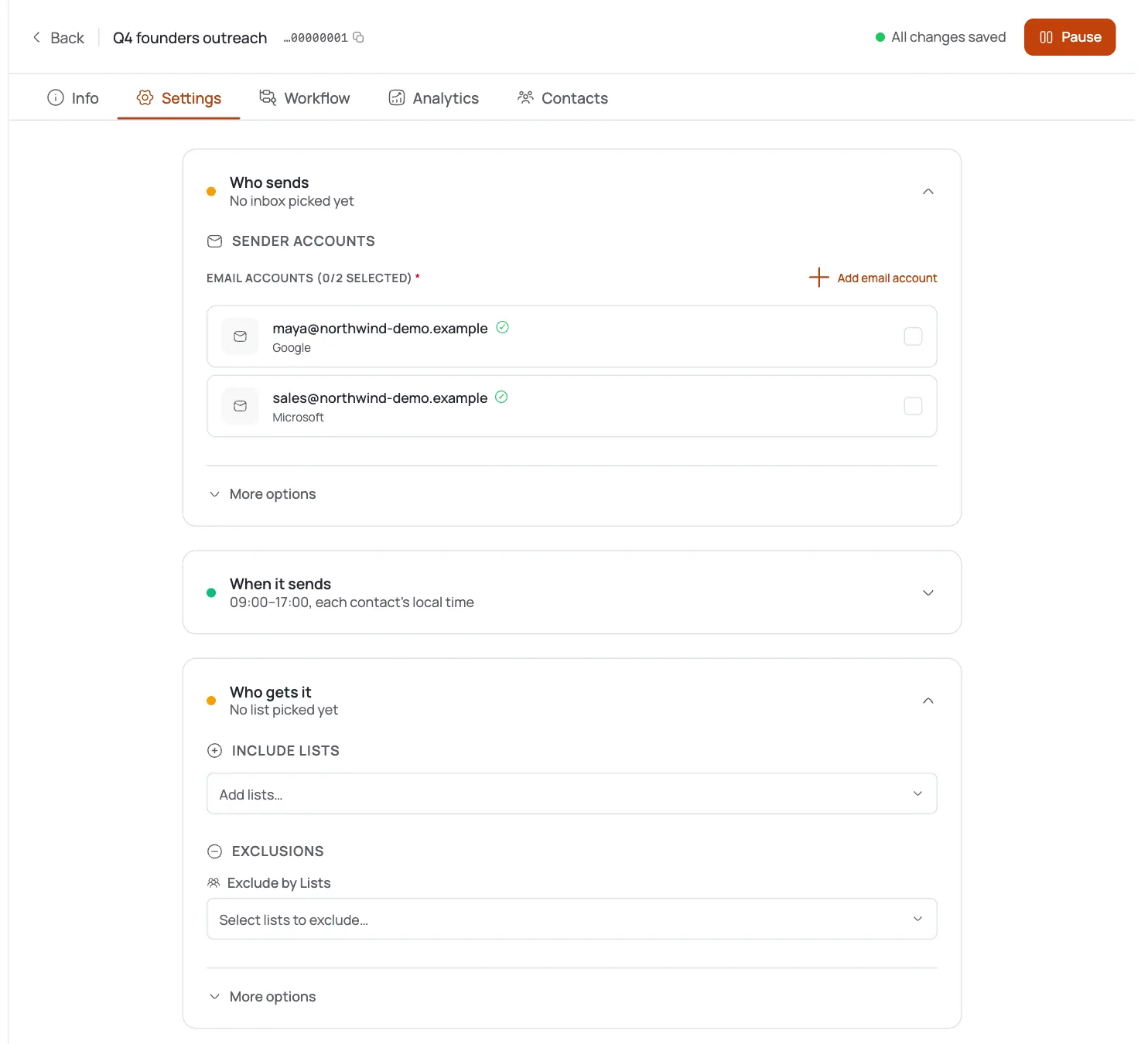
The builder opens with seven tabs:
- Info (name, description, goal, status.
- Settings) sending mailbox (connector), daily limits, schedule.
- AI Instructions (teach the AI how to write for this campaign.
- Workflow) the AI pipeline, as a canvas or numbered steps.
- Analytics (sent, opened, and replied over time.
- Contacts) everyone the AI harvested, with sequence status.
- Logs (a record of every AI action.
Unlike a Meeting campaign, a Get-Reply campaign needs no connected calendar) there's no meeting to book, so you can launch as soon as the mailbox and copy are ready.
Teach the AI to open conversations
Open AI Instructions: whatever you write is appended to the AI's prompt for every email. For a Get-Reply campaign, steer it toward curiosity and a single easy question rather than a hard ask: "end with one specific question," "no calendar links," "keep it under 80 words." That's what turns opens into replies.
Style starters let you heart the email shapes that sound like you. It never blocks launching, but a couple of confirmed shapes sharpens the drafts.
Review the autopilot workflow
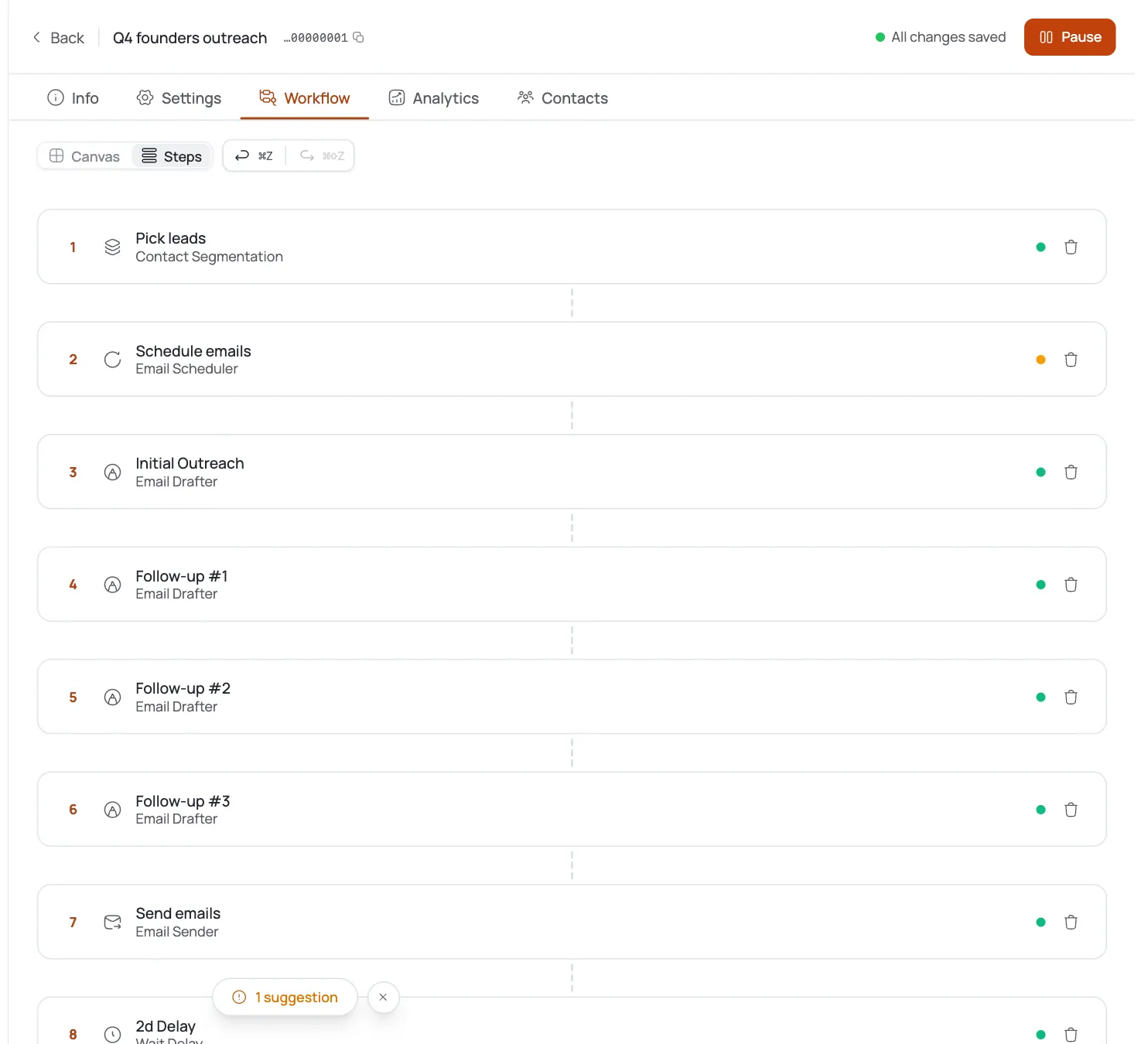
Open Workflow → Steps. The pipeline is the same one Autopilot runs for every campaign: Contact Harvester (finds contacts) → Contact Segmentation → Email Scheduler (cadence) → Email Drafter (personalized emails) → Content Approval (human-or-timeout gate) → Email Sender. Incoming replies flow back through Campaign Inbound Signal.
You don't build any of it: it's pre-wired. For a Get-Reply campaign, the Email Scheduler follow-ups matter a lot: a polite second and third touch is where most replies actually come from.
Approve the first emails, then set it live
On Settings, choose the connector (a warmed-up mailbox) and confirm the daily limit, then set the campaign Active. The Content Approval step holds the first batch for your yes (review a few for tone, approve, and the AI drafts, approves on timeout, and sends from there.
Since replies land in your inbox, keep an eye on Inbox and reply promptly while interest is warm) the AI opens the door, you walk through it.
Track replies, not just opens
Judge a Get-Reply campaign on the reply rate. Watch:
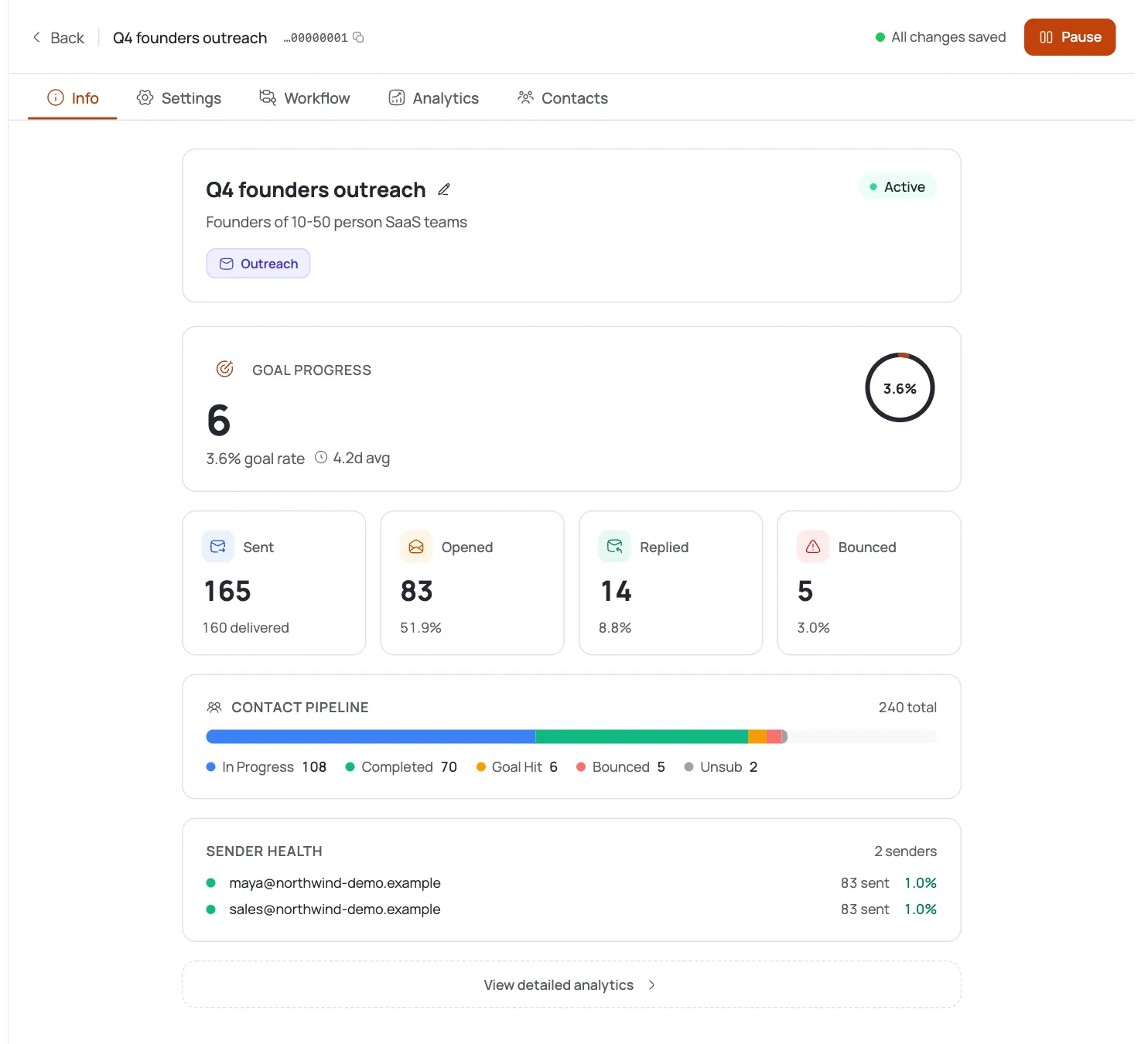
- Analytics (sent, opened, replied. Replies are the number that matters.
- Contacts) who's moved through the sequence and who answered.
- Inbox (the actual conversations, where you take over from the AI.
If opens are high but replies are low, the ask is the problem) tighten AI Instructions so every email ends with one easy, specific question.
Pro tips
Get Reply asks a question, not for a meeting
The goal shapes the CTA: Get Reply ends with a low-friction question so people answer. If your real aim is a booked call, use the Meeting goal instead: asking too hard, too early kills replies.
No calendar needed: launch sooner
Unlike a Meeting campaign, Get Reply doesn't require a connected calendar. Once your mailbox is warmed and the copy reads well, there's nothing else blocking launch.
Follow-ups earn most of the replies
The first email rarely gets the answer. Let the Email Scheduler's polite second and third touches run: that's where the bulk of conversations start.
Reply fast while it's warm
The AI's job ends at the first reply; yours begins. Watch the Inbox and respond quickly: a same-day human reply converts far better than one two days later.
Frequently asked questions
How is a Get-Reply campaign different from a Meeting campaign?
Both are Autopilot campaigns with the same pipeline. The goal differs: Get Reply writes toward starting a conversation with a soft question, while Meeting writes toward booking a call and requires a connected calendar. Get Reply is the lighter first touch; Meeting is the direct ask.
Do I need to connect a calendar for a Get-Reply campaign?
No. The calendar requirement only applies to the Meeting goal. A Get-Reply campaign has nothing to book, so you can launch as soon as the mailbox and copy are ready.
Can I switch a Get-Reply campaign to Meeting later?
You can't change the mode (Autopilot/Template) after creation, but the goal is a separate setting. If you need to switch intent, the cleanest path is a new campaign with the Meeting goal: that also lets the AI rewrite toward the harder ask from the start.
Where do the contacts come from?
From the Contact Harvester, which reads your Target Audience and finds matching people automatically: no list upload. You can review everyone it collected on the Contacts tab.
Do I write any of the emails?
No: the Email Drafter writes each one. You steer it in AI Instructions (tone, length, and the closing question) and approve the first batch. If you'd rather write the copy yourself, use a Template campaign.
How many follow-ups does it send?
The Email Scheduler manages the cadence and adds polite follow-ups automatically. For Get-Reply campaigns those follow-ups are where most replies come from, so let the sequence run rather than judging it on the first email alone.
What is the Content Approval step?
A gate that holds AI-written emails for a human yes/no before sending, with Approved and Rejected branches. It approves on timeout, so it protects your first sends without stalling the campaign.
What reply rate should I aim for?
It varies by audience and offer, but the lever is always the same: relevance plus one easy question. If opens are healthy and replies are thin, tighten the audience line and the AI Instructions before adding volume.