Start an Autopilot campaign
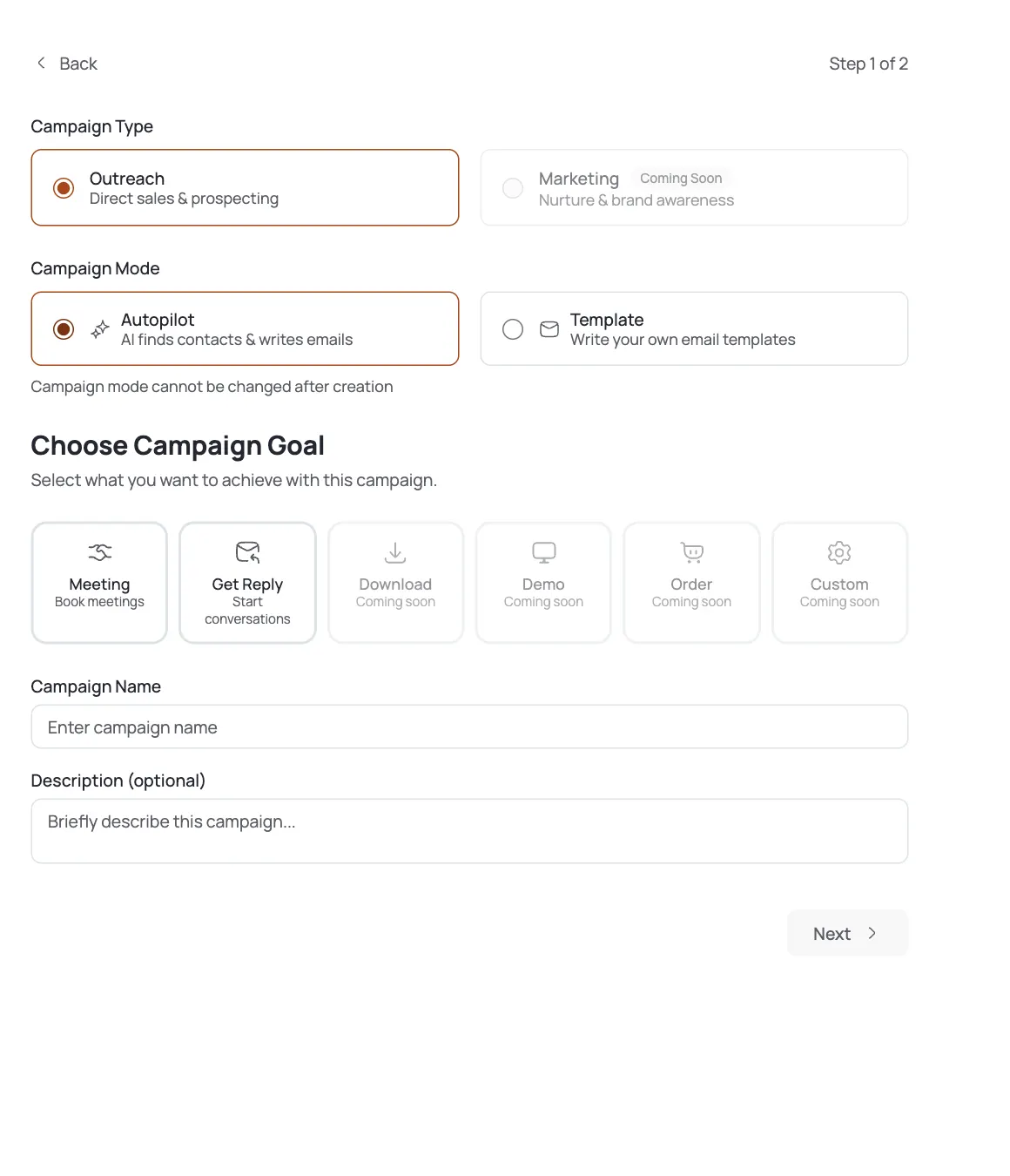
The Maps Scraper is a harvester tool, and harvesting only happens in Autopilot mode: so start there. Open Campaigns → Create Campaign, set Campaign Type to Outreach and Campaign Mode to Autopilot, pick a goal (Meeting or Get Reply), and continue.
This is the right approach when your prospects are local businesses: plumbers, clinics, restaurants, agencies: that live on Google Maps rather than in a job-title database. A Template campaign can't do this; it has no harvester.
Open the Contact Harvester and pick Maps Scraper
In the campaign Workflow, click the Contact Harvester node to open Configure Contact Harvester. It lists the available sourcing tools (AI Leads, Maps Scraper, File Upload, and Signal. Click the Maps Scraper row, then toggle it ON to reveal its configuration fields.
Maps Scraper pulls businesses straight from Google Maps by what they do and where they are) the same way you'd search Maps yourself, but at list scale.
Configure search terms and locations
The two fields that drive everything, each taking one entry per line:
- Search terms (the business types, e.g.
plumberthencoffee shopon the next line. - Locations) where to look, e.g.
New York, NYthenLos Angeles, CA.
FirstSales searches every term across every location, so 2 terms × 3 cities = 6 searches. Then tune the volume:
- Max results: cap how many places to pull per search.
- Language / Country: bias results (e.g.
en,us). - Frequency: run once per cycle, or daily / weekly / monthly to keep topping the list up.
- Search terms (the business types, e.g.
Decide on email enrichment
Google Maps gives you a business name, phone, and website: but not always an email. The Find emails option turns on paid enrichment that hunts for a contact address per place.
- It costs credits: roughly 5 credits per place, plus more per email found: so switch it on deliberately.
- Businesses with no discoverable email stay in your list as phone-only records; email campaigns simply skip them.
For advanced control the tool also accepts specific Place IDs (
ChIJ…) or Start URLs (agoogle.com/maps/place/…link) if you already know the exact places you want.Save the harvest to a list
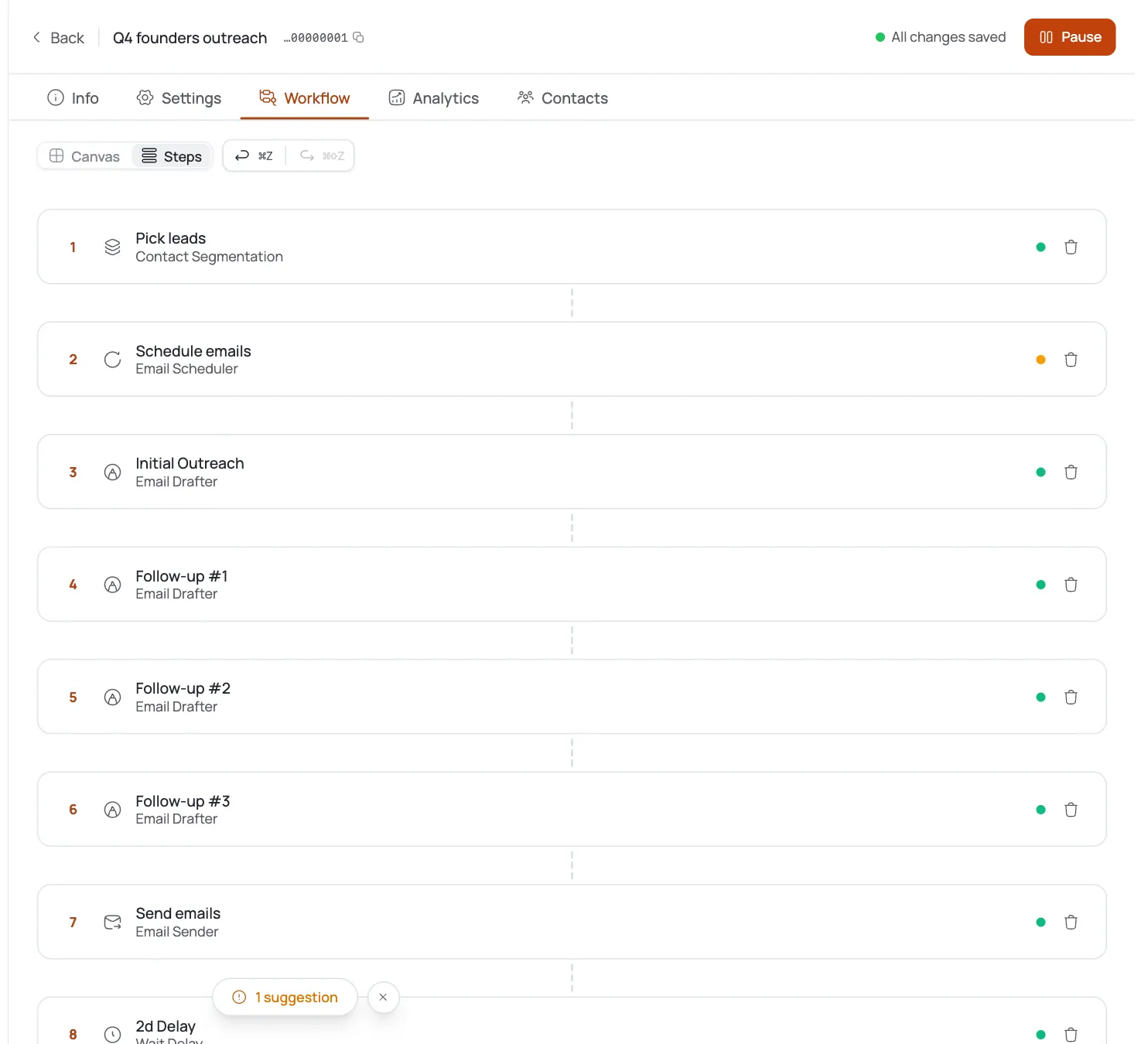
Point the harvest at a contact list to save results into (this is required, and it's what the rest of the campaign draws from. As the scraper runs, matching businesses flow into that list and then into the standard Autopilot pipeline: Segmentation → Email Scheduler → Email Drafter → Content Approval → Email Sender.
Everything downstream is the same as any Autopilot campaign) the only difference is where the contacts came from.
Launch and monitor the harvest
Set the campaign Active. Watch two things early:
- Contacts: confirm real businesses are landing in your list and that emails are being found at a rate you expected (if not, your search terms may be too niche or Find emails is off).
- Analytics: sent, opened, replied, once outreach begins.
If a location returns thin results, widen the search term or add nearby cities rather than raising Max results: relevance beats volume for local outreach.
Pro tips
Maps Scraper is Autopilot-only
Harvesting lives in the Autopilot Contact Harvester, so a Maps Scraper campaign must be Autopilot. There's no Maps sourcing in Template mode.
One entry per line, and it multiplies
Search terms and Locations each take one line per entry, and every term runs against every location. Two terms across three cities is six searches: start narrow and expand.
Find emails is paid: turn it on with intent
Enrichment costs roughly 5 credits per place plus more per email. Leave it off for a phone-first list; turn it on when you specifically need email addresses for outreach.
Phone-only businesses still land in the list
Places with no discoverable email stay as phone-only records and email steps skip them: useful if you also do calling, but it means your emailable count is lower than your total scraped count.
Frequently asked questions
What is the Maps Scraper?
It's a Contact Harvester tool in Autopilot campaigns that sources local businesses from Google Maps by search term and location: ideal when your prospects are brick-and-mortar or local-service businesses rather than titles in a database.
Do I need an Autopilot campaign to use it?
Yes. Harvesting only runs in Autopilot mode via the Contact Harvester node. Template campaigns bring their own contacts and have no harvester, so Maps Scraper isn't available there.
How do search terms and locations work together?
You enter one search term per line and one location per line, and FirstSales runs every term against every location. So 2 terms and 3 locations produce 6 searches. Start with a couple of each and widen once you see the result quality.
Does it find email addresses?
Only if you enable Find emails. Google Maps provides name, phone, and website by default; the paid enrichment option hunts for a contact email per place (about 5 credits per place, plus more per email found). Leave it off for a phone-only list.
What happens to businesses with no email?
They still get saved to your list as phone-only records. Email steps in the campaign simply skip them, so your emailable count will be lower than the total number of places scraped.
Can I target exact places instead of searching?
Yes. The tool accepts specific Place IDs (ChIJ…) or Start URLs (a google.com/maps/place/… link) when you already know the exact businesses you want, instead of relying on term-and-location search.
Do I have to save results to a list?
Yes: you point the harvest at a contact list, and that list is what feeds the rest of the Autopilot pipeline (segmentation, drafting, approval, sending). It's a required step.
How often does it pull new businesses?
Set by the Frequency field: once per cycle, or daily / weekly / monthly to keep topping up the list over time. Use a recurring frequency when you want an always-fresh local pipeline.