Why send from many mailboxes
Cold outreach at volume works best spread across several mailboxes, so no single inbox sends too much and burns its reputation. FirstSales includes unlimited mailboxes on every plan (Starter, Growth, Pro, and Business alike) so you're never capped on how many connectors you add. Plans meter monthly credits, not mailbox count.
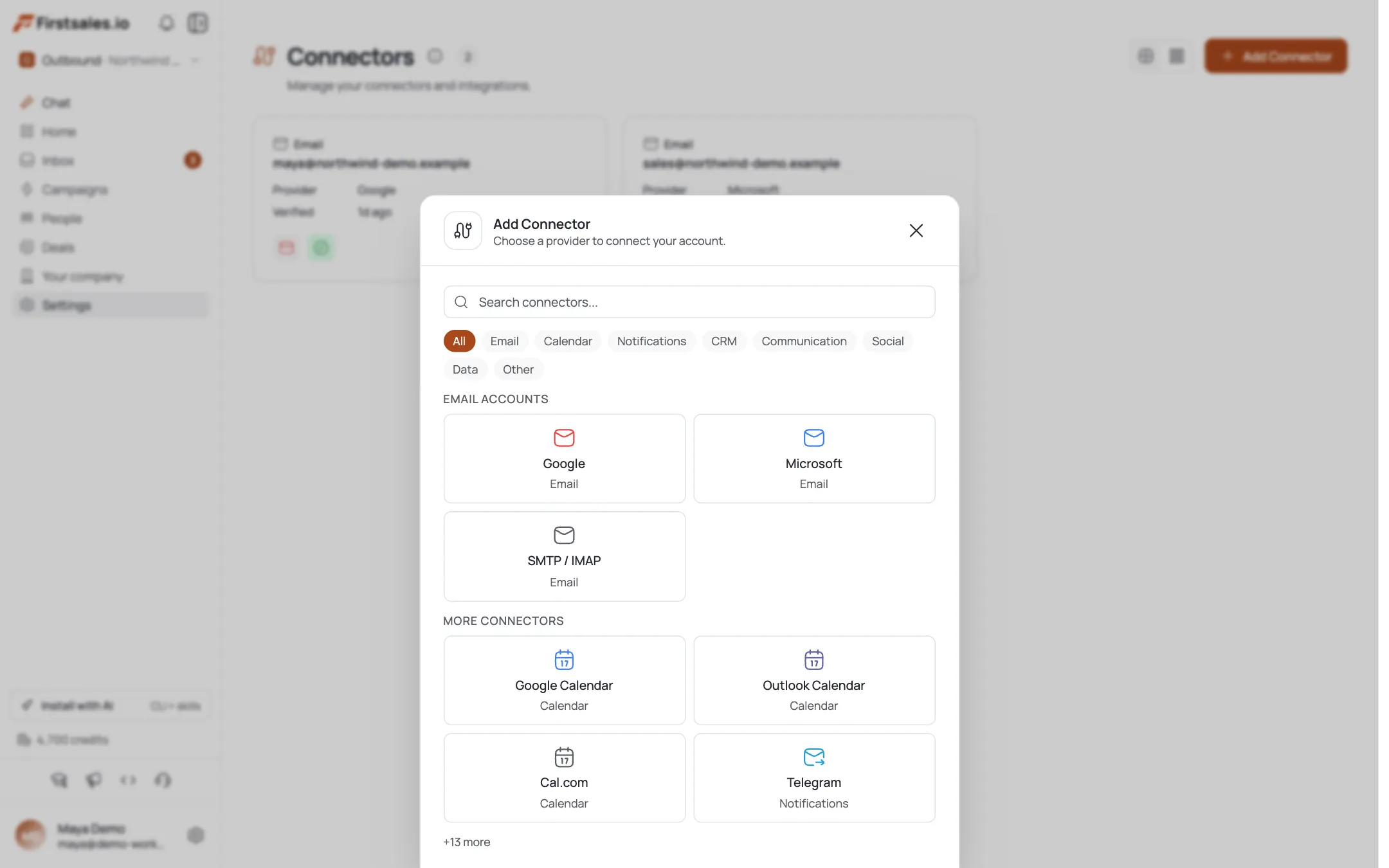
Add mailboxes one at a time
The simple path: on the Connectors page, click Add Connector and connect each mailbox (Google, Microsoft, or SMTP/IMAP), repeating as many times as you need. The page shows a running count and a grid/list view of everything connected.
See the "connect a mailbox" tutorial for the details of each connection type.
Bulk-add mailboxes by CSV
Adding a lot of SMTP/IMAP mailboxes at once? In the SMTP/IMAP flow, switch to the Bulk Upload (CSV) tab. Download the template, fill one row per mailbox, and upload.
The CSV supports the full per-mailbox config, including
email, IMAP/SMTP host, port, username, password, plus dailyLimit, warmupEnabled, warmupLimit, and warmupIncrement. The importer previews rows, lets you map columns, and reports how many succeeded or failed.Set each mailbox's daily send limit
Open a connector and find its sending config. Daily Limit caps how many emails that mailbox sends per day (default 50, adjustable from 20 to 500. Keep individual mailboxes modest (real people don't blast hundreds of cold emails a day); scale total volume by adding more mailboxes, not by maxing one.
- Send ceiling) an optional hard cap the auto-adjuster will never exceed ("Leave blank for no cap").
Let auto-adjust protect reputation
Leave Auto-adjust on (the default). It "manages this nightly based on yesterday's sending health": dialing a mailbox's volume down when metrics slip and back up as it recovers, without you babysitting it.
The Sending health score bar shows each mailbox's standing, "scored nightly based on yesterday's sending metrics." A healthy fleet of many modest mailboxes beats a few pushed to their limit.
Warm up every new mailbox
Each mailbox you add starts with no reputation. Enable warm-up on every one (or set
warmupEnabledin the CSV) so they build sender reputation before you route real campaigns through them.Campaigns automatically send across your connected, healthy mailboxes: your job is to keep the pool warmed and within sane daily limits.
Pro tips
Scale by count, not by cranking one mailbox
Unlimited mailboxes means the right move is more mailboxes at modest daily limits, not one mailbox at 500/day. Spread volume to protect every inbox's reputation.
CSV bulk import for fleets
Adding many SMTP/IMAP mailboxes? Use the Bulk Upload (CSV) tab: one row per mailbox, with daily limit and warm-up settings baked in, instead of clicking through each.
Leave auto-adjust on
Auto-adjust re-tunes each mailbox's daily volume nightly from yesterday's sending health. It's the cheapest insurance against a mailbox quietly torching its reputation.
Set a send ceiling if you're cautious
The optional Send ceiling caps what auto-adjust can ever reach. Blank means no cap; set a number when you want a firm upper bound per mailbox.
Frequently asked questions
How many mailboxes can I add?
Unlimited: it's a feature on every plan tier (Starter, Growth, Pro, Business). There's no per-plan mailbox cap; plans differ on monthly credits, not mailbox count.
Can I add many mailboxes at once?
Yes. In the SMTP/IMAP flow use the Bulk Upload (CSV) tab: download the template, one row per mailbox, and upload. It previews rows, maps columns, and reports successes and failures.
What's the daily send limit per mailbox?
Daily Limit defaults to 50 and can be set from 20 to 500 per mailbox. For cold outreach, keep it modest and add more mailboxes to grow total volume.
What does Auto-adjust do?
It manages a mailbox's daily volume automatically each night based on yesterday's sending health: lowering it when metrics dip and raising it as the mailbox recovers. It's on by default.
What is the Send ceiling?
An optional hard cap that auto-adjust will never exceed. Leave it blank for no cap, or set a number to bound how high a mailbox's daily volume can climb.
How is total sending volume shared across mailboxes?
Campaigns send across your connected, healthy mailboxes automatically. You control the total by how many mailboxes you connect and each one's Daily Limit: more warmed mailboxes at modest limits is the safe way to scale.
Do I need to warm up each new mailbox?
Yes. Every new mailbox starts with no reputation, so enable warm-up on each (or set warmupEnabled in the CSV) before routing real campaigns through it.
What is the Sending health score?
A per-mailbox score, scored nightly based on yesterday's sending metrics, shown as a bar in the sending config. It's what auto-adjust reads to decide whether to raise or lower that mailbox's volume.