Open Connectors and click Add Connector
In FirstSales a sending mailbox is called a connector: "the mailboxes and integrations that send your campaigns." Open the Connectors page from the left nav and click Add Connector (top-right).
Every campaign sends from a connector, so this is the first thing to set up before launching anything. You can add as many as you like.
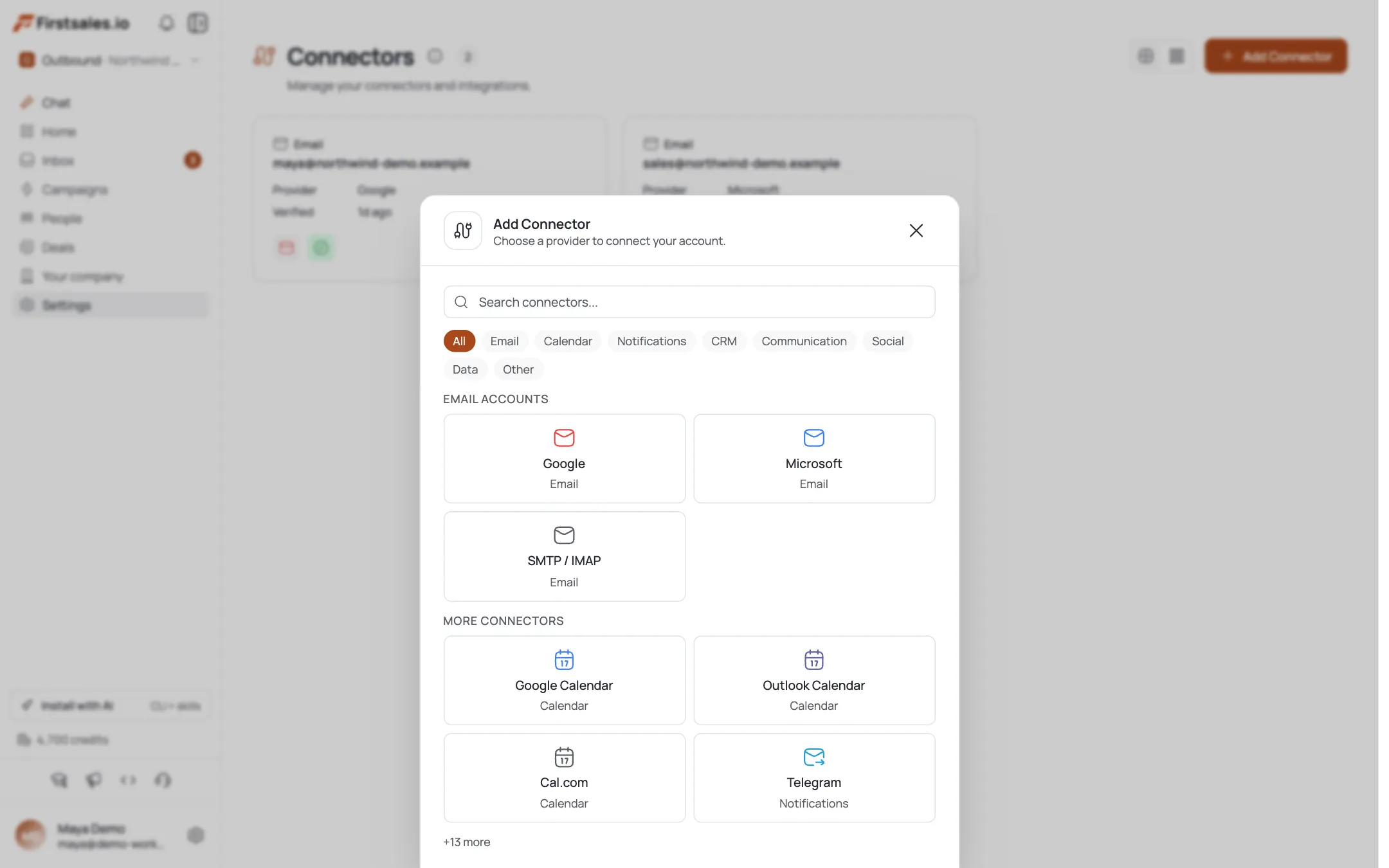
Pick how you'll connect
Choose one of three email account types:
- Google (connect a Google Workspace account via OAuth (one click, no password stored).
- Microsoft) connect a Microsoft/Outlook account via OAuth.
- SMTP / IMAP (connect any other provider with server credentials.
Important: for Google, only Google Workspace accounts are supported) personal
@gmail.comaddresses are not allowed. Use a domain mailbox (e.g.you@yourcompany.com).Connect with Google or Microsoft (OAuth)
For Google or Microsoft, click the connect button and a popup opens to authorize FirstSales. Sign in and grant access; the window shows "Waiting for authorization…" and then confirms "{Provider} connected". FirstSales never sees or stores your password: it holds a revocable OAuth token.
If your Google Workspace admin restricts third-party apps, they may need to allow FirstSales in the admin console first. If authorization fails, use Try again.
Or connect via SMTP / IMAP
For any other provider, choose SMTP / IMAP and the Single Account tab. Fill in:
- Email address and optional Display name.
- Username and Password.
- Outgoing (SMTP): host, port (587 / 465 / 25 / 2525 or custom), encryption (TLS / SSL / None). Default 465 / SSL.
- Incoming (IMAP): host, port (993 / 143), encryption. Default 993 / TLS.
IMAP is included so FirstSales can read replies and route them to your inbox.
Test the connection, then add the account
For SMTP/IMAP you must click Test connection first. On success you'll see "Connection verified (ready to save," and only then can you click Add account) you can't save an untested mailbox. A toast confirms "Email account added!"
This test catches wrong hosts, ports, or app-password issues up front, so a bad mailbox never silently fails mid-campaign.
Warm it up before sending
A brand-new mailbox has no sender reputation. Before you point real campaigns at it, open the connector's Warm Up tab and enable warm-up so it gradually builds reputation. See the email warm-up tutorial for the full setup.
Connecting the mailbox is step one; warming it is what keeps your first real sends out of spam.
Pro tips
Use a Google Workspace account, not personal Gmail
Personal @gmail.com addresses aren't supported: only Google Workspace (domain) accounts. Cold outreach should send from your own domain anyway, so this lines up with good practice.
OAuth beats SMTP when you have the choice
Google and Microsoft OAuth store a revocable token, not your password, and reconnect cleanly if access lapses. Reach for SMTP/IMAP only when your provider isn't one of those two.
A failed test now saves a dead campaign later
The SMTP 'Test connection' gate exists so a wrong port or password surfaces immediately. Don't work around it: fix the credentials until the test passes.
Connect, then warm up
A freshly connected mailbox has zero reputation. Turn on warm-up right after connecting so it's ready by the time you launch real outreach.
Frequently asked questions
What is a 'connector'?
It's FirstSales' name for a sending mailbox (or integration): the account your campaigns send from. You manage them on the Connectors page and add one with Add Connector.
Which mailbox types can I connect?
Three: Google (Workspace, via OAuth), Microsoft/Outlook (via OAuth), and SMTP / IMAP for any other provider using server credentials.
Can I use a personal Gmail account?
No. Only Google Workspace accounts are supported for Google: personal @gmail.com addresses are blocked. Connect a mailbox on your own sending domain instead.
Does FirstSales store my password?
For Google and Microsoft, no: it uses OAuth and holds a revocable token. For SMTP/IMAP you provide credentials directly so it can send and read replies; use an app password where your provider offers one.
Why do I need IMAP settings too?
IMAP lets FirstSales read incoming mail so replies to your campaigns land in your FirstSales inbox and can end a contact's sequence. That's why the SMTP/IMAP form asks for both outgoing and incoming servers.
Why can't I click 'Add account' yet?
For SMTP/IMAP you must run Test connection first. Until it verifies ('Connection verified (ready to save'), the save button stays disabled) this prevents adding a mailbox that can't actually send.
What if OAuth authorization fails?
Use Try again. If it keeps failing on Google Workspace, your admin may need to allow FirstSales in the Google admin console. For an existing connector that lost access, use Reconnect account on the connector card.
What should I do right after connecting?
Enable warm-up on the connector's Warm Up tab. A new mailbox has no reputation, and warming it first is what keeps your early sends landing in the inbox.