Connectors → Add Connector → SMTP / IMAP
Open Connectors from the left nav and click Add Connector. Pick SMTP / IMAP for any provider that isn't Google or Microsoft: Zoho, Fastmail, a private mail server, or a cPanel host.
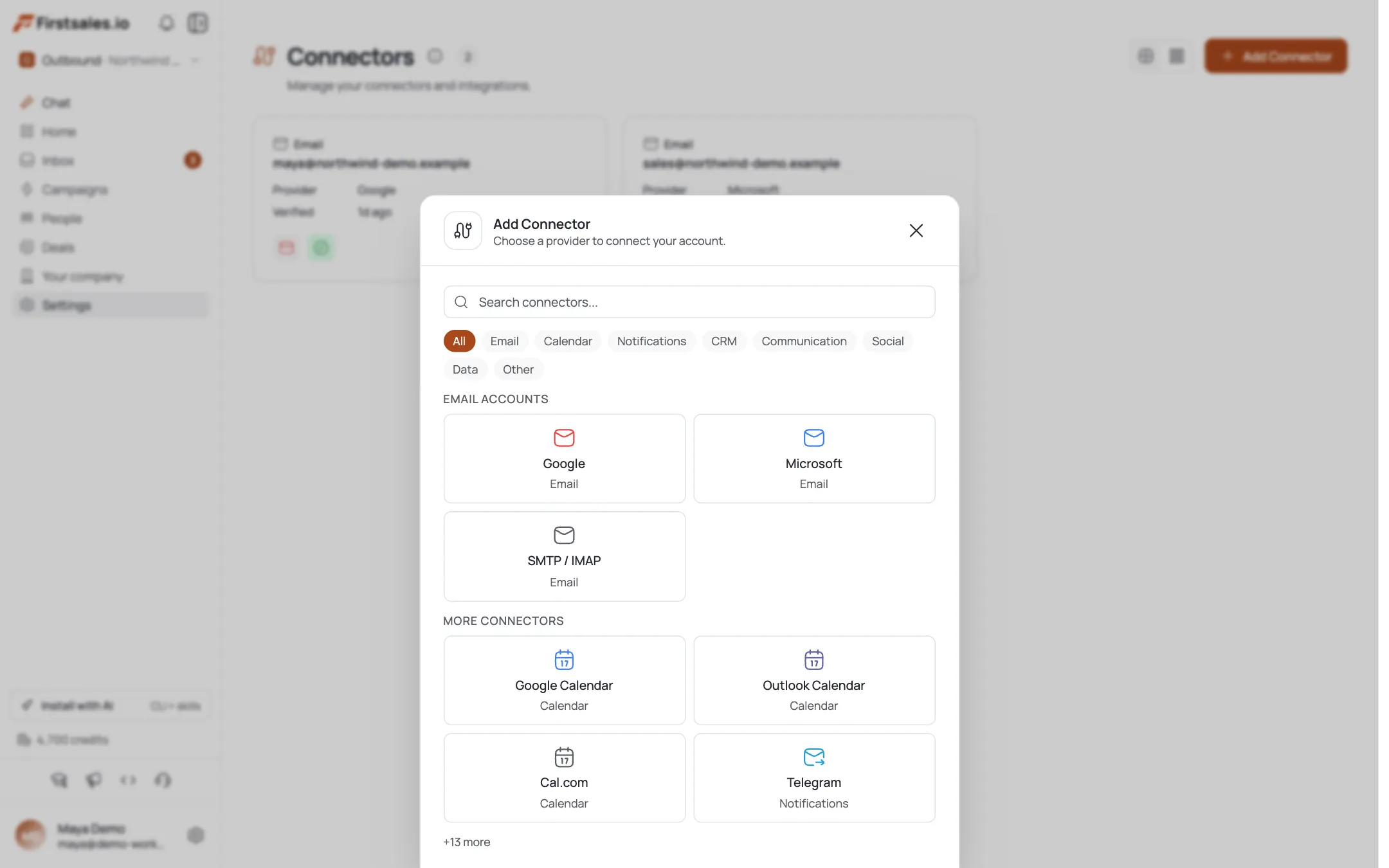
Choose the Single Account tab
SMTP / IMAP opens a two-tab panel: Single Account and Bulk Upload (CSV). Stay on Single Account to connect one mailbox: use Bulk Upload if you're adding many at once.
Enter credentials
Fill in Email address, an optional Display name, Username, and Password (use the eye icon to double-check what you typed). Username is often the full email address, but check your provider's docs if the login differs.
Set Outgoing (SMTP)
In Outgoing (SMTP), enter your SMTP host, pick a SMTP port (
587,465,25,2525, or Custom), and set SMTP encryption (TLS,SSL, orNone). The default is465/SSL.Set Incoming (IMAP)
In Incoming (IMAP), enter your IMAP host, IMAP port (
993or143), and IMAP encryption. The default is993/TLS. IMAP is required so FirstSales can read replies and route them to your inbox.Click Test connection
You must pass Test connection before you can save. A success shows “Connection verified: ready to save.” A failure almost always means a wrong host/port, or that your provider requires an app-specific password.
Click Add account
Once verified, click Add account. A toast confirms “Email account added!” and the mailbox now appears in Connectors.
Warm it up before real sends
A new mailbox has no reputation. Open its Warm Up tab and turn on warm-up before pointing real campaigns at it: see the email warm-up tutorial for the full walkthrough.
Pro tips
App passwords, not your login password
Most providers (Zoho, Fastmail, iCloud, Gmail-via-SMTP) require a generated app-specific password when 2FA is on. If Test connection fails on a correct host/port, this is almost always why.
Match port to encryption
465 = SSL, 587 = TLS/STARTTLS, 25 = None. The form auto-fills a sensible default port when you switch encryption: only override it if your provider documents a non-standard one.
Don't skip IMAP
SMTP alone would send but never see replies. Give the IMAP host and port so reply detection, stop-on-reply, and the inbox all work.
The test gate is a feature
You can't save an untested mailbox by design: a bad credential surfaces here instead of silently failing mid-campaign.
Frequently asked questions
When should I use SMTP/IMAP instead of Google/Microsoft?
Use OAuth (Google/Microsoft) when your inbox is on either of those. Use SMTP/IMAP for every other provider: Zoho, Fastmail, private or cPanel mail, and similar hosts.
Why do I need both SMTP and IMAP?
SMTP sends mail; IMAP lets FirstSales read replies so stop-on-reply and the inbox work.
What port and encryption should I use?
465/SSL or 587/TLS for SMTP, and 993/TLS for IMAP are the common choices. The form defaults to 465/SSL and 993/TLS.
Test connection keeps failing: what's wrong?
Usually an app password is required because 2FA is on, or the host/port/encryption combination is wrong. Verify against your provider's SMTP/IMAP documentation.
Is my password stored safely?
Credentials are stored so FirstSales can send and read mail on your behalf. Unlike OAuth there's no revocable token, so use an app-specific password you can revoke on the provider's side.
Can I add many SMTP mailboxes at once?
Yes: switch to the Bulk Upload (CSV) tab to import several mailboxes from a spreadsheet (covered in the bulk-import tutorial).
Can I connect a personal Gmail this way?
Technically yes, with an app password: but Google OAuth is cleaner, and cold outreach should send from your own domain regardless.
Do I still need to warm it up?
Yes. Connecting is step one: enable warm-up on the Warm Up tab before you rely on the mailbox for real sends.