Open Chat and pick a starting point
Chat sits at the top of the workspace section in the left sidebar, above Dashboard, with a
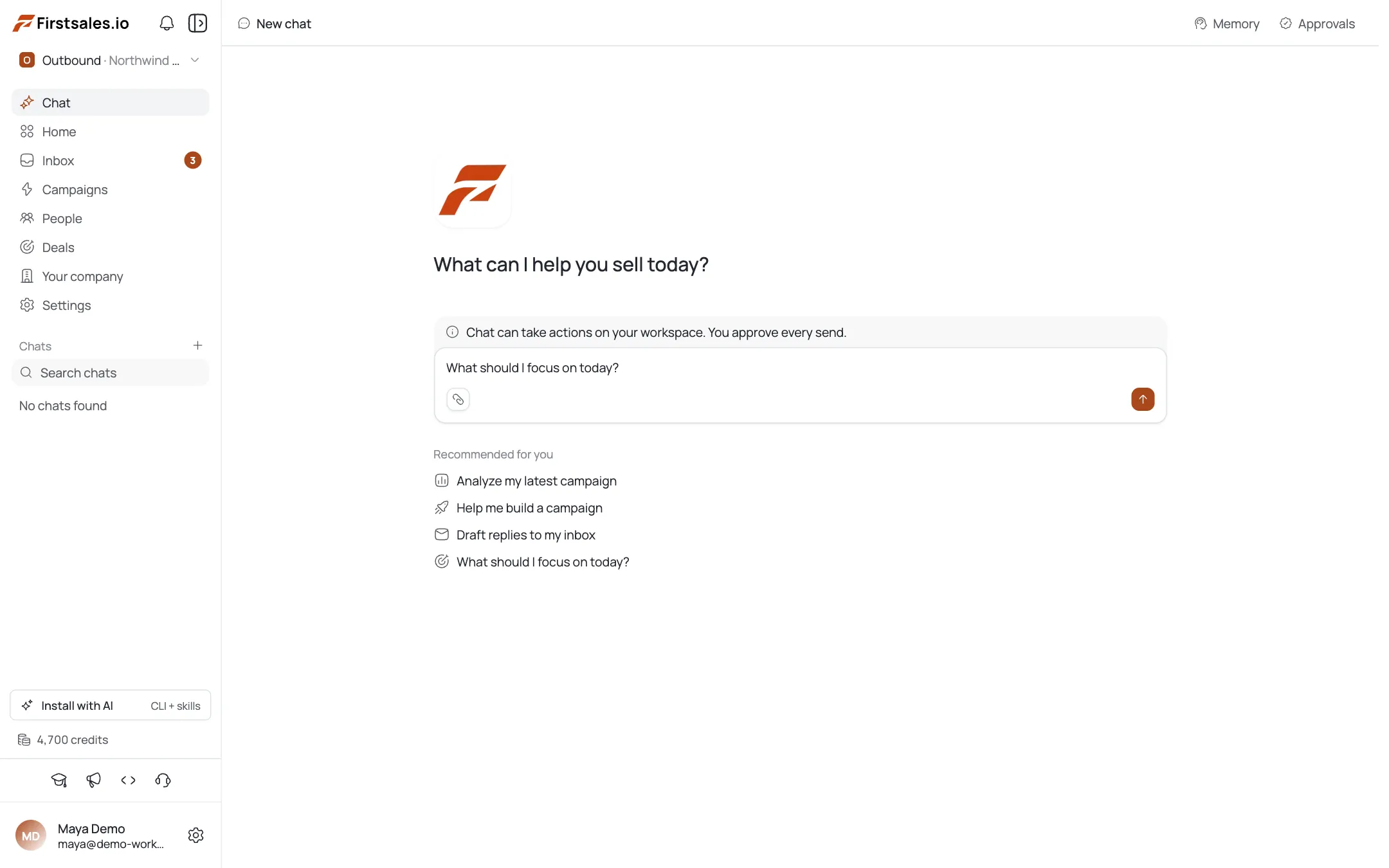
BETAtag next to it. Click it and you land on an empty session with the prompt "What can I help you sell today?" and a one-line description under it: ask about campaigns, contacts, deals, or your inbox.Four starter prompts sit under that line: Analyze my latest campaign, Help me build a campaign, Draft replies to my inbox, and What should I focus on today?. Clicking one opens a session with that request already sent, so you can see the shape of a real answer without writing anything. They are shortcuts, not modes. Nothing about the session behaves differently depending on which one you pick.
The four starters map to the four things Chat can reach: your campaigns, your contact and company records, your deals, and your inbox. If a question falls outside those, Chat will tell you rather than guess. Asking it to write a blog post or research a company it has no record of will get you a short answer explaining what it can see instead.
The starter prompts disappear as soon as the first message is sent. To get back to them, click + New chat at the top of the session column. There is no way to pin a starter prompt or edit the four defaults.
If you have never used Chat before, start with "What should I focus on today?". It reads your live workspace state and answers with the campaigns and replies that actually need attention, which tells you quickly whether your data is where you think it is.
Ask a question in your own words
The composer sits at the bottom of the session with the placeholder "Ask anything about your sales...". Type a question the way you would ask a teammate. "Which campaigns are running right now?" and "How many contacts are in this workspace?" both work. You do not need a command syntax, a slash menu, or a keyword.
Under the composer is a line that does not change: Chat can take actions on your workspace, and you approve every send. That sentence is the contract. Chat can read your data and prepare work, but anything that puts an email in front of a prospect stops and waits for you.
Chat answers from your live workspace, not from a snapshot. If you pause a campaign in another tab and then ask Chat which campaigns are active, the paused one is already gone from the answer. That also means an answer you got an hour ago can be stale, so ask again rather than scrolling up when the number matters.
Every reply has a small row of controls under it: copy, thumbs up, and thumbs down. The thumbs are not decoration. Each verdict is recorded and feeds the Chat scope on the Learning page, so rating a bad answer does more than clear it off your screen. Rate the reply before you move on, while you still remember why it was wrong.
Ask one thing at a time. A question that bundles three requests tends to come back with a partial answer to each, and it is harder to tell which part Chat got wrong.
Answer the Question card when Chat needs a detail
When a request needs information Chat cannot find on its own, it does not guess and it does not bury the request in a paragraph. It renders a Question card in the thread with a short explanation of why the information is needed, for example "This information is needed to create your campaign."
Ask Chat to build a campaign and you can see this in practice. The card appears first, and the reply under it lists exactly what is missing: the campaign name, the campaign type, the main goal such as meeting, demo, download, order, reply, or custom, and the target audience or industry. Answer in the composer and Chat continues from where it stopped.
Question cards expire. Leave one unanswered long enough and it changes to "Expired, no longer answerable" and the card goes inert. Nothing is lost when that happens, but the answer you type afterwards is treated as a new message rather than a reply to the card, so Chat may ask again. If you come back to an old session and find an expired card, restate what you want in a fresh message.
An expired card is also a useful signal on a long request. If Chat asked for four details and only two came back before the card expired, the work it was preparing did not proceed. Check the campaign or contact you expected it to touch before assuming it went through.
Find an older session in the chat history
The middle column lists every session in the workspace, newest first, under an OLDER group heading once sessions age. Sessions are titled automatically from what you asked, which is why the list reads like a log of your questions: "Campaign Building Help", "Fintech Founders Campaign", "Pause Low Open", "Billing And Credit", "Top Campaigns Open".
Above the list is a Search chats box. It matches on those auto-generated titles, so search the way you would remember the question rather than the answer. Searching "campaign" finds the campaign sessions; searching for a phrase that only appeared deep inside a reply will not.
Hovering a session row reveals a menu on the right for actions on that session. Clicking the row opens it with the full thread intact, including any Question cards, expired or not.
Auto-titling has a rough edge worth knowing: two sessions about the same subject often get near-identical titles, and you can end up with several rows reading "Ideal Customer Profile" or "Billing And Credit". When that happens, the reliable way to find the right one is position in the list rather than the title, since the list stays in recency order.
Sessions are per workspace. Switching the workspace at the top of the sidebar switches the session list with it, so a chat you started in one workspace will not appear in another.
Check what Chat remembers before you trust a draft
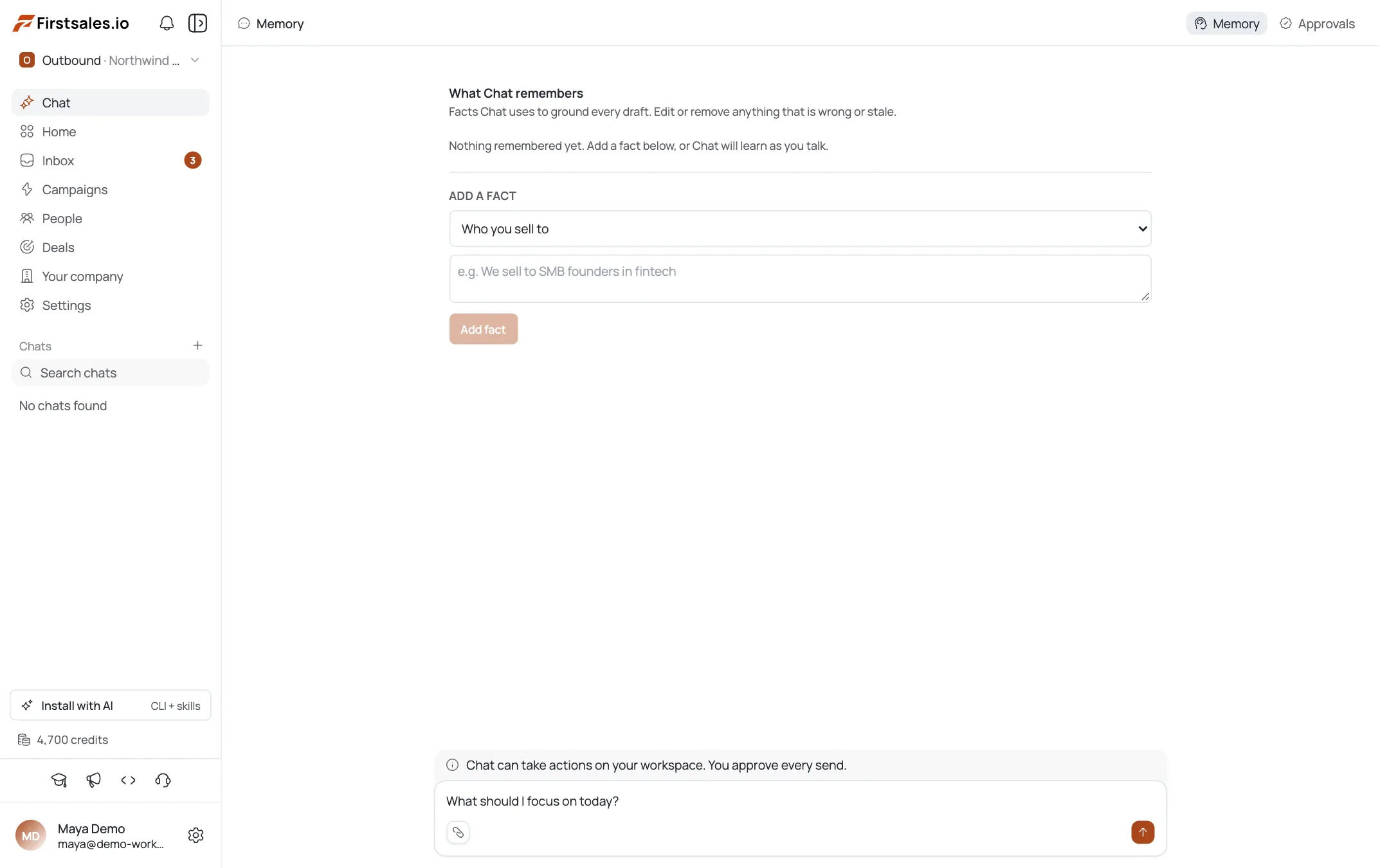
Two buttons sit at the top right of the session: Memory and Approvals. Memory opens a panel titled "What Chat remembers" with a line under it explaining what the facts are for: Chat uses them to ground every draft, and you can edit or remove anything that is wrong or stale.
Facts are grouped by category, such as
WHO YOU SELL TO, and each fact is one plain sentence like "The user sells to fintech founders." A fact Chat inferred on its own carries anautobadge, and every fact has Edit and Delete next to it.Read this panel before you rely on Chat for anything customer-facing. A stale fact does not announce itself in the reply. If Chat still believes you sell to fintech founders after you moved upmarket, every draft it writes will be aimed at the wrong reader and nothing on the surface of the draft will say so.
Approvals is the other half of the same idea. It lists actions Chat has proposed and is waiting on, and reads "No pending approvals." when the queue is clear. Anything Chat prepared that would touch a prospect waits here rather than going out. Check it when you asked for something and cannot find the result: the work may be queued for your approval rather than missing.
Both panels are per workspace, and both are covered in more depth in the memory and approvals tutorial.
Keep Chat honest as your workspace changes
Chat is only as accurate as the workspace behind it, so a few habits keep it useful past the first week.
- Rate replies as you go. The thumbs under each reply feed the Chat scope on the Learning page, and that scope stays empty until you start rating. An empty scope means Chat has nothing to learn from.
- Prune memory after a positioning change. Deleting one wrong fact is faster than correcting the same wrong assumption in ten drafts.
- Start a new session when the subject changes. Long sessions that wander across campaigns, billing, and contacts produce vaguer answers than short focused ones.
- Verify anything with a number in it. Contact counts and campaign states come from your live data, so they are as correct as your data is, and a surprising number usually means an import or a sync issue rather than a Chat bug.
Chat is labelled BETA in the sidebar for a reason. It reads your workspace well and it stops before sending, but it is not a replacement for opening the campaign and reading the drafts yourself before a launch. Treat it as a fast way to find out where to look.
If an answer looks wrong, thumbs it down, then check Memory. Most bad answers trace back to a stale fact rather than to the question you asked.
Dicas de especialista
Expired cards mean the work stopped
A Question card that reads "Expired, no longer answerable" means Chat never got the detail it needed, so the campaign or action it was preparing did not proceed. Restate the request in a new message rather than answering the dead card.
Search by the question, not the answer
Search chats matches the auto-generated session title, which comes from what you asked. If you remember a phrase from the reply rather than your question, scroll the list in recency order instead of searching.
Rate the reply while you remember why
The thumbs under each reply are the only input to the Chat scope on the Learning page. Rating a wrong answer immediately is worth more than a vague correction three sessions later.
Check Memory before you blame the prompt
Most off-target replies come from a stale fact in the Memory panel rather than from how you phrased the question. Open Memory first, then rewrite the prompt if the facts are right.