Open a contact and find the Source row
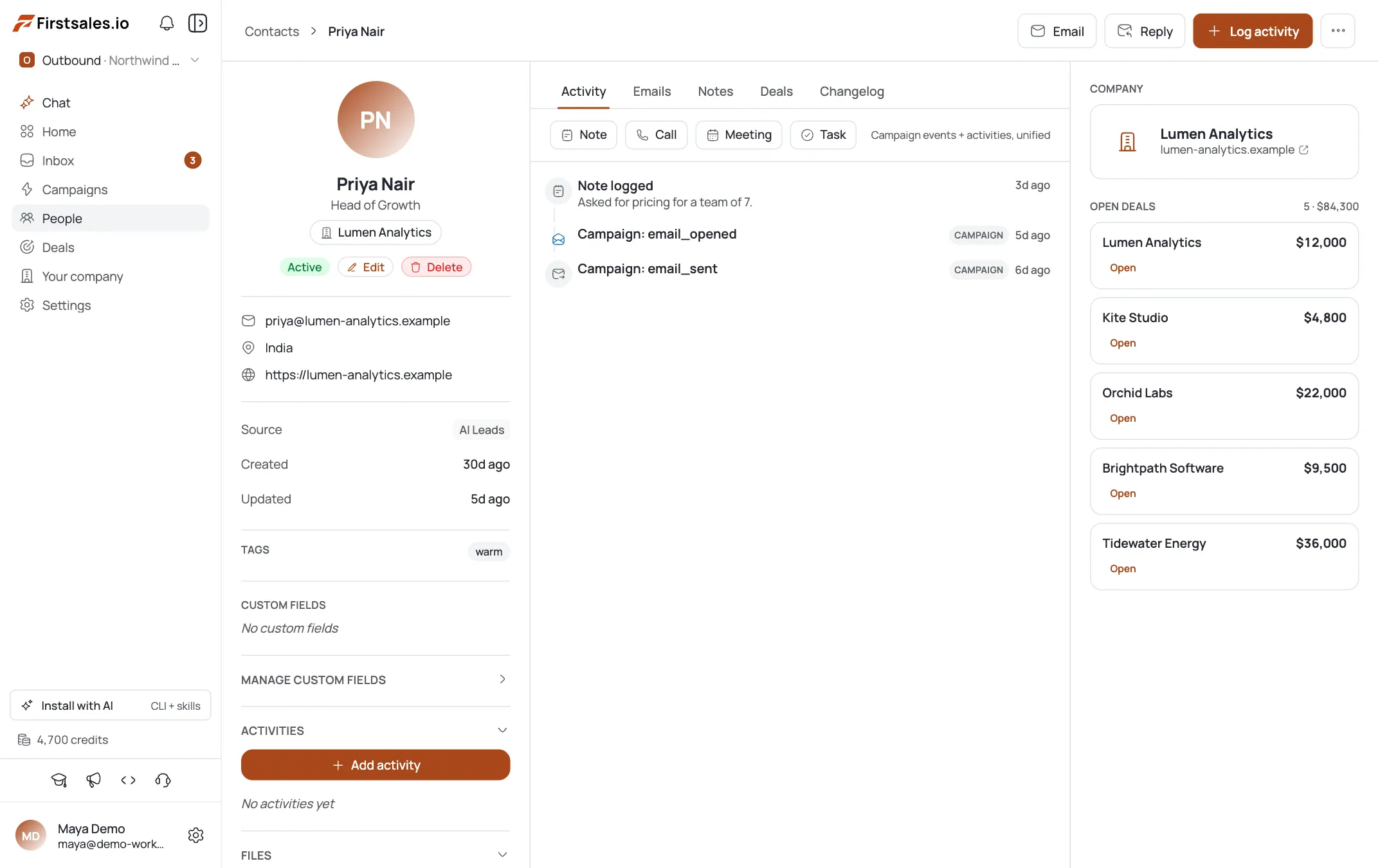
Open Contacts from the sidebar and click any contact to open its record. The page has three columns: the contact's identity and fields on the left, a tabbed activity area in the middle, and a company panel on the right.
Scroll the left column past the email, LinkedIn, location, and website links and you reach three rows that answer the provenance question: Source, Created, and Updated.
Source names the tool that first brought this contact into your workspace, shown as a chip. A contact found by the lead finder reads
AI Leads. That one value settles a question that otherwise takes a conversation, which is whether a record came from a list you bought, an import someone ran, or a search FirstSales performed for you.Created and Updated are relative timestamps. Read them together with Source. A record created eleven hours ago and updated eleven hours ago has not been touched since it arrived, so everything on the page is as the source produced it. A record created months ago and updated today has been through something since, and the Changelog tab is where you find out what.
These three rows are the fastest sanity check before you email someone. If Source says the record came from an automated tool and Created says it arrived minutes ago, the data on the page has not been reviewed by a person yet.
Spot enriched values with the Enriched badge
Below the source rows is a CUSTOM FIELDS section. Each row is a field name, an optional badge, and a value. Fields that FirstSales filled in during enrichment carry an
Enrichedbadge next to the field name.On a typical enriched contact that covers the company details: the company's LinkedIn identifier, the founding year, a phone number, and a company description paragraph. A field without the badge came from your import, your team, or the original source rather than from enrichment.
The badge changes how you should treat the value. An enriched field is a machine's best answer from public sources at the moment it ran. It is usually right and it is occasionally confidently wrong, particularly on companies that rebranded, moved, or share a name with a larger company. A field you or a teammate typed carries a different kind of confidence.
This matters most when a value is going to appear in an email. A founding year or a company description pulled into a first-touch email is the kind of detail that makes a message land, and also the kind that makes you look careless when it is wrong. Check the badge on any field your copy leans on, and spot-check a handful of enriched values against the company website before a campaign goes out.
The badge is per field, not per record, so a single contact can carry a mix of enriched and human-entered fields. Read the row, not the page.
Read the Changelog for record milestones
Click the Changelog tab in the middle column, after Activity, Emails, Notes, and Deals. It lists what has happened to this record, newest first, with a relative timestamp on each entry.
Three entry types cover most records. Record updated marks the most recent change to the record. Contact created names how the contact entered, for example via AI leads. Enrichment applied names the tool that ran, for example a leads-finder integration.
Each entry names the actor rather than describing the change abstractly. That is what makes this tab useful in an argument. When a phone number looks wrong and nobody remembers where it came from, an enrichment entry with a tool name and a timestamp is a better answer than a guess.
Read the order as well as the entries. Contact created followed by enrichment applied a moment later is the normal automated path: the record arrived and was immediately filled in. Enrichment applied long after creation means someone or something enriched an existing record, and the values on the page today are not the values it arrived with.
The Changelog is per contact. There is no workspace-wide feed of these milestones on this page, so investigating a pattern across many records means opening them individually.
Know what the Changelog does not record
At the bottom of the Changelog is a line in italics that states the limit plainly: field-level edit history is not tracked yet, and only record milestones appear here.
Take that at face value, because it changes what the tab can answer. It tells you that a record was updated. It does not tell you which field changed, what the previous value was, or who changed it. There is no per-field diff and no way to recover an overwritten value from this page.
The practical consequence is on bulk operations. If an import overwrites a phone number your team had verified by hand, the Changelog records that the record was updated and nothing more. The old value is not retrievable here.
Two habits work around it. Keep a copy of any file you import, so the pre-import state exists somewhere. And use Notes for facts a human verified, since a note is a durable record of what someone confirmed and when, in a place no enrichment run will overwrite.
Being honest about this limit is better than working around a feature you assume exists. If you need a full field-level audit trail today, keep it outside the contact record until this tab covers it.
Use the company panel and activity tabs together
The right column holds a COMPANY panel with the company name, its domain as a link, and two fields under it: INDUSTRY and EMPLOYEES. Under that is OPEN DEALS, which reads "No open deals" when there are none.
The company panel is worth a glance before any personalised send, because industry and headcount are the two fields most likely to end up in a first line. A five-person company described as an enterprise, or an agency filed under the wrong industry, produces an email that reads as automated no matter how good the rest of the copy is.
The middle column's Activity tab is the other half of the picture. Its subheader explains what it holds: campaign events and activities, unified. On a fresh contact it shows an empty state saying no activity yet, and explains what will stack there, which is emails, calls, notes, and campaign events. A Log activity button sits in the empty state and in the header, alongside Email and Reply.
Reading Activity next to Changelog answers two different questions. Changelog tells you where the data came from. Activity tells you what has been done with the person. A contact with enriched data and an empty Activity tab is a record nobody has touched, which is exactly the state where wrong enriched data is most likely to reach a prospect unchecked.
Log the first touch when you make it. An empty Activity tab on a contact your team has actually called is a gap that costs someone else time later.
Profi-Tipps
Created equals Updated means nobody has reviewed it
When the Created and Updated timestamps match, the record is exactly as its source produced it. That is the state where an automated value is most likely to reach a prospect unchecked.
Check the badge on any field your copy uses
An Enriched badge marks a value a machine found from public sources. Founding years, headcounts, and descriptions are the fields most likely to land in a first line and most likely to be quietly wrong.
Use Notes for anything a human verified
Field-level edit history is not recorded, so a value someone confirmed by phone can be overwritten by a later import with no trace. A note survives that.
Enrichment long after creation means the data changed
Contact created followed immediately by enrichment applied is the normal automated path. A large gap between them means the record you are reading is not the record that arrived.