Open Settings → Team
Team management lives under Settings → Team. It's a tabbed panel: Members, Invitations, Groups, Links, and Domains. Which tabs you see depends on your permissions: you need invite rights to see Invitations and Links, and org-settings rights for Domains.
Invite people
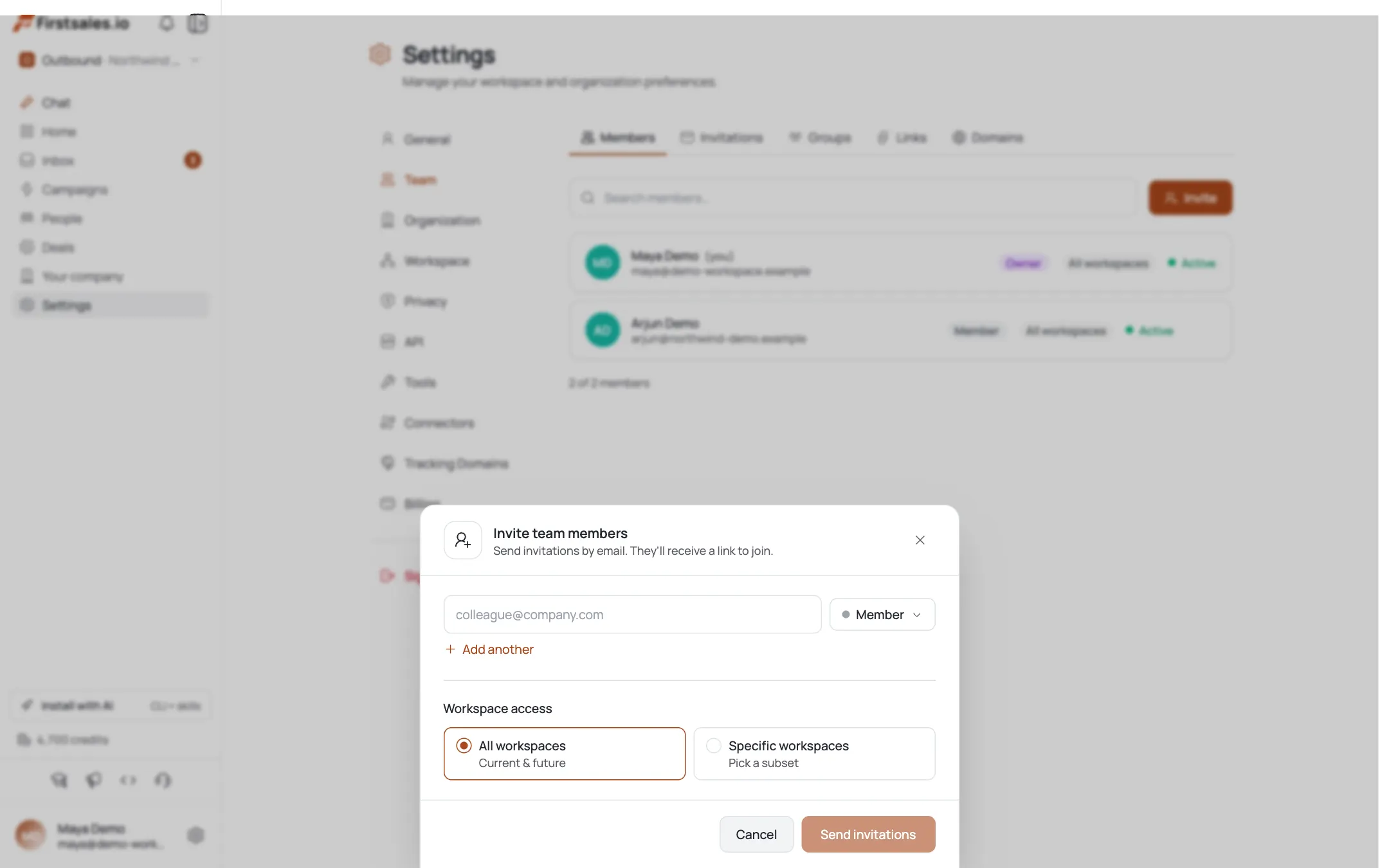
On the Invitations tab (or Invite on the Members toolbar), open the Invite team members drawer. Each row is one invitee: an email and a role. Click Add another to invite several at once, then Send invitations.
One Workspace access setting applies to everyone in the batch: grant all workspaces or pick specific ones.
Choose the right role
FirstSales has five roles, from most to least access:
- Owner (full access including billing and org transfers. Can't be assigned by invite (there's one, set at creation).
- Admin) manage members, settings, and all workspace content.
- Manager: manage campaigns, contacts, and workspace content.
- Member: standard access to campaigns and contacts.
- Viewer: read-only.
You can only grant roles at or below your own level.
Track and cancel pending invitations
The Invitations tab lists each invite with the invitee's email, who sent it, when, its role, and a status: pending, accepted, expired, or cancelled. To pull one back, hover a pending row and cancel it: you'll confirm before it's revoked.
There's no "resend" button: to re-invite someone whose invite expired, cancel it (if still listed) and send a fresh one.
Manage existing members
The Members tab shows everyone with their role, a workspace-access pill ("All workspaces" or a count), and an active/suspended status. The row's kebab menu lets you Edit workspace access, Suspend/Unsuspend, or Remove: each gated by your permissions, and never available on your own row or an owner.
Share an invite link
For open onboarding, use the Links tab. Create a shareable join link with an optional permission group, a max uses cap (blank = unlimited), and an expiry in days (blank = never). Anyone with the
/join/…link joins under those settings. Revoke a link anytime: that can't be undone.Auto-join by email domain
To onboard a whole company automatically, add your domain on the Domains tab. Anyone who signs up with an email at an allowed domain is auto-assigned up to a max role you set (member, viewer, or manager: not admin). Remove a domain and new signups from it stop auto-joining.
Pro tips
Invite least-privilege, upgrade later
Start people at Member or Viewer and raise them if they need more. It's easier to grant access than to explain why someone had too much.
No resend: cancel and re-invite
There's no resend button. If an invite expires, cancel the old one and send a new invitation rather than hunting for a resend that isn't there.
Invite links for cohorts, invites for individuals
One-off hire? Send an invitation. Onboarding a whole team or agency? A capped, expiring invite link saves you typing every email.
Domain allowlist for company-wide rollout
If everyone shares a company domain, the Domains allowlist auto-assigns new signups a role: no per-person invite needed. Cap the max role sensibly.
Frequently asked questions
Where do I invite team members?
Settings → Team → Invitations (or the Invite button on the Members tab). The drawer lets you add multiple email+role rows and set one workspace-access scope for the batch.
What roles are available?
Owner (full access, not invitable), Admin, Manager, Member, and Viewer (read-only). You can only assign roles at or below your own level.
How do I cancel an invitation?
On the Invitations tab, hover a pending invite and cancel it (you'll confirm first). Only pending invites can be cancelled.
How do I resend an invite?
There's no resend action. If an invitation expired, cancel it and send a new one from the invite drawer.
Can I limit someone to specific workspaces?
Yes. The invite sets a workspace-access scope (all or specific workspaces), and you can later Edit workspace access from a member's kebab menu on the Members tab.
How do I onboard a whole company at once?
Add your email domain on the Domains tab so new signups auto-join up to a max role, or share a capped, expiring invite link from the Links tab.
How do I remove or pause a member?
On the Members tab, open a member's kebab menu to Suspend/Unsuspend or Remove them (subject to your permissions). You can't do this to yourself or to an owner.