Start with the five built-in roles
Every member has a role that sets their baseline access:
- Owner (everything, including billing and org transfer/delete.
- Admin) manage members, settings, and all workspace content.
- Manager: manage campaigns, contacts, and workspace content.
- Member: standard access to campaigns and contacts.
- Viewer: read-only.
For most teams these roles are all you need. Reach for custom groups only when a role doesn't fit.
Understand permission groups
Open Settings → Team → Groups. There are two kinds:
- System groups (the built-in role definitions. Read-only; you can't edit or delete them.
- Custom groups) permission sets you define for cases the standard roles don't cover.
Groups map to a person's effective permissions, resolved per workspace.
Create a custom group
Click to create a group and you'll get a permission matrix grouped by resource: campaigns, contacts, connectors, members, workspace, org, and more. Name the group and check the exact permissions it should grant (e.g. read campaigns + read/write contacts, nothing else).
This is how you build a role like "SDR who can edit contacts but not touch billing or team settings."
Respect the creator ceiling
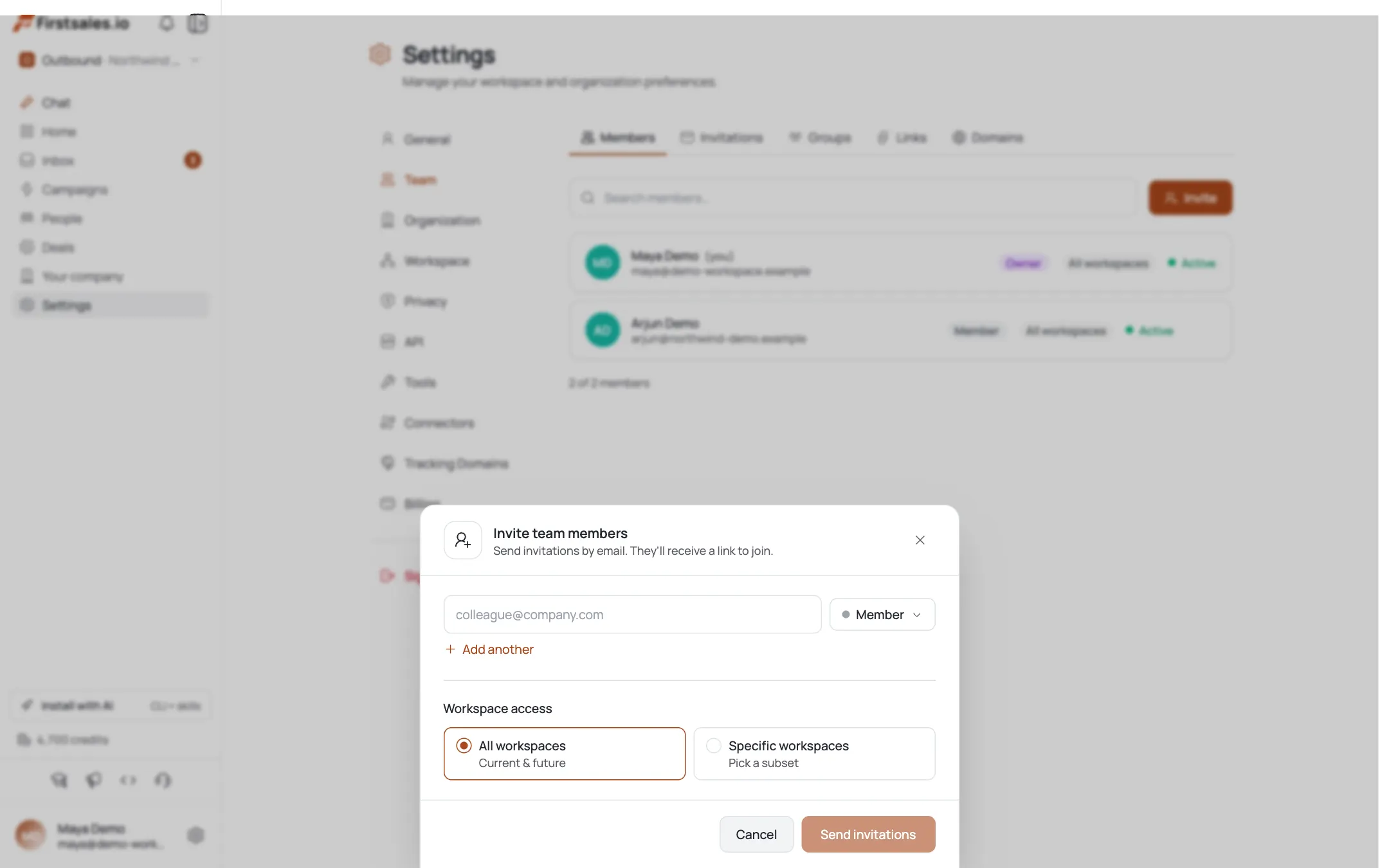
You can only grant permissions you yourself hold. In the matrix, anything above your own access is disabled: you can't create a group more powerful than you. Same rule applies when assigning roles on invite: options above your level are greyed out.
Scope access to workspaces
Permissions are workspace-scoped. A member can have different effective access in different workspaces, and their workspace-access setting (all vs specific) decides where a group even applies. Use this to give someone full rights in one workspace and none in another.
Assign and verify
Assign a group when inviting (or later, via a member's Edit workspace access). To check what someone can actually do, remember the app resolves effective permissions live per workspace: the safest test is to confirm the member sees (or doesn't see) the gated tabs and actions you intended.
Pro tips
Try a built-in role before a custom group
The five roles cover most needs. Only build a custom group when you genuinely need a permission slice the roles don't offer: fewer bespoke groups is easier to reason about.
You can't out-grant yourself
The creator ceiling means a group never exceeds your own access. If you can't check a box, you don't hold that permission: get an owner/admin to grant it.
Think in workspaces
Access is per-workspace. Someone can be a manager in the client-A workspace and a viewer in client-B. Set workspace access deliberately, not just the role.
Least privilege for custom groups
Check only the permissions the job needs. A group that grants everything is just an admin role with extra steps: and a bigger blast radius if the account is compromised.
Frequently asked questions
What roles exist?
Owner, Admin, Manager, Member, and Viewer. Owner has full access (including billing and org transfer); Viewer is read-only.
What's the difference between a role and a group?
Roles are the five built-in access levels (backed by read-only system groups). Custom groups are permission sets you define when the standard roles don't fit. Both resolve to effective permissions per workspace.
How do I create a custom permission set?
Settings → Team → Groups → create a group. Name it and check permissions in the resource-grouped matrix (campaigns, contacts, members, etc.). Assign it on invite or via a member's workspace-access editor.
Why are some permissions greyed out?
The creator ceiling: you can only grant permissions you hold yourself. Anything above your own access is disabled so you can't build a group more powerful than you.
Can access differ per workspace?
Yes: permissions are workspace-scoped. A member's group applies within the workspaces they're granted access to, so they can have full rights in one and none in another.
Can I edit the built-in roles?
No. System groups (the built-in roles) are read-only. To customize access, create a custom group instead.