What the Alert Center is
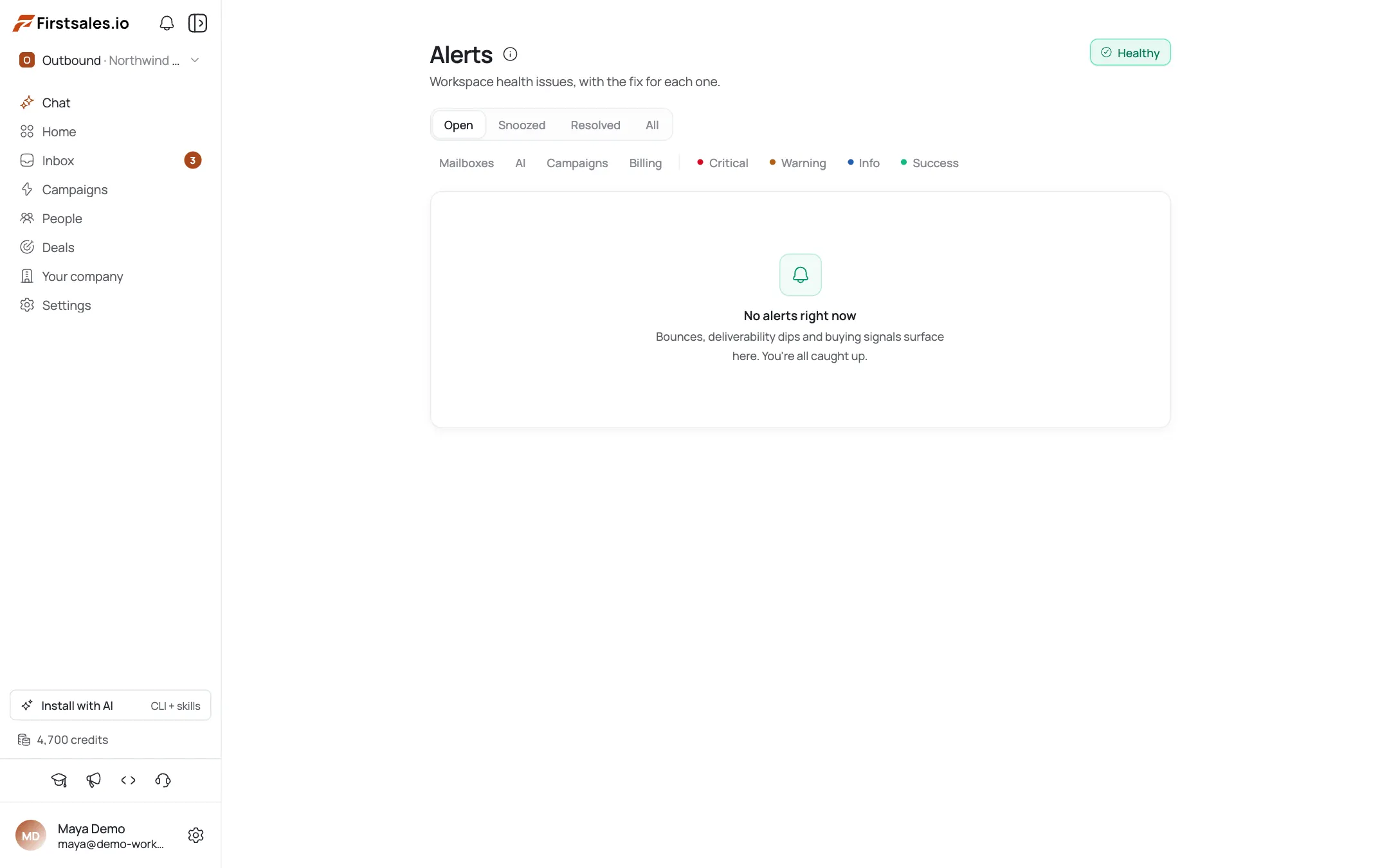
The Alert Center is a single page that monitors your workspace health and warns you before problems hit delivery. Open it from the alert bell in the nav, or navigate to the Alert Center page directly.
Read the header health
A workspace health badge (healthy, warning, or critical) plus critical / warning / info count chips summarize your state at a glance.
Know the alerts you'll see
Alerts are grouped by category: Mailboxes, AI, Campaigns, Billing, and Connectors. The real conditions include: “All mailboxes are disconnected”, “Some mailboxes are disconnected”, “Email drafting has stalled”, “Campaign has sent zero emails”, “AI credits are exhausted”, “AI credits are running low”, “Payment is past due”, and “Email authentication not set up”.
Act with the one-click CTA
Each alert has a fix button that deep-links to the exact place you need: reconnect a mailbox, top up credits, update your payment method, or configure email authentication.
Snooze what you can't fix now
Snooze quiets an alert for 24 hours; it returns if the underlying condition still exists. Use it to defer, not to hide a real problem.
Resolve handled alerts
Mark an alert Resolved once you've fixed it. Resolved rows fade with a “Resolved” badge and move under the Resolved status tab.
Filter to focus
Filter by category, severity, or status (Open / Snoozed / Resolved) to work the most important issues first.
Pro tips
Snooze is a deferral, not a mute
It quiets an alert for 24 hours and comes back if the underlying problem is still there.
Let the CTA do the navigating
An AI-credits-low alert jumps straight to top-up; a mailbox alert jumps straight to reconnect: use it instead of hunting through settings.
Fix email authentication fast
The Email authentication not set up alert names the exact sending domain missing SPF/DKIM/DMARC: fix it before it drags down inbox placement. See connect-mailbox and domain authentication tutorials for the deep dive.
Check the health badge first
A critical badge means something is actively blocking sending right now: start there before working individual alerts.
Frequently asked questions
Where is the Alert Center?
It's its own page in the workspace: open it from the alert bell in the nav.
What kinds of alerts are there?
Mailboxes, AI/credits, Campaigns, Billing, and Connectors/email-auth.
What does the health badge mean?
Overall workspace health: healthy, warning, or critical.
How do I fix an alert?
Use its CTA: it deep-links to the exact fix, such as reconnecting a mailbox or topping up credits.
What does snoozing do?
Quiets the alert for 24 hours; it returns if the condition persists.
What's the difference between snooze and resolve?
Snooze defers it; Resolve marks it handled and moves it to the Resolved tab.
Why am I told email authentication isn't set up?
SPF, DKIM, or DMARC records are missing for a connector's domain: configure them to avoid spam placement or rejected mail.
Can I filter alerts?
Yes: by category, severity, and status.