Connectors → Add Connector → Calendar
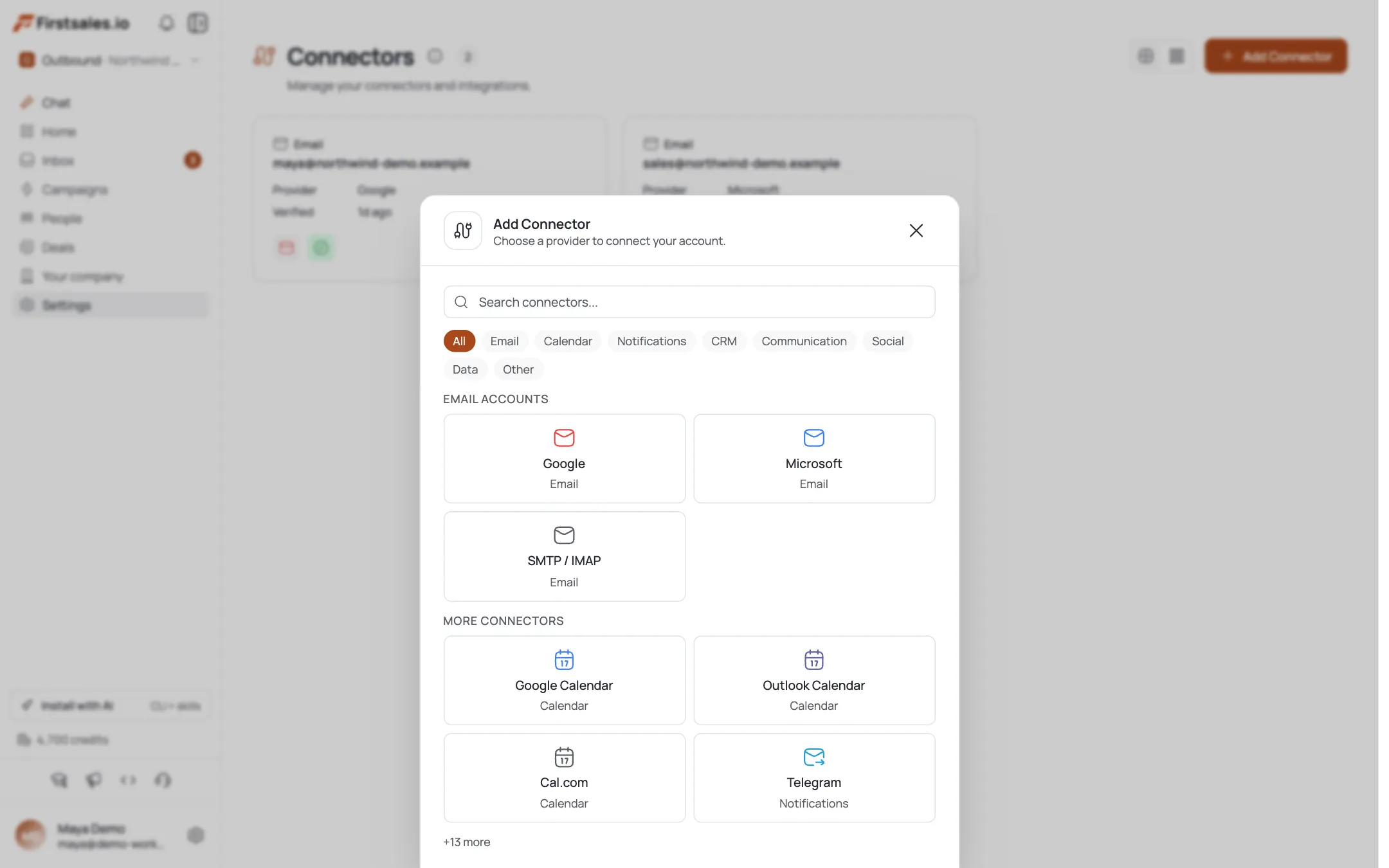
Open Connectors, click Add Connector, and pick the Calendar category.
Choose Google or Outlook Calendar
Select Google Calendar or Outlook Calendar. Both connect by OAuth: no password stored.
Click Connect and grant access
Click Connect Google Calendar (or Outlook). A popup opens for consent; grant calendar access: the card shows “Waiting for … consent…” until you finish.
Confirmation
When consent completes, the popup closes and a toast confirms “Google Calendar connected!” (or Outlook). The connector now appears in Connectors.
Test the connection
Open the calendar connector and click Test Connection: it reports how many calendars are accessible, confirming FirstSales can read and write your calendar.
Attach it to a meeting campaign
With a calendar connected, meeting-goal campaigns can offer and book real times. Outlook additionally auto-provisions a Teams link on each booked meeting.
Reconnect if it lapses
If OAuth authorization expires, reconnect the calendar the same way you would a mailbox: see the reconnect tutorial.
Pro tips
Connect the calendar before launching a meeting campaign
The booking step depends on it: connect first so autopilot doesn't stall at the scheduling step.
Outlook gets Teams links for free
The Outlook connector auto-provisions a Teams online meeting on each booking: pick it if you run Teams calls.
Allow popups for OAuth
The consent window opens as a popup; if it's blocked, the flow falls back to a full-page redirect: either way, complete consent to finish.
Test after connecting
The accessible-calendars check confirms permissions actually stuck before you rely on it in a live campaign.
Frequently asked questions
Which calendars can I connect?
Google Calendar and Outlook Calendar, both via OAuth.
Why connect a calendar at all?
So meeting-booking (autopilot) campaigns can offer and place real times on your calendar.
What's different about Outlook?
Outlook bookings auto-provision a Microsoft Teams online meeting link.
Is my password stored?
No: calendar connect uses OAuth, which stores a revocable token, not a password.
The consent popup was blocked: what happens?
FirstSales falls back to a full-page redirect to complete OAuth; just finish granting access.
How do I know it worked?
A “… Calendar connected!” toast appears, and Test Connection reports the number of accessible calendars.
Does connecting a mailbox also connect its calendar?
No: the calendar is a separate connector. Add it explicitly under the Calendar category.
What if the calendar disconnects later?
Reconnect it via OAuth, the same way you would a mailbox.