Understand A/B testing in Template mode
A Template-mode campaign can hold multiple email variants for the same sequence position, so you can compare different copy against each other.
Open your campaign's Email Template
Open the Email Template config for a Template-mode campaign.
Start a new variant
Click A/B Testing (top-right of the templates list) or Add A/B variant below it to open the New A/B Variant form.
Fill in the variant
Enter a Template Name, Subject Line, and Email Body. Insert merge tags where they help personalize the copy.
Preview and save
Optionally click Send Test to preview the variant in your own inbox, then click Create Template to save it.
Add more variants
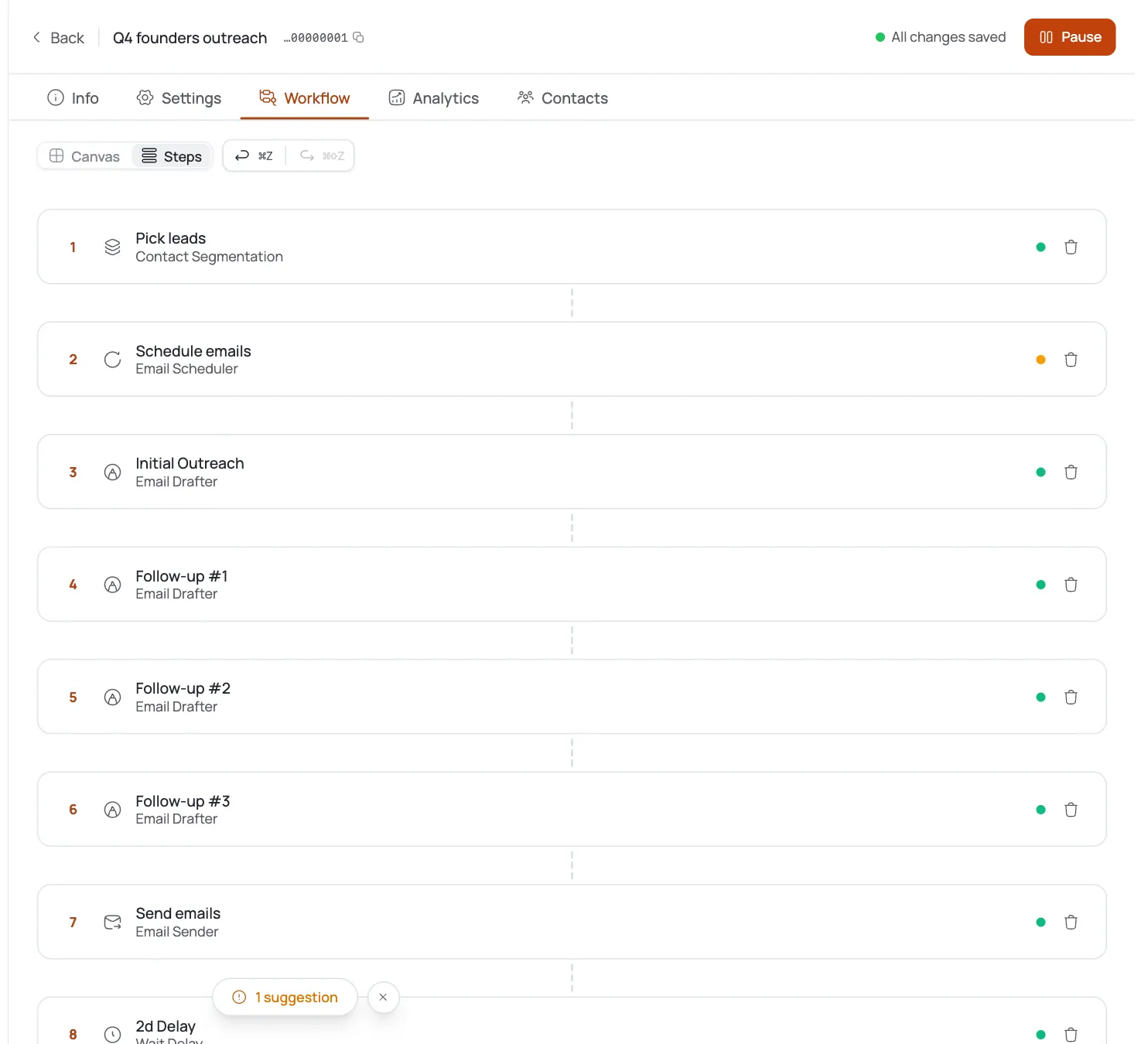
Repeat to add additional variants. Each one gets a numbered #N badge marking its position in the sequence; the gap between variants is controlled separately by Wait/Delay nodes on the canvas.
Compare results in analytics
Launch the campaign and let it run, then compare your variants' performance in campaign analytics. Winner selection is manual (there's no automatic winner) so review the metrics yourself and edit or delete the underperforming variant.
Pro tips
Change one thing at a time
Vary the subject or the opener (not both) so analytics can tell you what actually moved the needle.
Winner selection is manual
Check reply and open rates in campaign analytics yourself, then delete or rewrite the weaker variant: there's no automatic winner.
Name variants descriptively
Give each one a name like “short-subject” or “case-study-open” so analytics rows stay readable later.
Send Test on every variant
A broken merge tag looks worse when it's your best test variant: preview each one before launch.
Frequently asked questions
How do I add an A/B variant?
Click A/B Testing or Add A/B variant, fill in the form, then click Create Template.
Does FirstSales pick the winner automatically?
No: comparison is manual. You review each variant's performance in campaign analytics and choose.
How do I know which variant won?
Compare their metrics side by side in campaign analytics.
What can I vary?
Template Name, Subject Line, and Email Body, including merge tags.
What does the #N badge mean?
It marks the variant's position in the sequence.
How do I set the delay between variants?
With Wait/Delay nodes on the canvas: not from within the variant form.
Can I test a variant before launch?
Yes: Send Test opens the test-email drawer so you can preview it in your own inbox first.