What sender health tells you
The Sender Health row shows per-mailbox warmup score and bounce rate for a campaign, so you can spot the one inbox dragging down the whole send before it costs you the domain.
Open a campaign's Analytics
Open a campaign and go to Analytics. Scroll to the Sender Health row. It only appears when the campaign is sending from 2 or more mailboxes: single-sender campaigns don't show it.
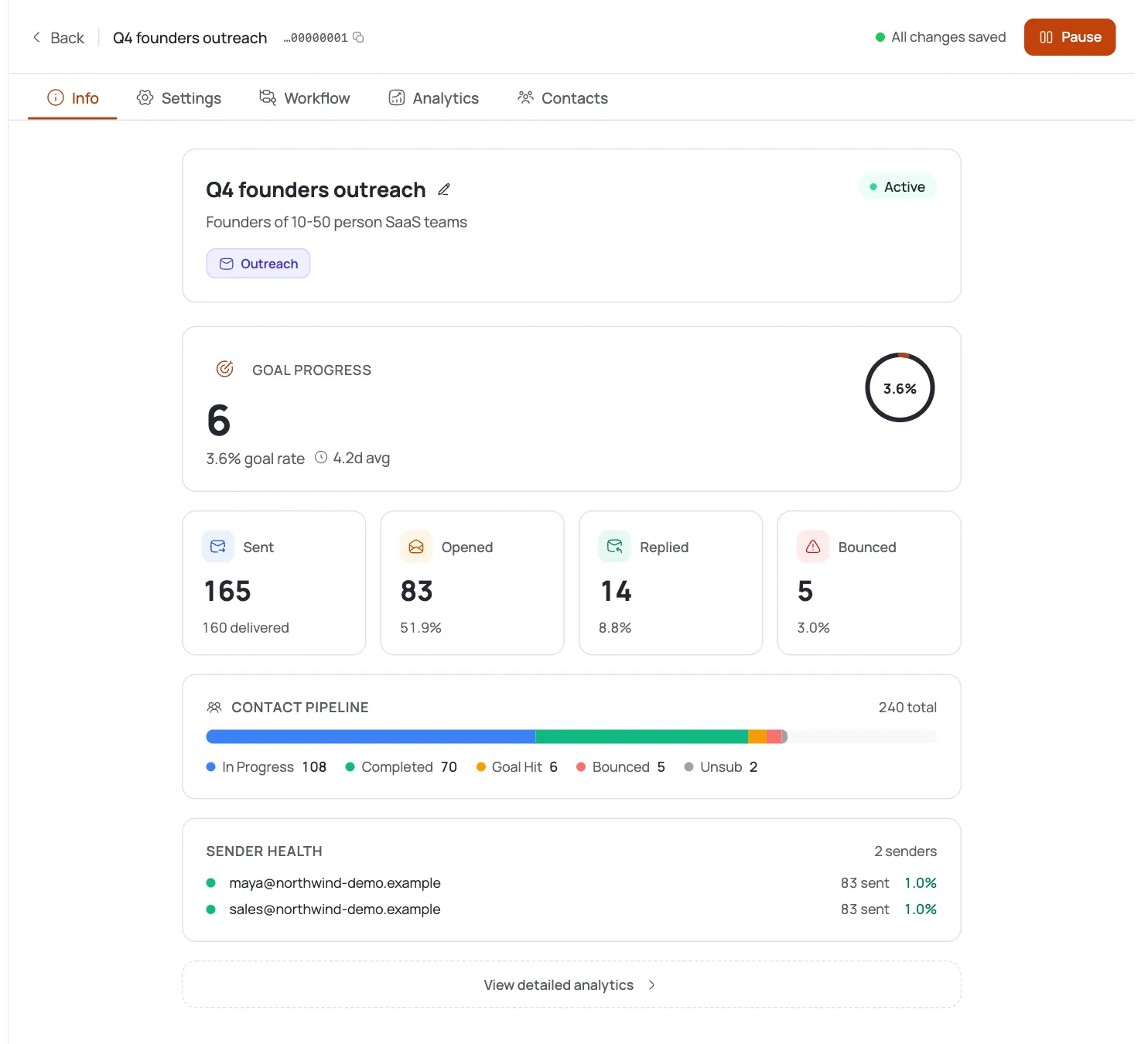
Read a healthy card
Each mini-card shows the sender's email, a warmup gauge, Bounce %, and Sent count. A neutral border means nothing has tripped the health checks.
Spot an at-risk card
A card gets a red outline and a red Health issues info icon when either threshold trips: bounce rate above 5%, or warmup score below 50/100.
Open the health-issues popover
Click the red info icon to see the exact issue text: for example “High bounce rate (7.2% > 5%)” or “Low warmup score (41/100 < 50)”.
Drill into a sender's emails
Click a card to open that mailbox's sent-email list for the analytics date range you have loaded, so you can see exactly what went out.
Act on it
High bounce → clean the contact list and check Delivery Protection. Low warmup → give the mailbox more time to ramp, or pause it in this campaign until it's healthier. See the warm-up and bounce-recovery tutorials for the fixes.
Pro tips
Add a second sender to see it
The row is hidden for single-mailbox campaigns by design. If you never see it, you're running one inbox: add a second sender and it appears.
A red card is a warning, not a failure
Warmup below 50 usually means "still ramping," not "broken." Give a new mailbox time before scaling its volume onto this campaign.
5% bounce is the same line Delivery Protection uses
That threshold matches the platform's own auto-pause line: treat a red bounce card as "clean the list now," not "wait and see."
Check whether bounces cluster
Click into the sender's email list to see whether bounces come from one bad import batch or spread across the whole list: that changes the fix.
Frequently asked questions
Why don't I see a Sender Health row?
It only renders for campaigns with 2 or more mailboxes. Single-sender campaigns hide it.
What makes a card turn red?
Either the mailbox's bounce rate is above 5%, or its warmup score is below 50 out of 100.
Can I change the health thresholds?
No: they're fixed at 5% bounce and 50 warmup, matching the platform's own risk lines.
What's the “warmup score”?
A 0–100 measure of your mailbox's warm-up progress. Under 50 means it hasn't warmed enough to safely send campaign volume.
What do I do about a high-bounce sender?
Clean the contact list, verify emails, and check Delivery Protection. High bounce is what burns domains and can auto-pause a campaign.
Can I click a card for more detail?
Yes: each card opens that mailbox's sent-email list for the analytics date range you've loaded.