Frame recruiting as outbound with an interview goal
Recruiting runs the same machinery as sales outbound: the “buyer” is a candidate and the “win” is a booked interview instead of a demo. That maps directly onto an Autopilot campaign with goal Meeting: the AI sources candidates, drafts personalized notes, and every email drives toward a booked call.
Create an Autopilot → Meeting campaign
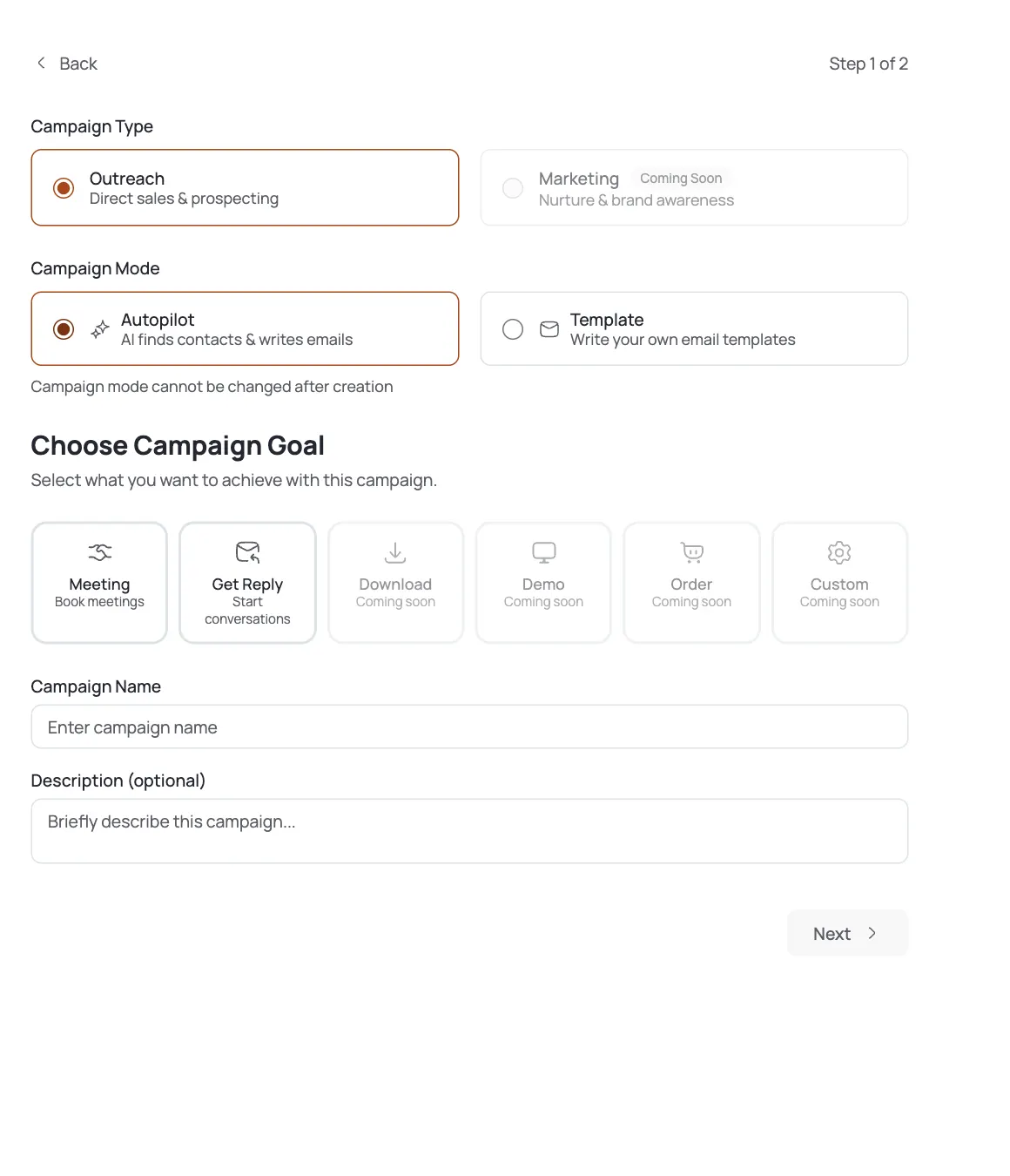
Open Campaigns → Create Campaign. Set Campaign Type to Outreach, Campaign Mode to Autopilot, and Campaign Goal to Meeting. Name the campaign for the role you're hiring, so it's obvious at a glance which pipeline it feeds. See Create an Autopilot Meeting Campaign.
Build the candidate ICP with AI Leads
In the builder's Contact Harvester, enable AI Leads and describe the candidate profile in Target Audience: e.g. “Senior backend engineers open to new roles in the US.” Then tighten the People filters: Job Titles, Seniority, and Functional Level, so the sourced list actually matches the role band you're hiring for. See Use AI Leads to Source Contacts.
Optionally ground drafts in the role story
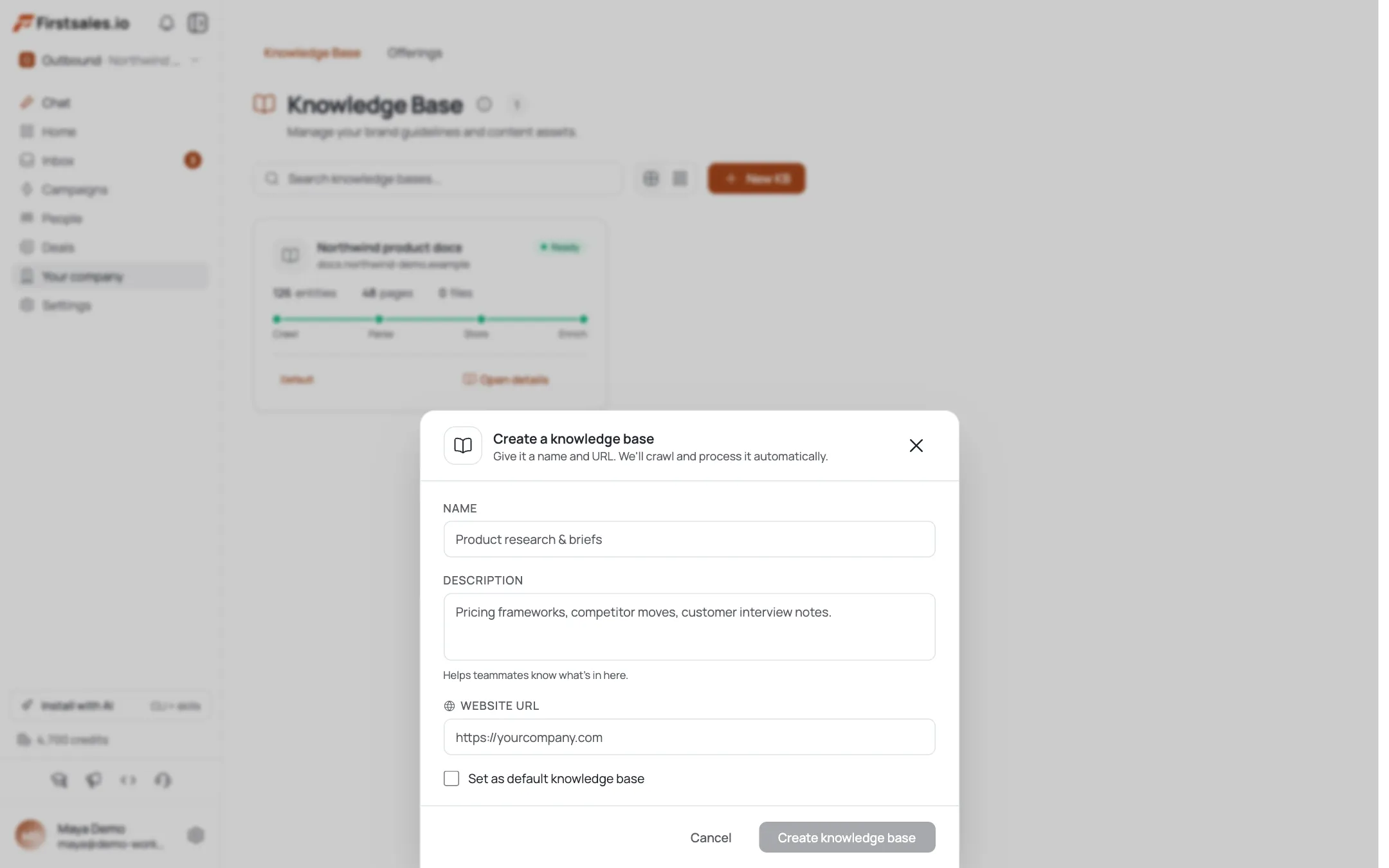
Add a Knowledge Base (crawled from your careers page or company site) so drafts cite real specifics about the company and role instead of generic recruiter-speak. This is optional but sharpens the copy noticeably. See Build a Knowledge Base.
Tune the AI SDR for a warm, candidate-first voice
Open AI Instructions and set Persona & Voice, structure, and a low-pressure CTA: ask for a quick chat, not a hard sell. Candidates aren't buyers, and tone is the difference between a reply and a block. This is your single biggest quality lever here, same as it is for sales outbound.
Connect a calendar to the Meeting goal
With Goal = Meeting, the campaign's goal config exposes a calendar picker: connect Google or Outlook so the meeting CTA offers real interview slots. Once connected, candidates can self-book directly from the email instead of a back-and-forth to find a time.
Approve the first batch, then let it run
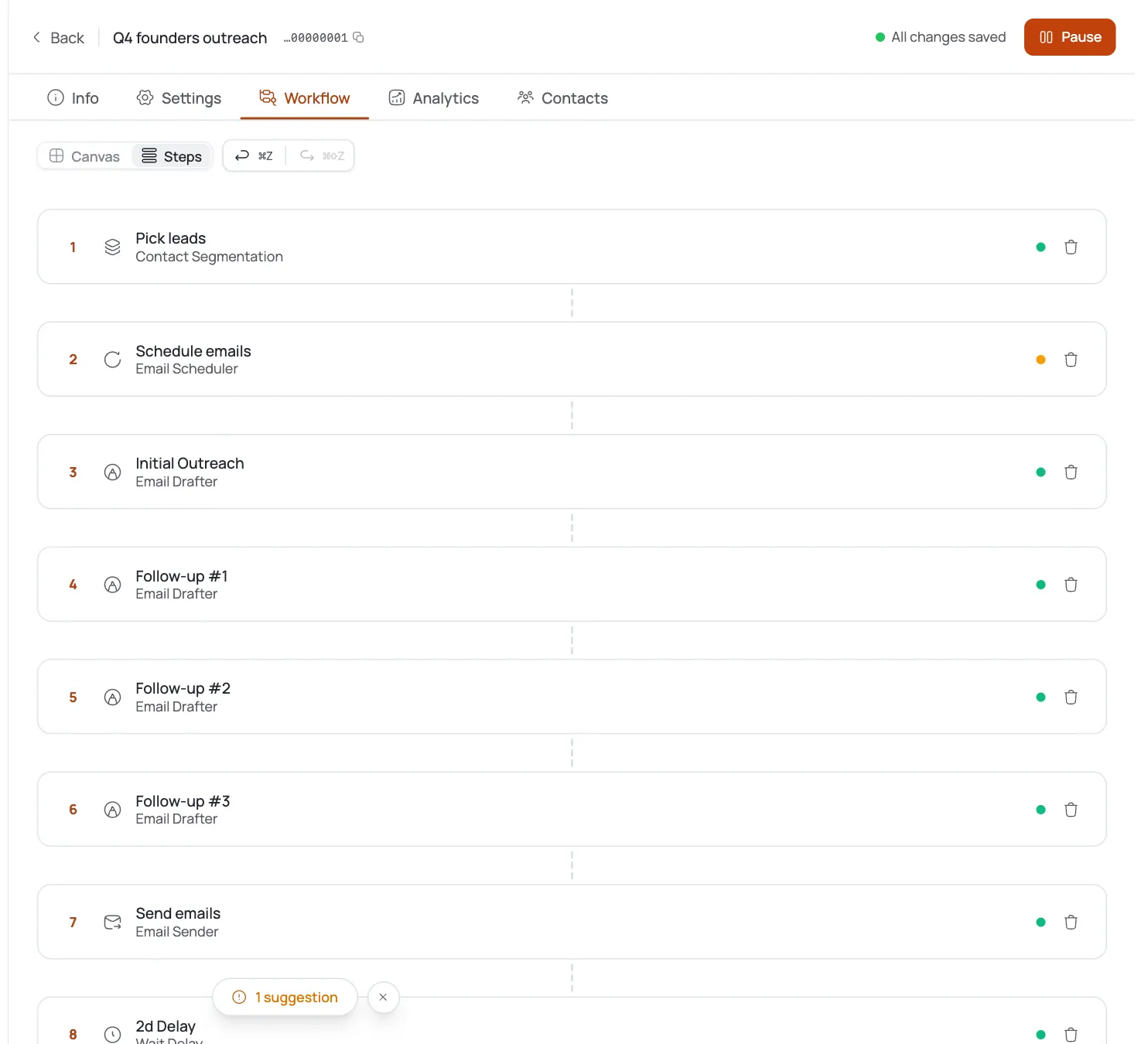
Set Content Approval to auto-approve to keep the pipeline moving: you're notified, and an email auto-sends after 24 hours if you don't act. Review the first drafts closely so the candidate-facing tone is right before trusting it to flow on its own.
Work replies and schedule interviews
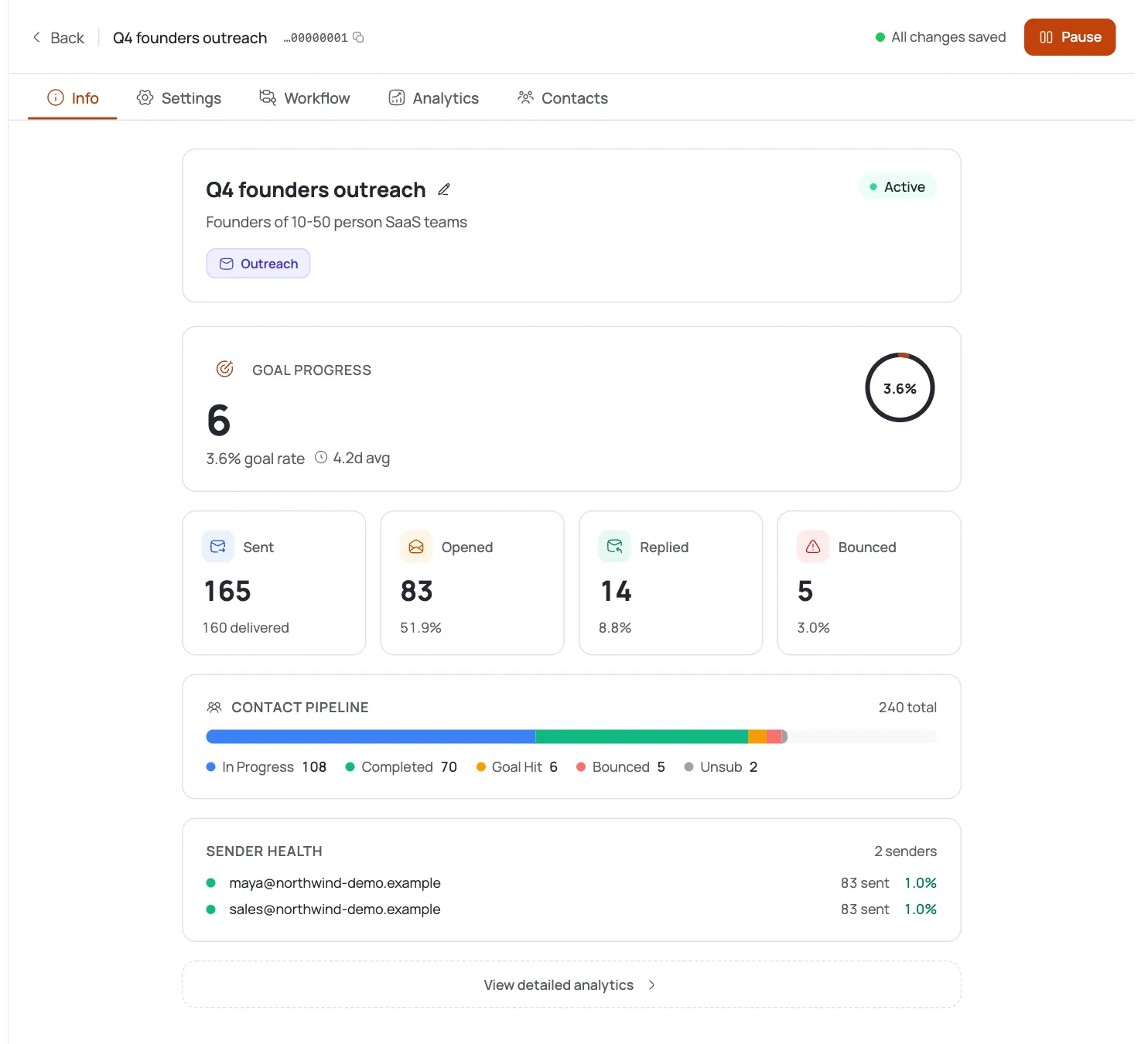
Triage candidate replies in the Inbox and route interested candidates to a booked slot. Judge the campaign on replies and interviews booked in Analytics rather than open rate: that's what actually reflects a moving pipeline. See Read Campaign Analytics.
Pro tips
Seniority + Job Titles do the candidate targeting
Tighten AI Leads' People filters to the exact role band you're hiring for; a vague "engineers" prompt sources the wrong list.
Warm, low-pressure CTA wins candidates
In AI Instructions, ask for a quick chat rather than a hard sell: candidates aren't buyers, and tone is the difference between a reply and a block.
Connect the calendar so candidates self-book
The Meeting goal's calendar picker turns "interested?" into a booked interview without a back-and-forth to find a time.
Ground drafts in the real role
A Knowledge Base with the company story and role specifics keeps AI notes concrete instead of generic recruiter boilerplate.
Frequently asked questions
Can I use this for recruiting, not sales?
Yes: the same GA features apply with candidate framing. An Autopilot → Meeting campaign treats a booked interview as the goal instead of a sales demo.
How do I target candidates by role?
In AI Leads, describe the candidate profile in Target Audience and tighten the People filters (Job Titles, Seniority, and Functional Level) to the exact band you're hiring for.
How do candidates book interviews?
Connect a calendar (Google or Outlook) to the campaign's Meeting goal. The calendar picker then lets candidates self-book a slot directly from the email.
How do I keep the tone candidate-friendly?
Set Persona & Voice and a soft, low-pressure CTA in AI Instructions: recruiting outreach reads best as a friendly conversation starter, not a pitch.
Do I write the outreach myself?
No: Autopilot drafts every message; you tune the voice in AI Instructions. If you'd rather write your own copy, a Template campaign is the alternative.
Should I ground it in the role?
Optional but worthwhile: an attached Knowledge Base with the company and role story sharpens drafts beyond generic recruiter language.
How do I keep the pipeline moving?
Content Approval set to auto-approve keeps drafts flowing after a 24-hour review window. Review the first batch closely, then let it run.
How do I measure it?
Watch Analytics for replies and interviews booked, not opens: with a Meeting goal, that's what reflects real pipeline movement.