Why Meeting and a calendar go together
The Meeting goal makes the AI offer to book time with prospects, and that only works if it can pull real availability from a connected calendar.
Set the campaign goal to Meeting
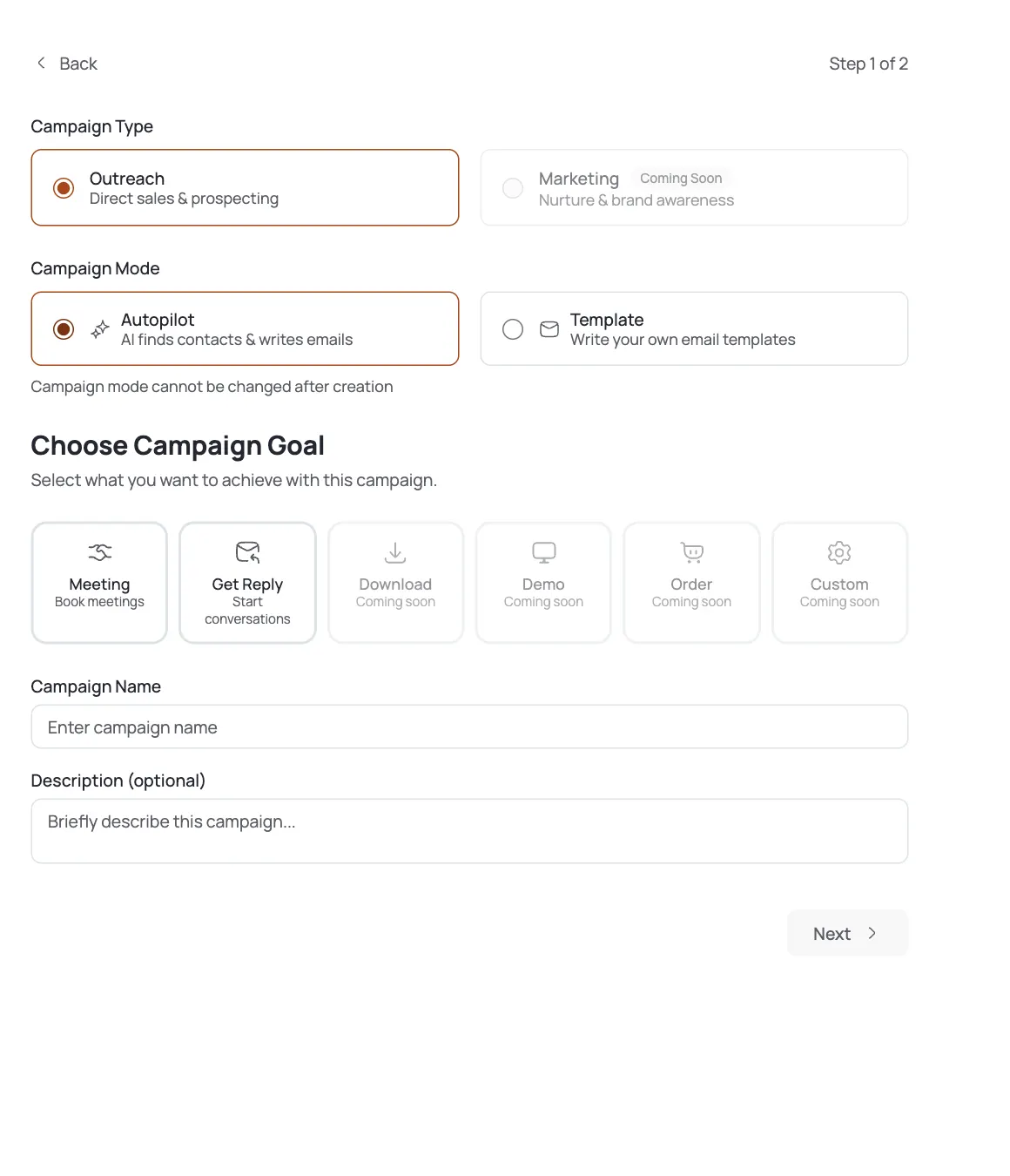
In campaign settings, set the campaign Goal to Meeting ("Book meetings with prospects").
Understand what the goal does
The campaign goal determines which call-to-action is included in drafted emails. Change it any time in campaign settings.
Find the required calendar picker
In the drafter's Goal tab (or the settings Calendar section), find the picker labeled "Available calendars for booking" / "Calendars for meeting booking": it only appears for the Meeting goal, and it's required.
Connect a calendar if you don't have one
If no calendar is connected yet, click Add calendar / Connect a calendar and authenticate via Google or Outlook OAuth.
Tick the calendars the AI may offer
Select at least one calendar in the picker: it's required for a Meeting campaign. You can tick more than one if bookings might land on different people's schedules.
Save, test, and launch
Save your changes, send a test email, and launch. Booking offers in your drafted emails now reference the calendar(s) you attached.
Pro tips
Connect the calendar before setting the goal
That way the required picker already has something to select the moment you switch the goal to Meeting.
Only attach calendars you're comfortable exposing
The AI can offer slots from every calendar you tick, so attach only the availability you're happy to share.
Switching goals hides the picker, not the connection
The calendar requirement only applies while the goal is Meeting: switching away hides the picker but doesn't disconnect anything.
Multiple calendars are supported
Useful when a meeting could land on more than one teammate's schedule: tick all that apply.
Frequently asked questions
What does the Meeting goal do?
It sets the call-to-action in drafted emails toward booking a meeting with the prospect.
Do I have to connect a calendar?
Yes: a calendar is required for any campaign using the Meeting goal.
Which calendars are supported?
Google and Outlook, connected via OAuth.
Where do I set the goal?
In campaign settings.
Where do I attach the calendar?
Either the drafter's Goal tab or the settings Calendar section: both show the same required picker when the goal is Meeting.
Can I attach more than one calendar?
Yes: tick as many as apply.
How do I actually connect a new calendar?
Click Add calendar / Connect a calendar and complete the Google or Outlook OAuth flow. See the calendar-connect tutorial for the full walkthrough.