Open the importer
On Contacts, click Import Contacts to slide open the CSV import panel.
Pick the destination list
Choose a Contact List at the top of the panel. The file picker stays disabled until a list is selected: every imported contact needs a home.
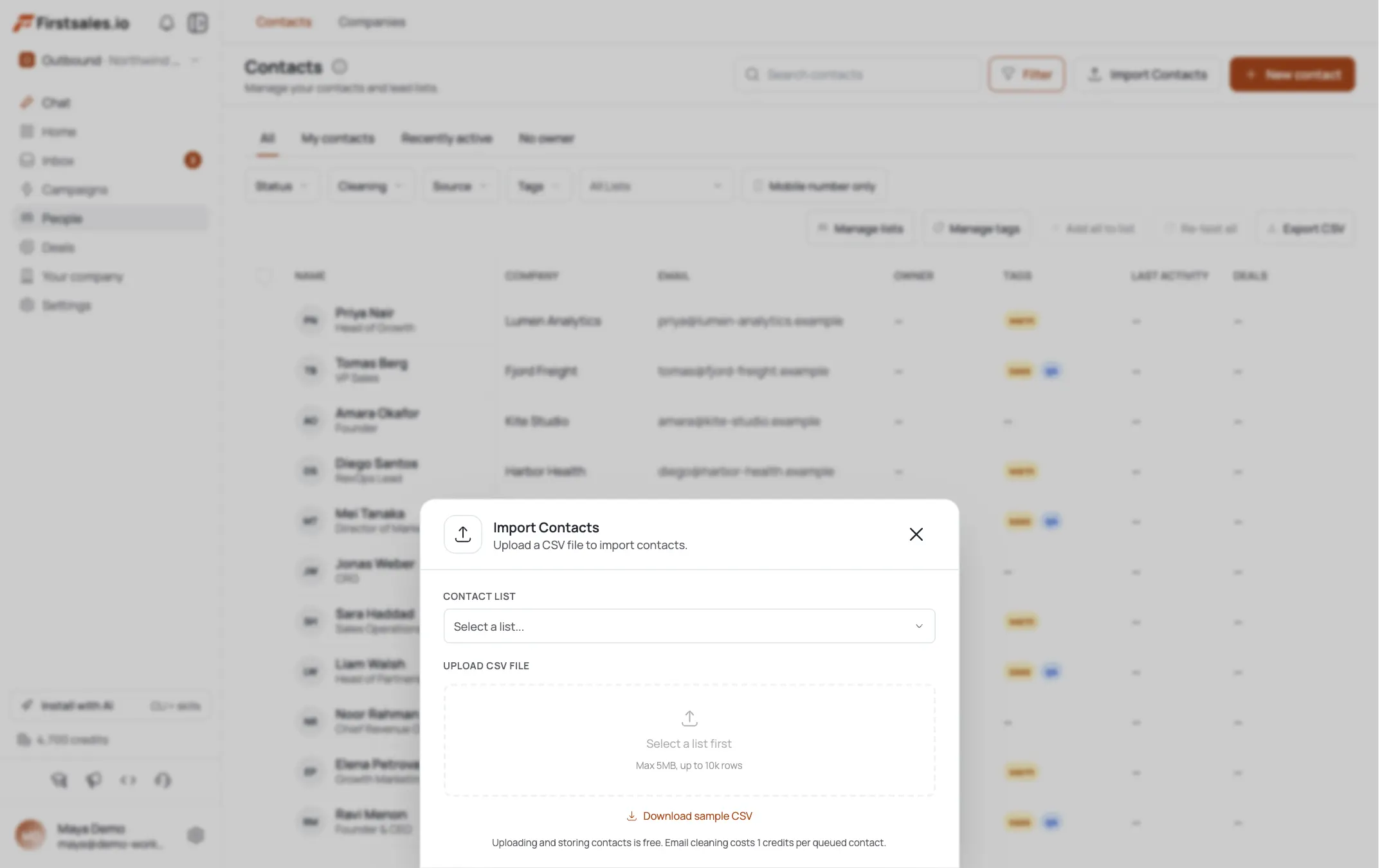
Upload your CSV
Drag or click to select a
.csvfile. FirstSales accepts files up to 5MB and 10,000 rows. If you're not sure what shape the file should be, click Download sample CSV first to see the expected header row.Review the auto-detected stats
Before you import anything, the panel shows Total, Valid (rows with a well-formed email), and No Email counts, so you know exactly what will and won't come in.
Map your columns
Each CSV header maps to a FirstSales field: Email is the only required one. Recognized headers (like
emailaddressorjobtitle) auto-map for you; adjust anything that mapped wrong or set a column to Skip. Columns that don't map to a target field are kept as custom fields, not discarded.Add list-wide tags (optional)
Type a tag and press Enter to chip it. Any tags you add here are applied to every contact in this import, which is a fast way to mark a whole batch for later segmentation.
Import and read the result
Click Import. The done panel reports Imported, Duplicates, Errors, and Total, plus a cleaning summary if auto-cleaning is turned on for your workspace.
Pro tips
Only Email is required
Every other target field is optional. Leave columns you don't need on Skip instead of forcing a mapping.
Semicolon-separate tags in one cell
Put multiple tags in a single CSV cell like `saas;marketing` and map that column to Tags: each value becomes its own tag on import.
Nothing in your file is lost
Any header FirstSales doesn't recognize is saved as a custom field on the contact, even without a matching target field.
Turn on cleaning before you import
Enable Contact cleaning in Tools settings first, so dead emails are caught at 0.2 credits per new contact: you're only charged for brand-new contacts.
Frequently asked questions
What's the maximum file size and row count?
5 MB and 10,000 rows per file. Split larger exports and import them in batches.
Which column is required?
Only Email. The import button stays disabled until one column maps to Email and at least one row has a valid address.
What happens to duplicate contacts?
They're detected on import and reported in the Duplicates count. Existing contacts are added to the destination list rather than re-created.
My CSV has columns FirstSales doesn't list: are they lost?
No. Unmapped columns are stored as custom fields on each contact.
How do I add several tags at once from the file?
Use one column with semicolon-separated values and map it to Tags, or type panel-level tags that apply to every row in the import.
What if I run out of credits during import?
Contacts still import, but email cleaning is skipped and you'll see an “imported but not verified” notice with a top-up link. You can re-run cleaning later from the contacts table.
Does importing send any emails?
No. Import only adds contacts to a list. If that list feeds an active campaign, enrolment is a separate step: see the list-transfer flow for how enrolment confirmation works.