What a Knowledge Base is for
A Knowledge Base (KB) is the grounding the AI drafter reads from when writing emails: your product facts, positioning, docs, and pages. Attach a KB to a campaign and drafts pull real details from it instead of guessing. It's how you get on-message, specific copy at scale.
Create a KB
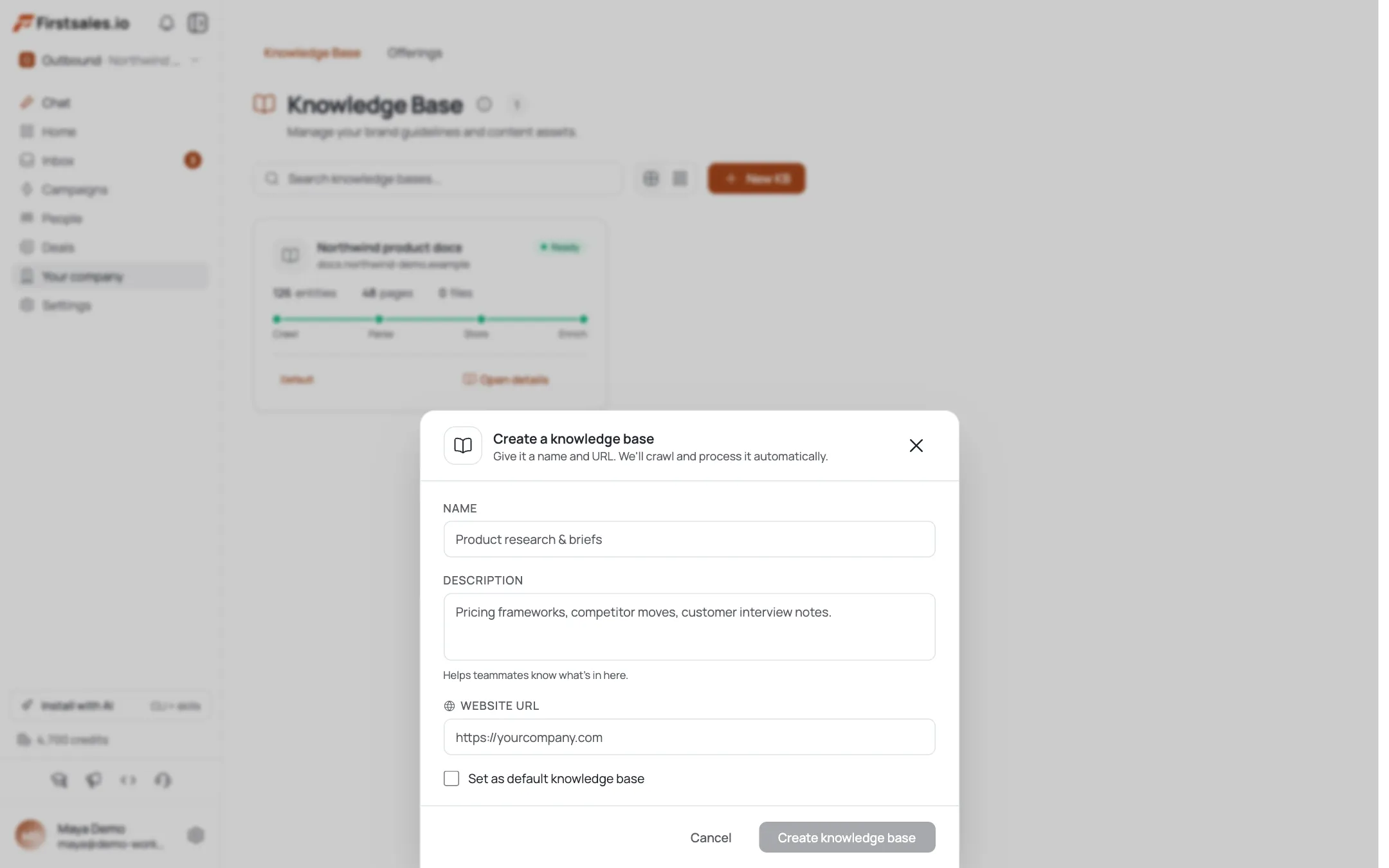
Go to Knowledge Base → New KB. In the drawer, set a Name (4–250 chars), an optional Description (up to 2,000), and a Website URL: this is required and is what FirstSales crawls first. Tick Set as default if this should be the KB new campaigns use automatically.
Let it crawl and process
On create, FirstSales crawls the website and runs it through a pipeline you can watch: crawling → parsing files → storing data → enriching. Enrichment builds a knowledge graph so related facts connect. Give it time on the first pass; larger sites take longer.
Add more sources
Open the KB and use the Sources tab to widen coverage. Bulk-paste additional URLs (up to 100 per batch) (docs, case studies, pricing, blog posts) and FirstSales crawls them into the same KB. You can resync a source to re-crawl when its page changes, and see the list of crawled pages.
Upload documents
For material that isn't on a public page, use the Documents tab to upload files. Each is parsed and split into chunks (the tab shows the chunk count), and those chunks join the same knowledge the drafter reads. Good for one-pagers, spec sheets, and internal notes you don't want to publish.
Attach the KB to a campaign
A KB only shapes drafts once it's attached. In a campaign's Email Drafter → Content tab, add the Knowledge Base tool and select this KB. From then on, the drafter grounds its emails in the KB's crawled pages and uploaded documents.
Pro tips
Point the Website URL at your best page
The required Website URL is the crawl seed. Use the page that best describes what you sell (product or homepage), not a thin landing page, so the first crawl captures the real substance.
Bulk-paste your strongest proof
Case studies, pricing, and docs make drafts specific. Paste those URLs (up to 100/batch) on the Sources tab rather than relying on the homepage crawl alone.
Upload what isn't public
Spec sheets, internal one-pagers, and unpublished notes go on the Documents tab. The drafter reads them like any crawled page, without you having to host them.
Resync when pages change
A KB is a snapshot from crawl time. After you update pricing or messaging on your site, resync that source so drafts don't quote stale facts.
Frequently asked questions
What does a Knowledge Base do?
It grounds the AI email drafter in your real product facts, pages, and documents. Attached to a campaign, drafts pull specifics from the KB instead of inventing them.
How do I create one?
Knowledge Base → New KB. Set a Name (4–250 chars), optional Description, and a required Website URL to crawl. Optionally mark it the default for new campaigns.
How do I add more than one website?
On the KB's Sources tab, bulk-paste up to 100 URLs per batch. FirstSales crawls them into the same KB, and you can resync any source later.
Can I add files that aren't on my website?
Yes: the Documents tab lets you upload files. They're parsed and chunked into the same knowledge the drafter reads.
How do drafts actually use the KB?
Attach it in the campaign's Email Drafter → Content tab via the Knowledge Base tool. The drafter then grounds emails in the KB's crawled pages and documents.
Why is my KB still processing?
New sources run through crawling → parsing → storing → enriching. The enrichment step builds a knowledge graph, so a large site or big document set takes a while on the first pass.