Open Settings → API
API keys live under Settings → API. This is where you mint the credential that authenticates the CLI and any direct calls to
https://api.app.firstsales.io. You need the right permission to see this tab.Create a key with least-privilege scopes
Click to create a key, give it a name (something that says where it's used, e.g. "ci-contact-sync"), and check only the scopes it needs. Scopes are per-resource and split read vs write: e.g.
contacts:read,contacts:write,campaigns:read,kb:read. There's a*scope that grants everything; avoid it unless you truly need full access.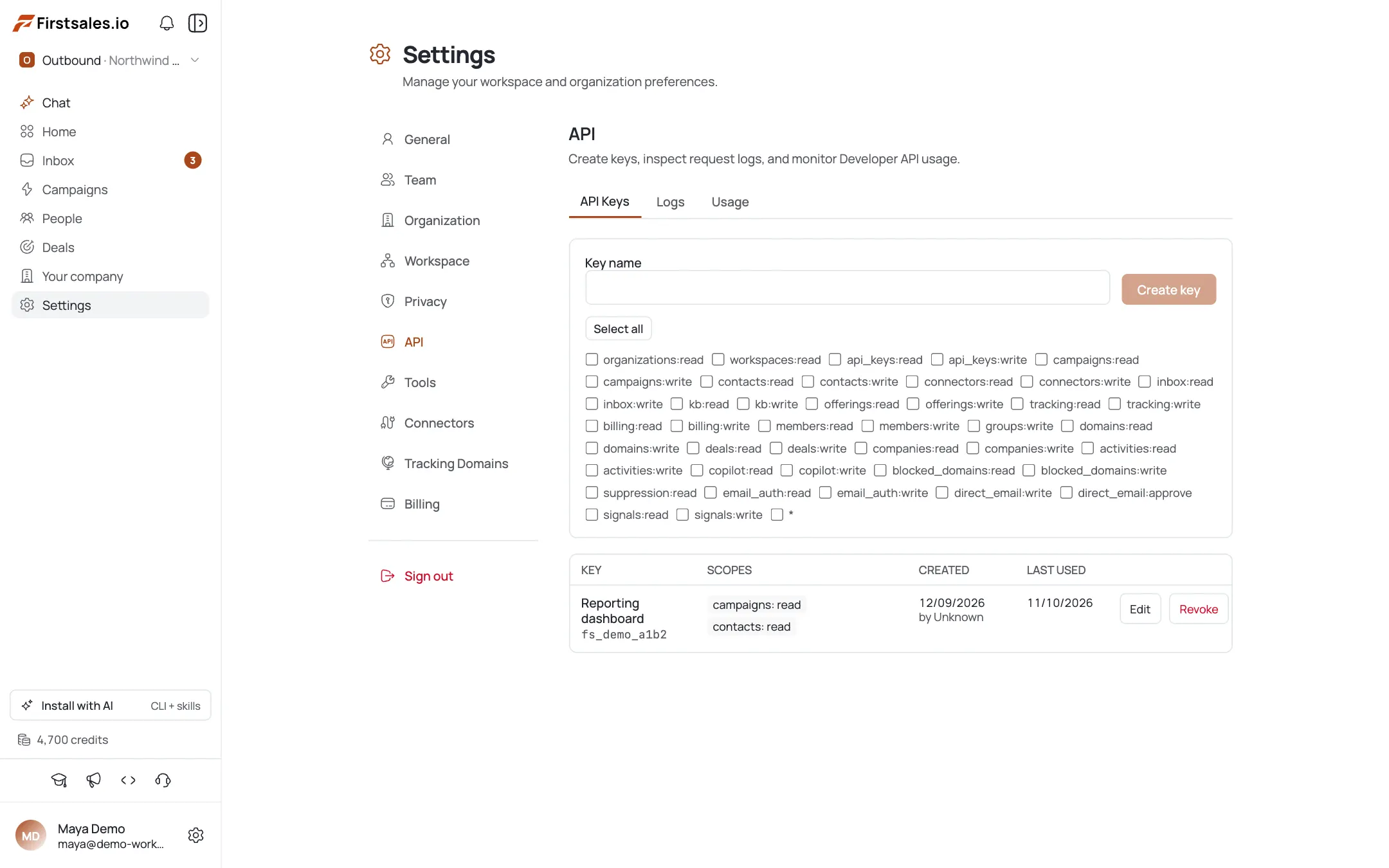
Copy the key immediately
The full key is shown exactly once: "Copy this key now. It will not be shown again." Copy it straight into your secret store or password manager. If you lose it, you can't recover it; you revoke and create a new one. Never paste it into code, chat, or a commit.
Use it with the CLI
Export the key as
FIRSTSALES_API_KEYand the CLI picks it up automatically. Verify withwhoamibefore doing anything else:export FIRSTSALES_API_KEY="fs_live_..." # from your secret store, never hardcoded firstsales whoami --jsonUse it with the API directly
For raw HTTP, send the key as a Bearer token. Start with
whoamito confirm the key resolves and to read back which org/workspace it can reach:curl -s https://api.app.firstsales.io/api/v1/whoami \ -H "Authorization: Bearer $FIRSTSALES_API_KEY"Rotate and revoke
Each key on the list can be revoked, and revocation is immediate with no undo: any CLI or service using it fails on the next call. To rotate: create the new key, deploy it to your secret store, confirm the new one works, then revoke the old one. Revoke instantly if a key is ever exposed.
Pro tips
One key per consumer
Give CI, your laptop, and each integration its own named key. When one leaks or a service is retired, you revoke just that key instead of breaking everything.
Least privilege beats convenience
A read-only sync doesn't need contacts:write, and almost nothing needs `*`. Scope tight: a leaked read-only key can't mutate your data.
Copy once, store in a secret manager
The key is shown a single time. Paste it directly into your CI secret store or password manager: never into source, a .env you might commit, or a chat message.
Rotate by overlap, not gap
Create-deploy-verify-then-revoke. Revoking before the replacement is live causes an outage; the overlap window keeps calls flowing during rotation.
Frequently asked questions
Where do I create an API key?
Settings → API. Give it a name, check the scopes it needs, and create. The key authenticates both the CLI and direct API calls.
What are scopes?
Per-resource permissions, split read vs write: e.g. contacts:read, campaigns:write, kb:read, plus a * that grants everything. Check only what the key's consumer needs.
I lost my key: can I see it again?
No. The full key is shown once at creation (“It will not be shown again”). If you lose it, revoke that key and create a new one.
How does the CLI use the key?
Set it as the FIRSTSALES_API_KEY environment variable; the CLI reads it automatically. Run firstsales whoami to confirm it works.
How do I revoke a key?
On the API settings list, revoke it. Revocation is immediate and permanent: anything using that key fails on its next call, so rotate a replacement in first.
How should I rotate keys safely?
Create the new key, deploy it, confirm it works, then revoke the old one. This overlap avoids an outage. Revoke immediately (no overlap) only if a key is exposed.