See the segmentation summary
The Contact Segmentation step shows a read-only summary (Contact Selection, Lists included, and Exclusion rules counts) and points you to “Edit contact selection in the Campaign Settings tab.” You can't edit lists here, only confirm them.
Open Campaign Settings
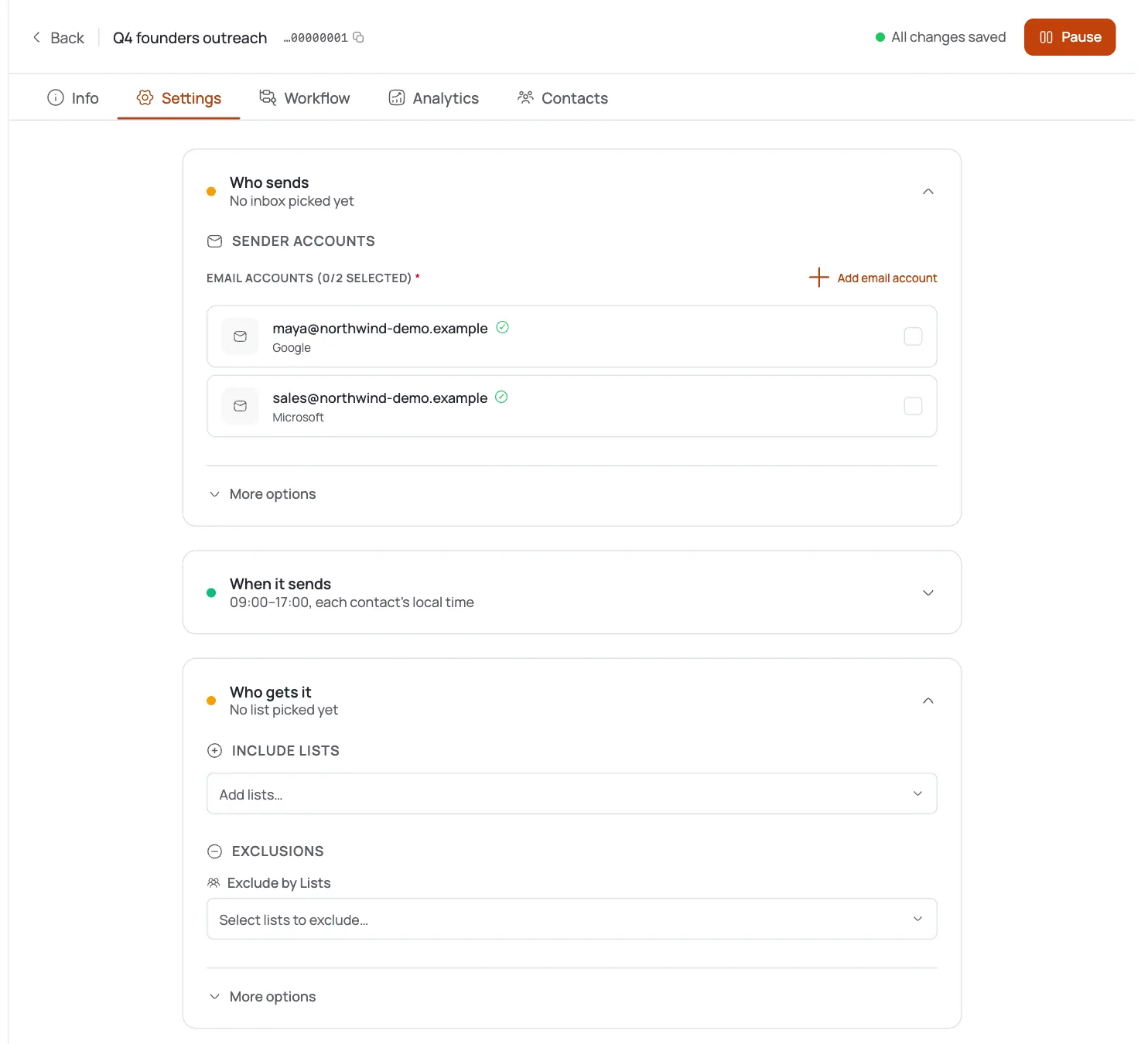
Go to the Campaign Settings tab. This is where include and exclude rules are actually edited.
Choose Include Lists
Under Include Lists, add the contact list(s) this campaign should target. The section shows “N list(s) selected” so you can confirm your choice.
Exclude by Lists
Under Exclusions → Exclude by Lists, add any suppression or do-not-contact lists whose contacts should never receive this campaign.
Exclude by Campaigns and Tags
Use Exclude by Campaigns and Exclude by Tags to skip contacts already enrolled in other campaigns or carrying a specific tag, so audiences don't overlap.
Exclude active/completed enrollments
Toggle “Exclude contacts in active campaigns”: skips anyone currently enrolled in a running campaign: and “Exclude contacts in completed campaigns”: skips anyone who already finished a previous sequence. Both default to off.
Save
The included lists minus every exclusion rule becomes the actual campaign audience.
Pro tips
Always exclude active campaigns
It's the single best guard against double-touching a prospect who's already mid-sequence somewhere else.
Tags are your suppression layer
Tag opt-outs or bad-fit contacts once, then exclude that tag everywhere: it updates automatically as you tag new contacts.
Exclude completed for fresh-only outreach
Turn on “Exclude contacts in completed campaigns” when you want this campaign to reach only net-new prospects.
Edit in Settings, verify in the node
Make changes in Campaign Settings, then check the Contact Segmentation step's counts as your sanity check that exclusions actually took.
Frequently asked questions
Where do I actually edit contact selection?
In the Campaign Settings tab. The Contact Segmentation node in the builder only shows a read-only summary.
How do I stop emailing people already in another campaign?
Use Exclude by Campaigns to name specific campaigns, and/or turn on Exclude contacts in active campaigns to skip anyone currently enrolled anywhere.
What's the difference between excluding active vs completed campaigns?
Active skips contacts currently enrolled in a running campaign. Completed skips contacts who already finished a previous sequence.
Can I exclude a whole list of do-not-contact addresses?
Yes: add that list under Exclude by Lists.
Do tag exclusions update automatically as I tag contacts?
Yes: Exclude by Tags is evaluated by tag, so newly tagged contacts are excluded automatically.
Is there a formal suppression list?
No dedicated suppression-list feature exists. Use excluded lists and tags to achieve the same effect.
What audience actually sends?
The contacts in your Include Lists, minus everyone matched by any exclusion rule.