What you can monitor
Every Developer API key's requests: per-key and per-route counts, error rate, latency, and individual request logs with request IDs.
Open Settings → API
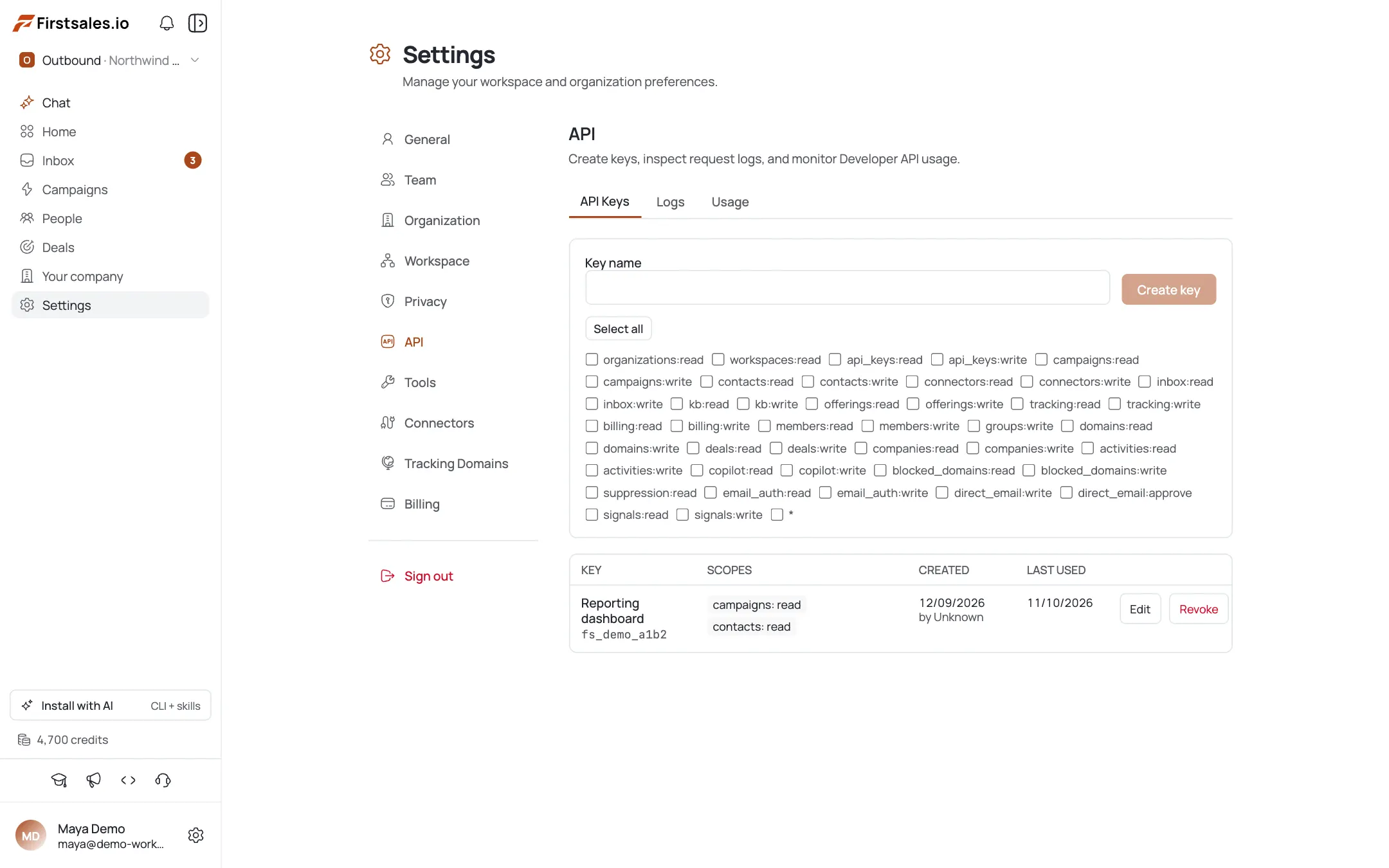
The API section has three tabs: API Keys, Logs, and Usage. This section is admin/owner only — other roles see a notice that key management is restricted.
Read the Usage tab
Totals over a rolling window (default 7 days): total requests and overall error rate, then a breakdown by key and by route so you can see which key or endpoint drives traffic and errors.
Drill into the Logs tab
Each request row shows the method, route pattern, HTTP status, latency (ms), the key prefix that made it, an error code (if any), and a request ID for support.
Debug a failing integration
Scan Logs for non-2xx
statusvalues, read theerrorCode, and match thekeyPrefixto the key doing the damage. Quote therequestIdwhen contacting support.Spot abuse or a runaway script
A spike in a single key's requests in the by key breakdown, or a climbing error rate in Usage, is your signal to revoke that key in the API Keys tab and reissue a properly scoped one.
Pro tips
Start in Usage, drop into Logs
Use Usage to see the shape of the problem (which key, which route, how bad) then jump to Logs for the individual failing requests. Top-down is faster than scrolling raw logs.
The request ID is what support needs
Copy the request ID from a failing log row instead of describing "a 500 earlier today": it's the fastest way to get help.
Check scopes before blaming the API
A rising error rate on one key usually means an expired assumption in that integration (renamed field, revoked scope): check that key's scopes first.
Role-check before debugging access
Only admins/owners see this section; if a teammate "can't find API logs," check their role before assuming something's broken.
Frequently asked questions
Does FirstSales expose API request logs?
Yes — Settings → API → Logs shows per-request method, route, status, latency, key prefix, error code, and a request ID.
Where do I see how much my keys are used?
The Usage tab: total requests, error rate, and breakdowns by key and by route over a rolling window (7 days by default).
Who can view API logs and usage?
Only organization admins and owners. Other roles see a notice that key management is admin/owner-only.
How do I debug a failing API call?
In Logs, find the request by non-2xx status, read its errorCode, note the keyPrefix and requestId, and share that ID with support.
A key looks compromised: what do I do?
Revoke it in the API Keys tab and issue a new one with only the scopes it needs; watch Usage's per-key counts to confirm the traffic stops.
Can I change the usage window?
The Usage view defaults to the last 7 days. Use the Logs tab (with its filters) for narrower, request-level inspection.