Open the Memory panel and read what Chat believes
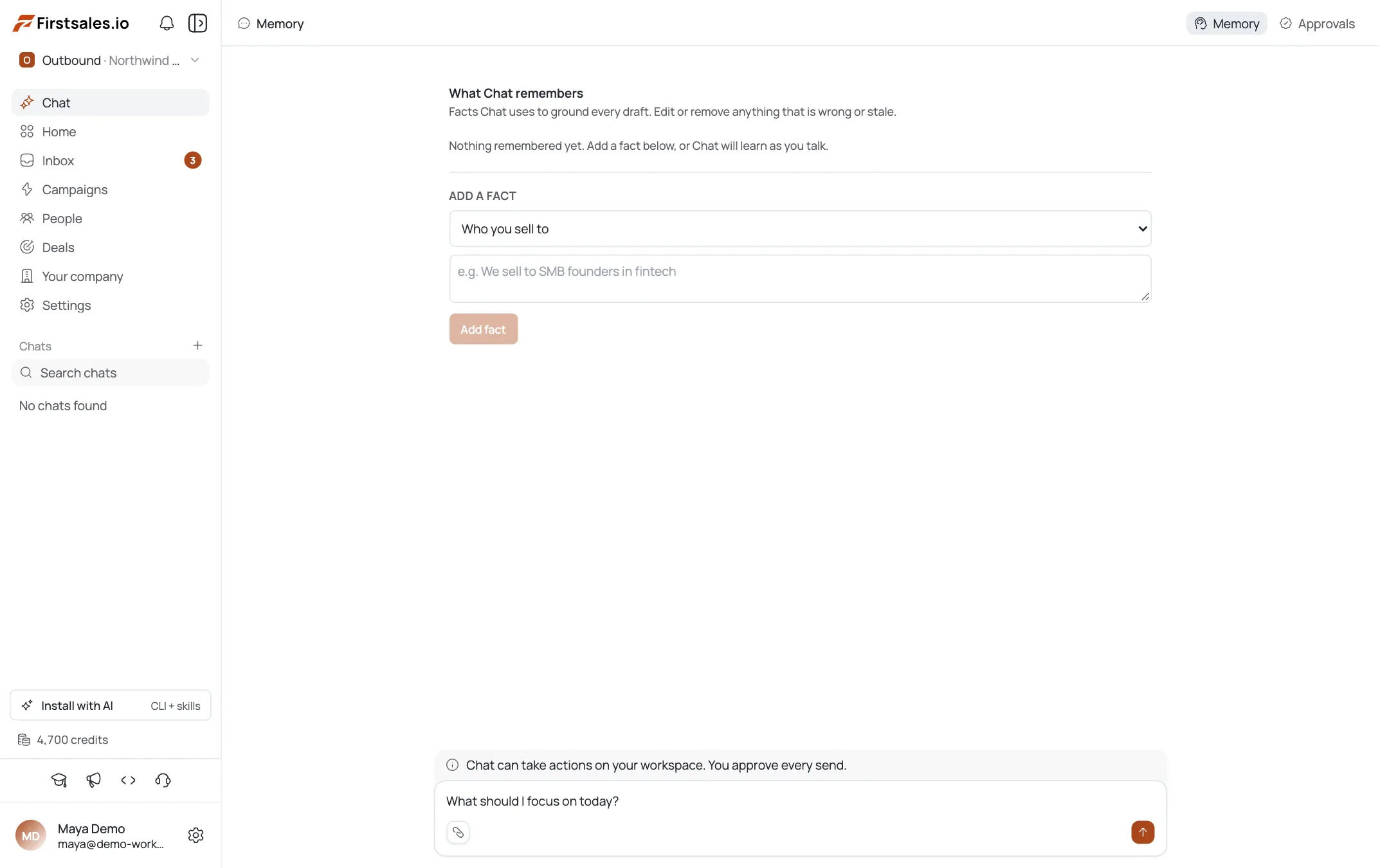
Open Chat from the sidebar and look at the top right of the session. Two buttons sit there: Memory and Approvals. Click Memory and the session panel is replaced by a page titled "What Chat remembers", with one line under it explaining the purpose: these are the facts Chat uses to ground every draft, and you can edit or remove anything that is wrong or stale.
Facts appear grouped under a category heading such as
WHO YOU SELL TO. Each fact is a single plain sentence, for example "The user sells to fintech founders." Nothing here is a paragraph or a document. If a fact reads like an essay, it belongs in campaign instructions instead.Read this list first, before you judge Chat's output. A wrong fact is invisible in a reply. Chat will not say "I am assuming you sell to fintech founders", it will simply write every draft for that reader. When answers feel subtly off-target rather than obviously broken, this panel is where the cause usually is.
Memory is scoped to the workspace, not to a session. Facts you correct here apply to every future session in that workspace, and switching workspaces at the top of the sidebar shows a different set of facts.
The panel does not have a bulk export or a version history. What you see is the current state, and editing is per fact.
Tell an inferred fact from one you wrote
Each fact row carries a small
autobadge when Chat inferred the fact on its own rather than being told directly. A fact without that badge came from you.The distinction matters when you audit. A fact you wrote is a decision you made and can defend. An
autofact is Chat's reading of a conversation, and its accuracy depends entirely on what was said in that conversation. If you spent one session exploring a market you decided against, Chat may have recorded it as a fact about who you sell to.Both kinds of fact carry the same weight when Chat drafts. There is no priority given to facts you wrote by hand. That is the reason to review the
autoones rather than assume they are provisional.Every row has Edit and Delete on the right. Edit rewrites the sentence in place, which is the right move when a fact is close but imprecise, for example narrowing "founders" to "founders at seed-stage fintech companies". Delete removes it entirely, which is the right move when the fact describes a market or a positioning you have moved away from.
Editing an
autofact does not lock it. Chat can still record new facts later from new conversations, so an audit is a recurring habit rather than a one-time cleanup.Add a fact Chat should never have to infer
Under the existing facts is an ADD A FACT section with two inputs. The first is a category dropdown, which starts on "Who you sell to". The second is a text field with a worked example as its placeholder: "e.g. We sell to SMB founders in fintech". A Add fact button sits under them.
Pick the category first, because the category is how Chat groups the fact and decides when it is relevant. Then write one sentence in the same shape as the placeholder. Concrete and short beats complete. "We sell to heads of RevOps at 50 to 500 person B2B SaaS companies" is a usable fact. "We are a modern outbound platform for growing teams" is not, because it does not narrow anything.
Good candidates for a hand-written fact are the things you would tell a new hire in their first hour and never repeat: who you sell to, what you actually sell, what you refuse to promise, and which markets you do not serve. Those are exactly the details Chat would otherwise infer from whatever conversation happened to come first.
Add facts one at a time and keep them independent. A single fact that bundles your ICP, your offer, and your pricing is harder to correct later, because editing one part means rewriting the whole sentence.
Facts you add appear in the list immediately without the
autobadge, and take effect on the next reply.Work the Approvals queue
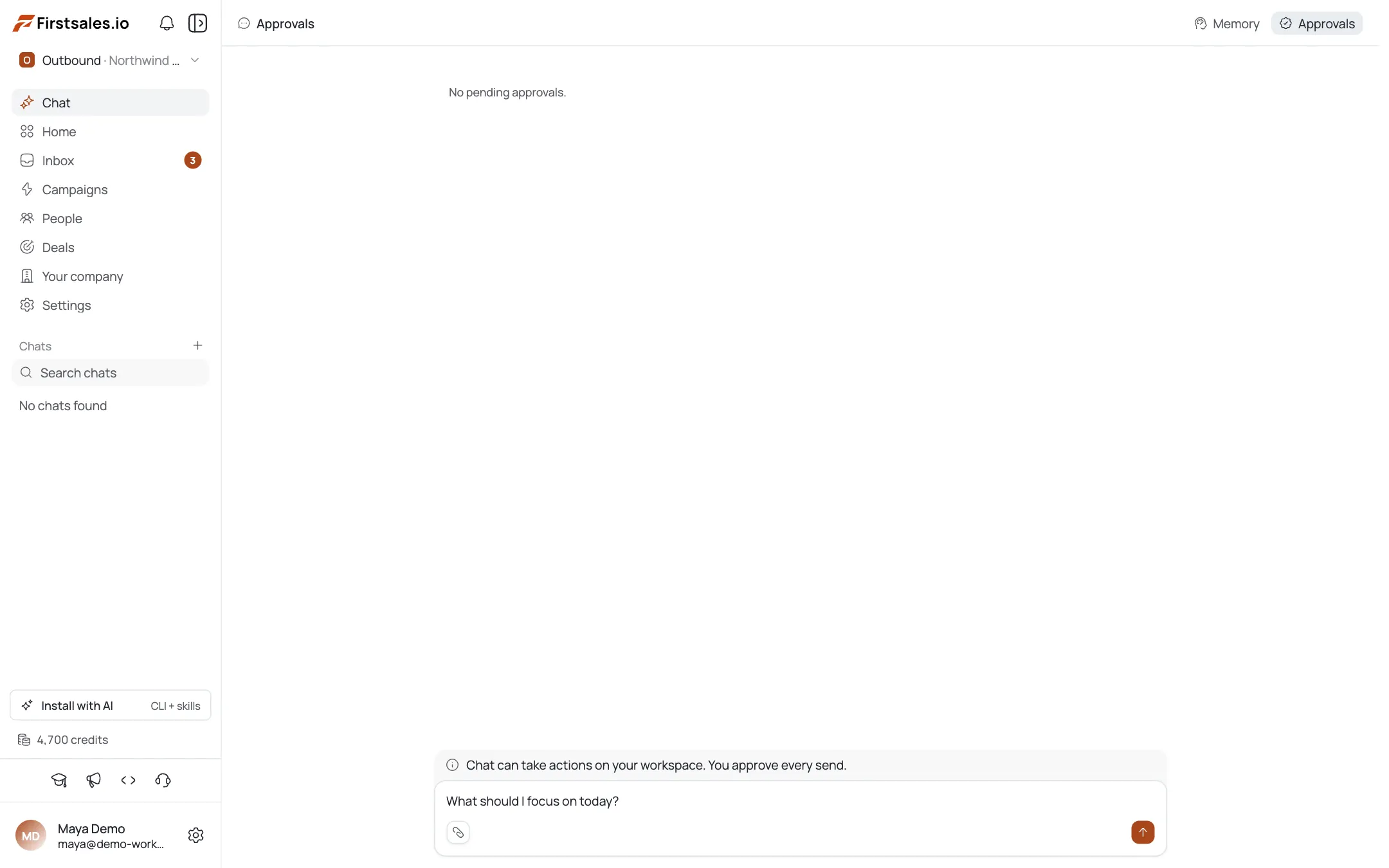
Click Approvals at the top right of the session. When nothing is waiting, the panel reads "No pending approvals." That empty state is the normal one and it is worth checking rather than assuming.
This queue is the other side of the promise printed under the composer: Chat can take actions on your workspace, and you approve every send. Work that would reach a prospect stops here instead of going out. Chat can prepare it, but it cannot finish it alone.
Check Approvals whenever you asked Chat for something and cannot find the result. A campaign that never launched or a reply that never left is more often queued for your approval than lost. The reply in the session will usually say what it prepared, but the queue is the authoritative place to confirm.
Approving or rejecting an item is a verdict, and verdicts are recorded. That is how the Chat scope on the Learning page fills up. Rejecting something because it was wrong is more useful than rejecting it silently by leaving it in the queue, because an ignored item teaches nothing.
Like Memory, the queue is per workspace. If your team splits work across two workspaces, each has its own queue and clearing one does not clear the other.
See what your verdicts taught Chat
Open Learning from the AI section of the sidebar. The page has a scope switcher at the top right with three options: Workspace, Campaign, and Chat. Click Chat.
The subtitle changes to describe this scope: what Chat has learned from your approvals, feedback, and prospect replies. Until you have rated replies or worked the approvals queue, the page shows an empty state saying Chat has not learned anything yet, and explains the input it needs. Approving or rejecting Chat's proposed actions, and rating its replies with the thumbs controls, each produce a verdict, and those verdicts become memory Chat uses in later conversations.
The empty state is not a bug and it is not rare. A workspace where nobody rates replies will keep showing it indefinitely, because there is no other source of input for this scope.
Keep the three scopes straight. Workspace and Campaign scope both summarise what outbound sending has taught the system from real prospect replies. Chat scope summarises what you taught it directly. They answer different questions and they fill up from different sources, so an active Workspace scope tells you nothing about whether Chat has learned anything.
If you want this scope to become useful, the fastest path is to spend one session rating every reply honestly, including the good ones. A stream of thumbs down with no thumbs up gives it a one-sided picture.
Build a short review habit
Memory drifts quietly. The cost of a stale fact is not one bad reply, it is a slow tilt in every draft until someone notices. A short recurring review is cheaper than an audit after the fact.
- Open Memory after any positioning change: a new ICP, a dropped market, a renamed product. Delete first, then add the replacement.
- Scan the
autobadges monthly. Those are the facts nobody decided on, and they are where wrong assumptions accumulate. - Clear the Approvals queue rather than letting it sit. An item you neither approve nor reject is a decision you have deferred, and it teaches nothing.
- Check the Chat scope on the Learning page after a week of rating. If it is still empty, the ratings are not happening.
One caution on deleting: removing a fact does not undo drafts Chat already produced with it. If you find a wrong fact after a campaign went out, fix the fact and then read the drafts that campaign generated, since they were written against the old belief.
Facts, approvals, and verdicts are three separate surfaces for the same question, which is whether Chat understands your business well enough to act on it. Reviewing all three takes a few minutes and it is the difference between a copilot you trust and one you second-guess.
Consejos de experto
The auto badge marks facts nobody decided on
A fact carrying the auto badge was inferred by Chat from a conversation, not stated by you, and it drafts with the same weight as a fact you wrote. Review those rows first when answers drift off-target.
Pick the category before writing the fact
The category dropdown in Add a fact determines how Chat groups the fact and when it treats it as relevant. Writing a good sentence under the wrong category makes it harder for Chat to apply.
An ignored approval teaches nothing
Approving and rejecting both produce verdicts that feed the Chat scope on the Learning page. Leaving an item in the queue is the one option that produces no signal at all.
Keep one fact to one idea
A fact that bundles your ICP, offer, and pricing has to be rewritten whole every time one part changes. Separate sentences are easier to correct and easier to delete cleanly.